Supporter profiles
Navigate, update, and manage individual supporter profiles
Supporter profiles give you everything you need to know about the people in your group: who they are, how they have engaged, and how to contact them.
Searching and sorting supporters
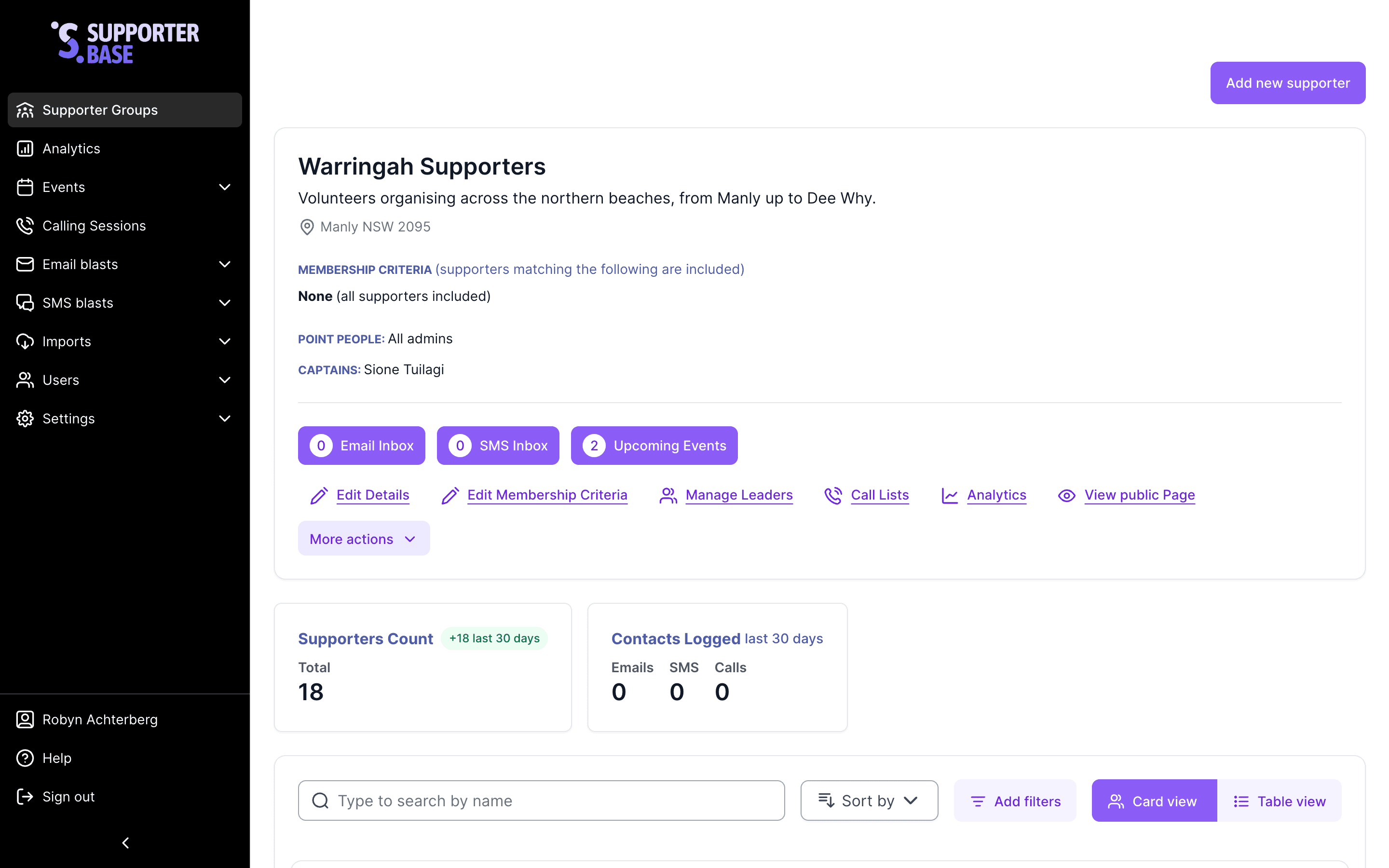
On your group's summary page you can find supporters in several ways:
Search and sort
- Search bar: type any part of a supporter's first, last, or full name. Capitalisation is ignored, but there is no fuzzy matching, so the spelling has to be right.
- Sorting options: at the top of your supporter list, sort by joined at, first name, last name, or last contacted at. The list opens on Joined at (recent first).
Filters
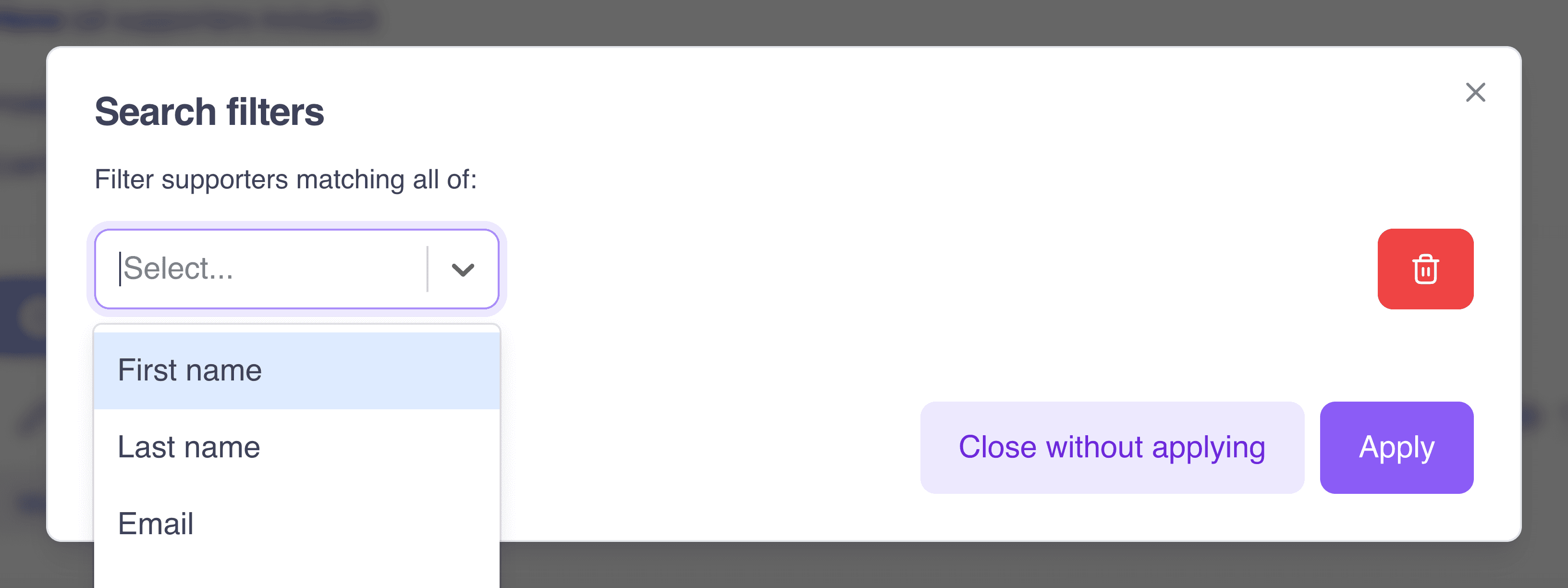
- Filter options: click Add filters, then Add first filter, and pick a property. You can filter on First name, Last name, Email, Mobile number, Phone number, City / Suburb, State / Territory, Postcode / Zip, tags, and Joined at. Each property offers its own comparisons, so an email filter can test whether an address exists at all, while a city filter matches against a list.
- Electoral district filters (Federal District, County District, State Lower District, School District and Supranational District) appear only where your organisation has electoral filtering enabled.
Viewing a detailed supporter profile
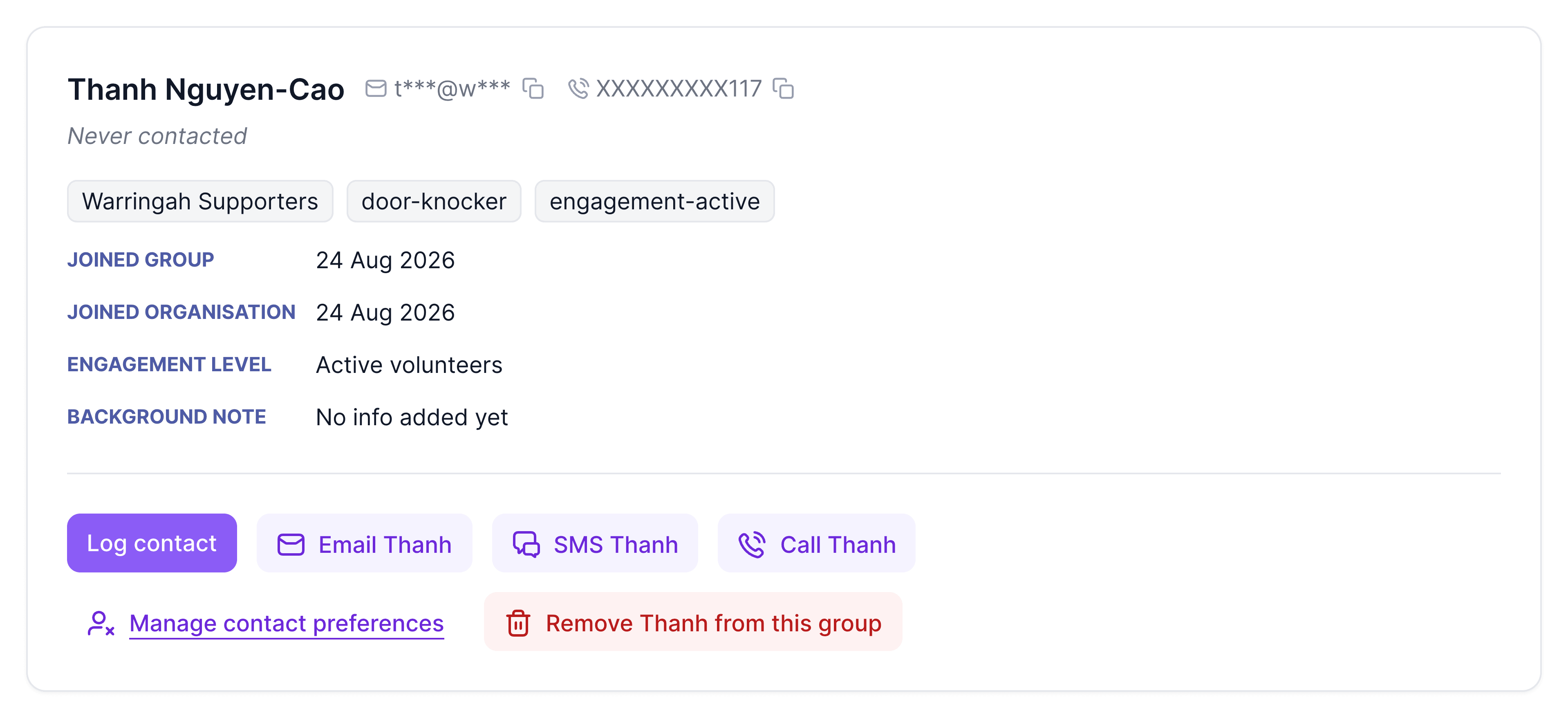
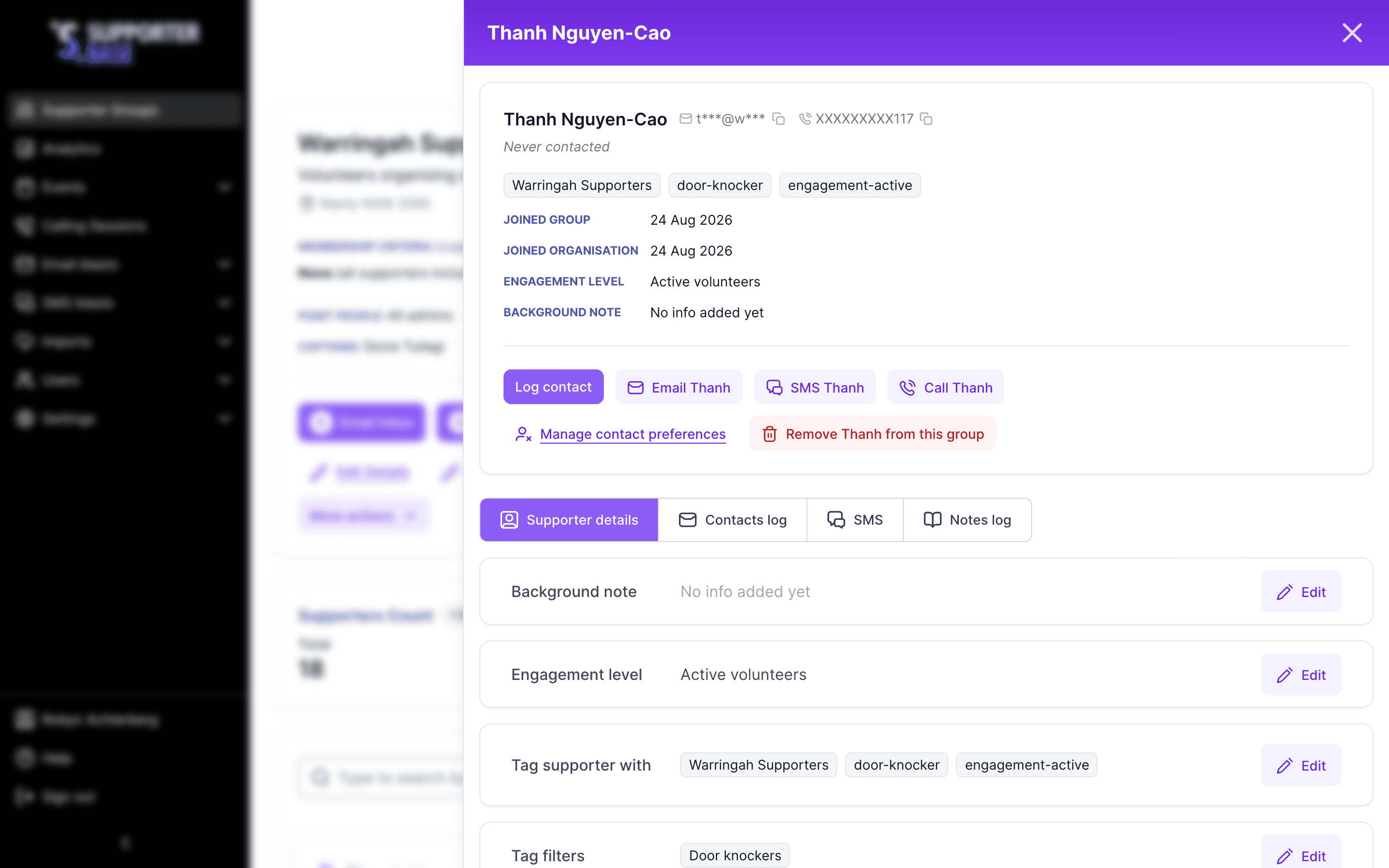
Every supporter has their own profile page, opened from the Open [name]'s profile button at the bottom of their card. Their name at the top of the card opens the same page. The top of the profile shows basic supporter information including engagement level (if applicable).
From this page you can also contact the supporter via the communications buttons, use Manage contact preferences, or remove the supporter from the group.
Profile tabs
Below the contact buttons are the profile tabs:
| Tab | Contents |
|---|---|
| Supporter details | Personal information and tags or tag filters |
| Contacts log | History of communications for the supporter |
| SMS | Every text exchanged with the supporter |
| Notes log | Any notes which have been added to the profile |

The SMS conversation tab
The SMS tab holds every text exchanged with the supporter in one thread, whoever sent it and wherever it was sent from. Bulk sends are included.
- A message that went out as part of a blast is marked Bulk SMS. Hover it to see the audience, either "Sent to members of" a group or "Sent to RSVPs of" an event, and to link through to the blast.
- Long conversations load the most recent messages first. Use Load older messages to work backwards; you'll be told when you reach the start.
- With nothing sent yet, the tab says No SMS yet and explains that messages will appear once you text the supporter or they reply.
It's on calling session pages too
The same SMS tab appears while you're working through a calling session.
Logging contact
Click Log contact in the row of buttons at the bottom of the profile card:
- Select Contact method (Phone call, Email, Text or In person) and Contact status (for example No answer).
- Add a note under Note.
- Record an RSVP to an event, under Event.
Other ways to log contact
Contact can also be logged via call lists, or from within SMS/email threads.
Removing supporters
Sometimes supporters need to be removed from a group (e.g. at their request).
| Role | Action |
|---|---|
| Admins and captains | Click Remove [name] from this group, on the right of the button row at the bottom of the profile card, then confirm. |
| Vice-captains | Click Request removal from this group, in the same place, then confirm. An approval email goes to the group's captains, copied to its point people. |
When removed:
- The supporter remains in your organisation's NationBuilder database.
- Exclusion tags are added so they no longer appear in the SupporterBase group.
- They will no longer be contactable by group leaders.