

Advanced email
Images, links, scheduling behaviour, templates and per-group sender addresses
Once you are comfortable creating 1-1 and blast emails, there are a few extra features and limitations worth knowing about.
Images and links
Adding images
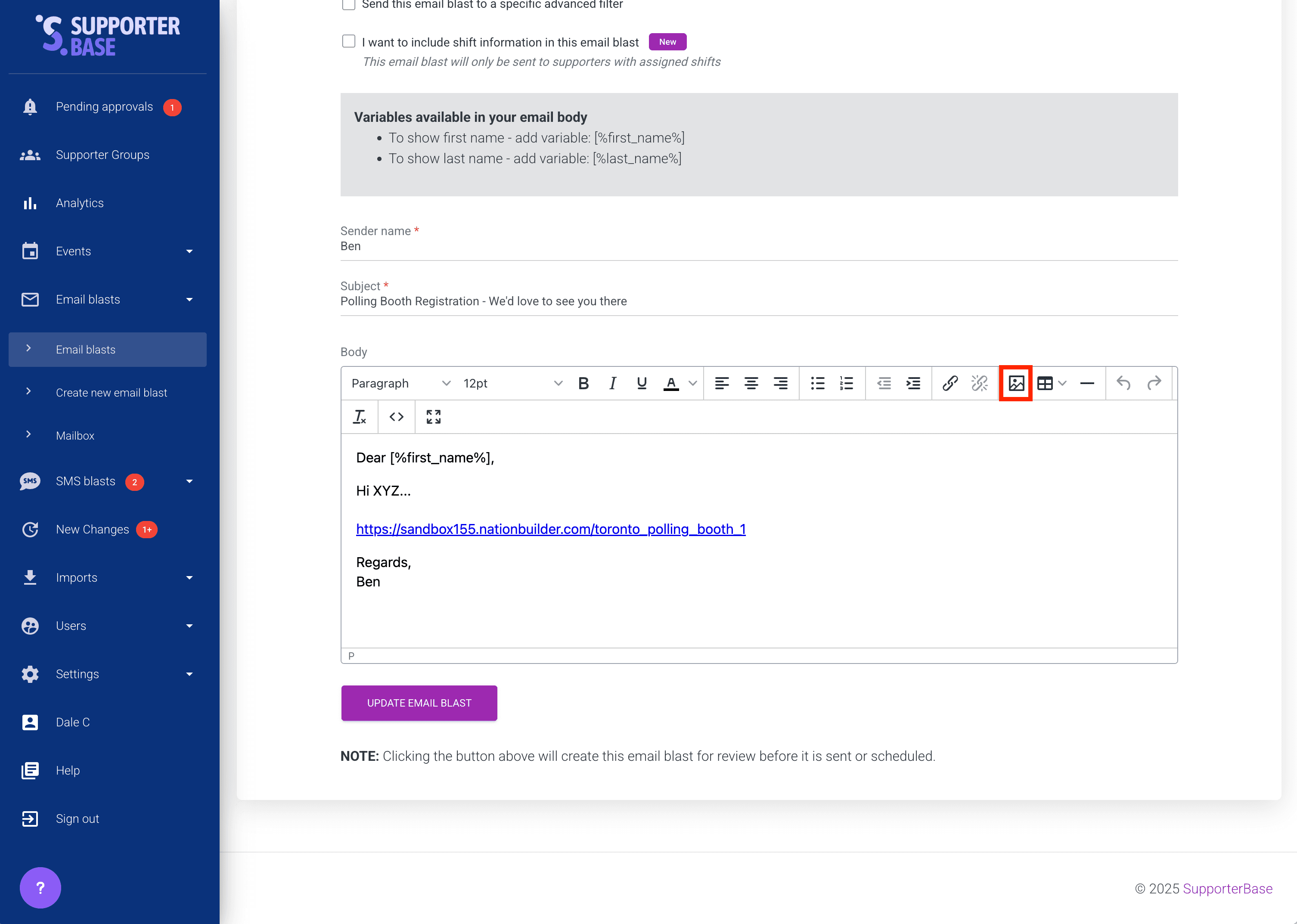
- Click the image icon in the content editor toolbar.
- Click Upload, then browse for a file or drag one onto the dialog.
- Check the General tab. The source URL and dimensions fill in for you once the upload finishes.
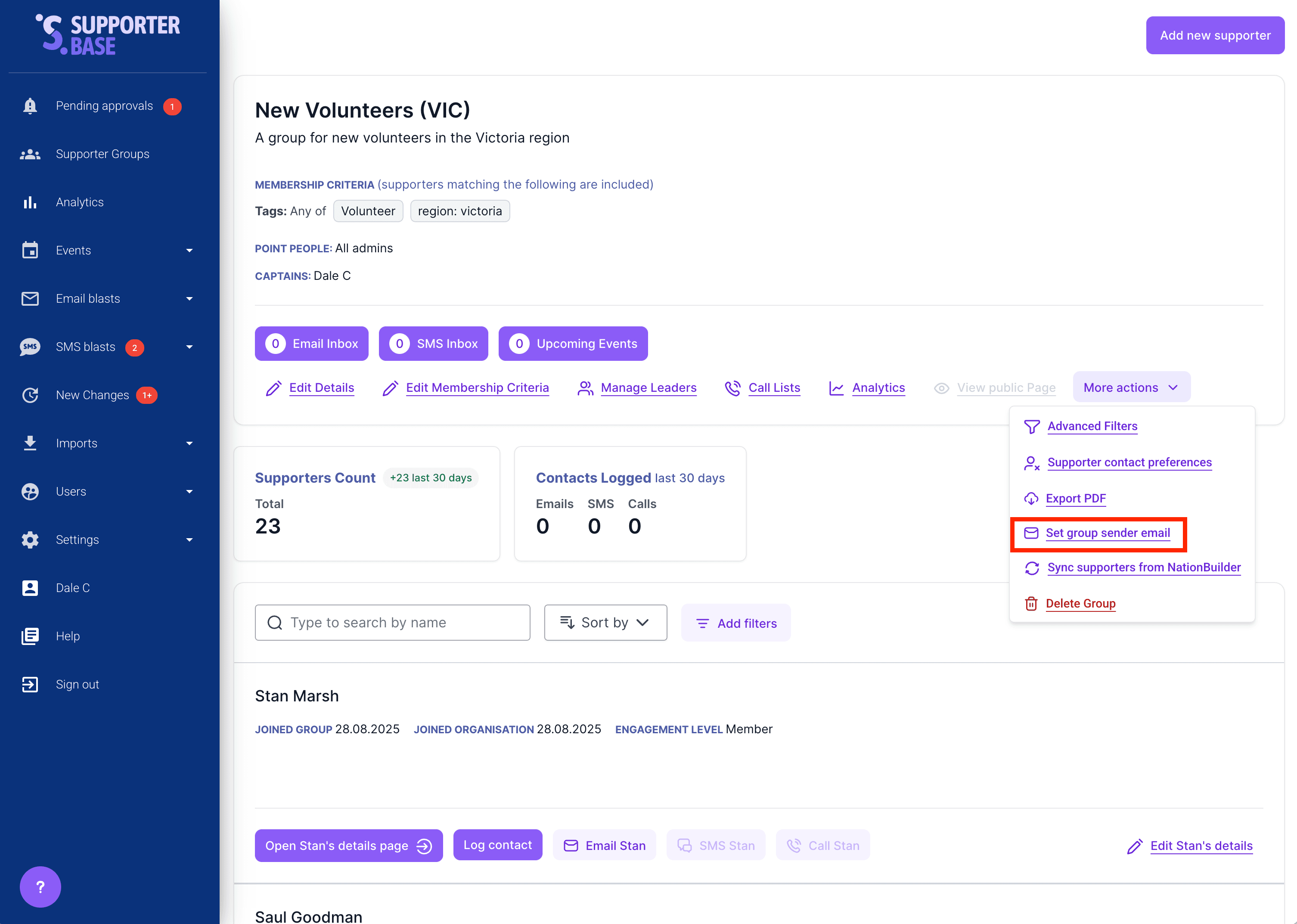
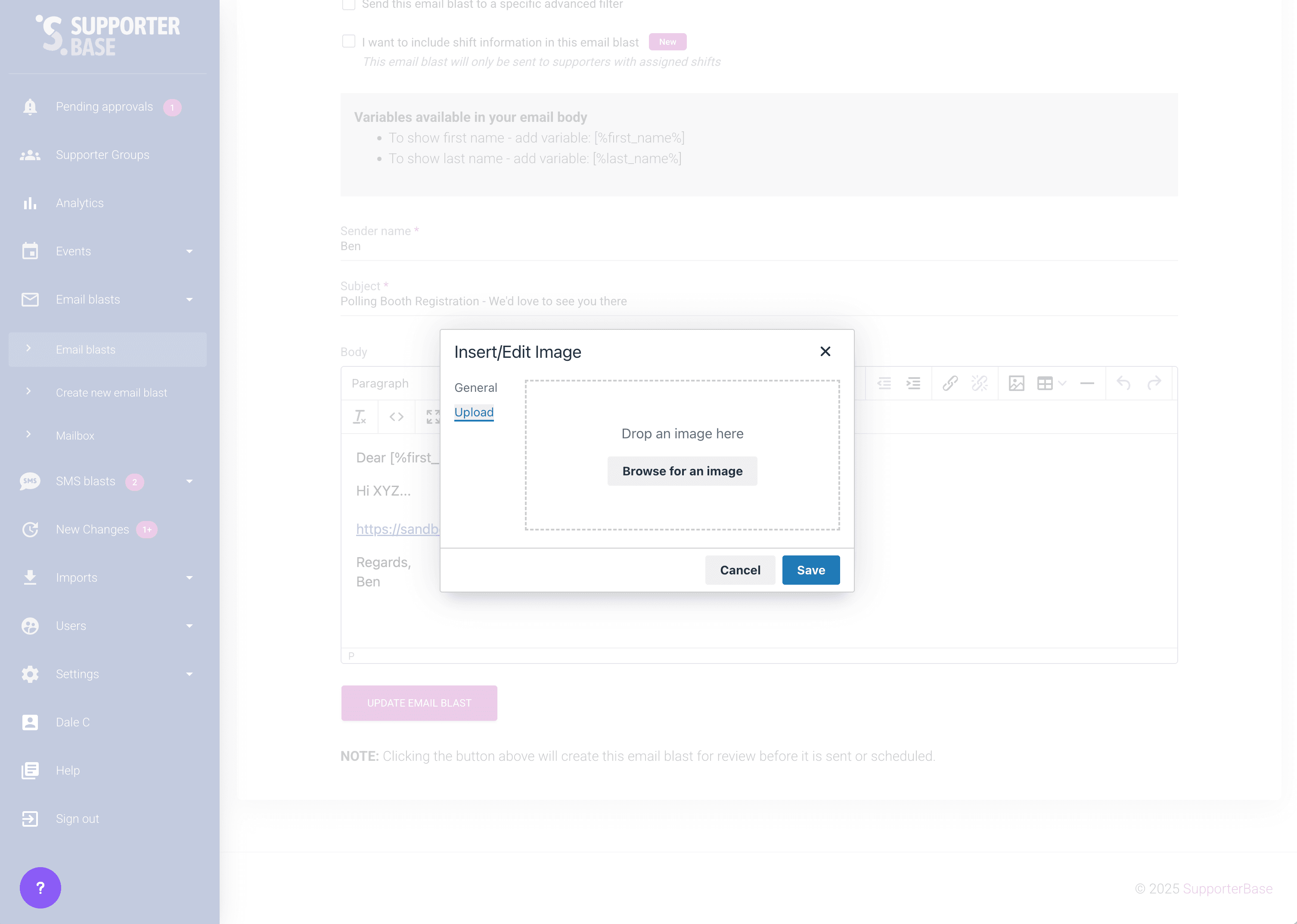
Image tips
- Resize an image before you upload it. The editor will scale a large file down to fit, but the file the recipient downloads is still the original, and mail clients handle oversized images inconsistently.
- A maximum width of 600px is the safe ceiling across browsers and mail clients.
Attachments
SupporterBase does not attach files to bulk email, and neither do NationBuilder, MailChimp or Campaign Monitor. Attachments on a large send are one of the strongest spam signals there is.
Link to the file
- Upload the file to Google Drive, Dropbox or similar, then link to it.
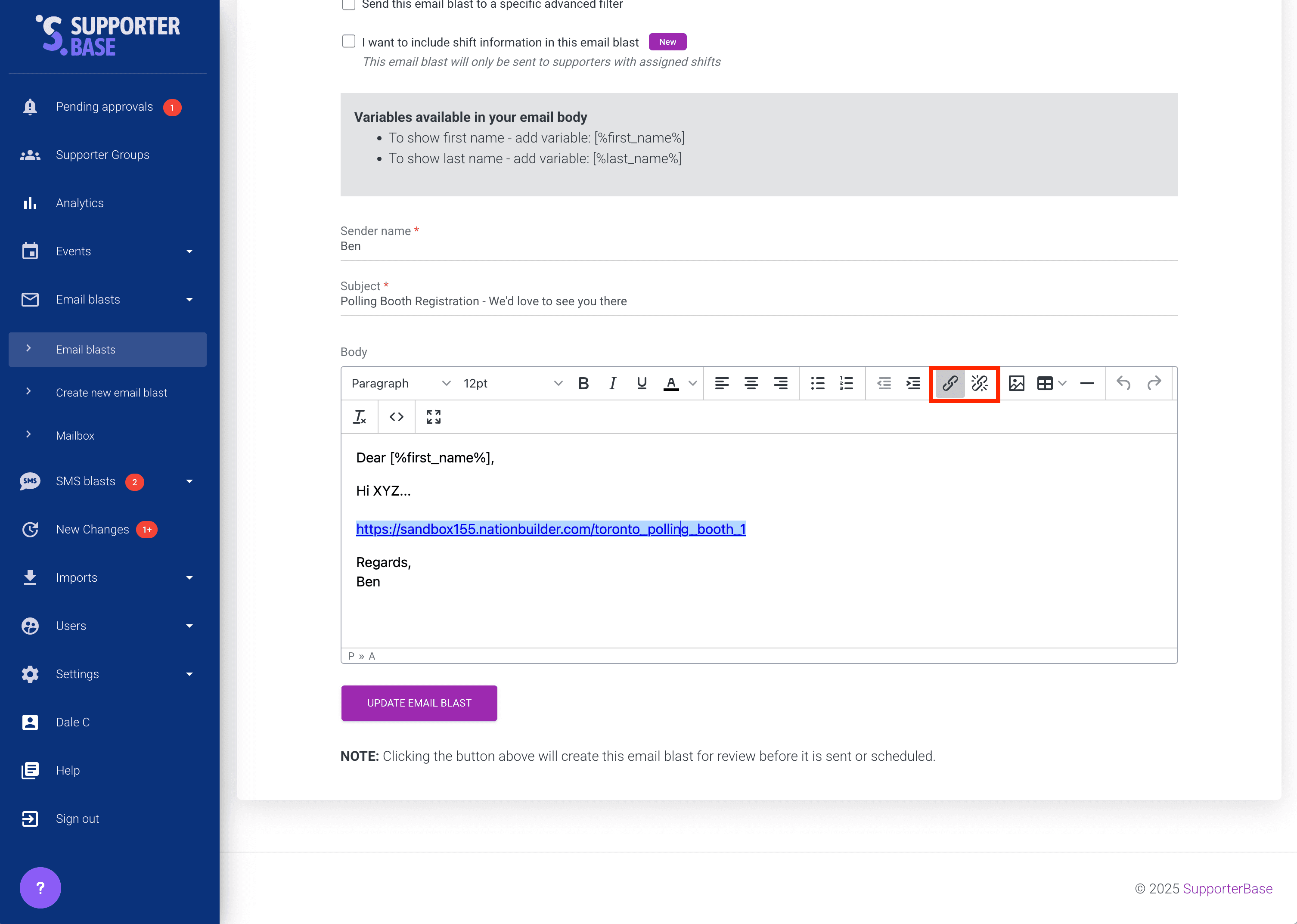
- Select the text you want to link and click the link icon in the toolbar.
- Add an image and link that instead if you want it to read as a button.
Who a scheduled blast actually reaches
Recipients are worked out when the blast sends, not when you schedule it. SendScheduledEmailJob rebuilds the list first, so a blast scheduled on Monday for Friday goes to Friday's audience.
| Blast type | Who it reaches |
|---|---|
| Blasts to event RSVPs | Anyone who RSVPs after you schedule it is still included |
| Blasts to group members | Whoever is in the group at send time |
| Blasts via filters | Whoever matches the filter at send time, re-evaluated just before sending. Editing the filter updates that blast's recipients too, so long as the blast has not sent yet |
Templates
SupporterBase has one email template and it cannot be replaced. The one part you can change is the footer, under Settings > Configurations > Mailers, in Email Footer HTML.
Custom templates are not currently on the roadmap as committed work. If your organisation needs them, tell your SupporterBase contact, or email the support address configured for your instance (support@supporterbase.com unless yours has been changed).
A different sender address per group
Each group can send from its own address, as long as every address sits on the same verified domain: northern-beaches@yourorg.org.au and inner-west@yourorg.org.au, both on yourorg.org.au.
Set a group's sender address
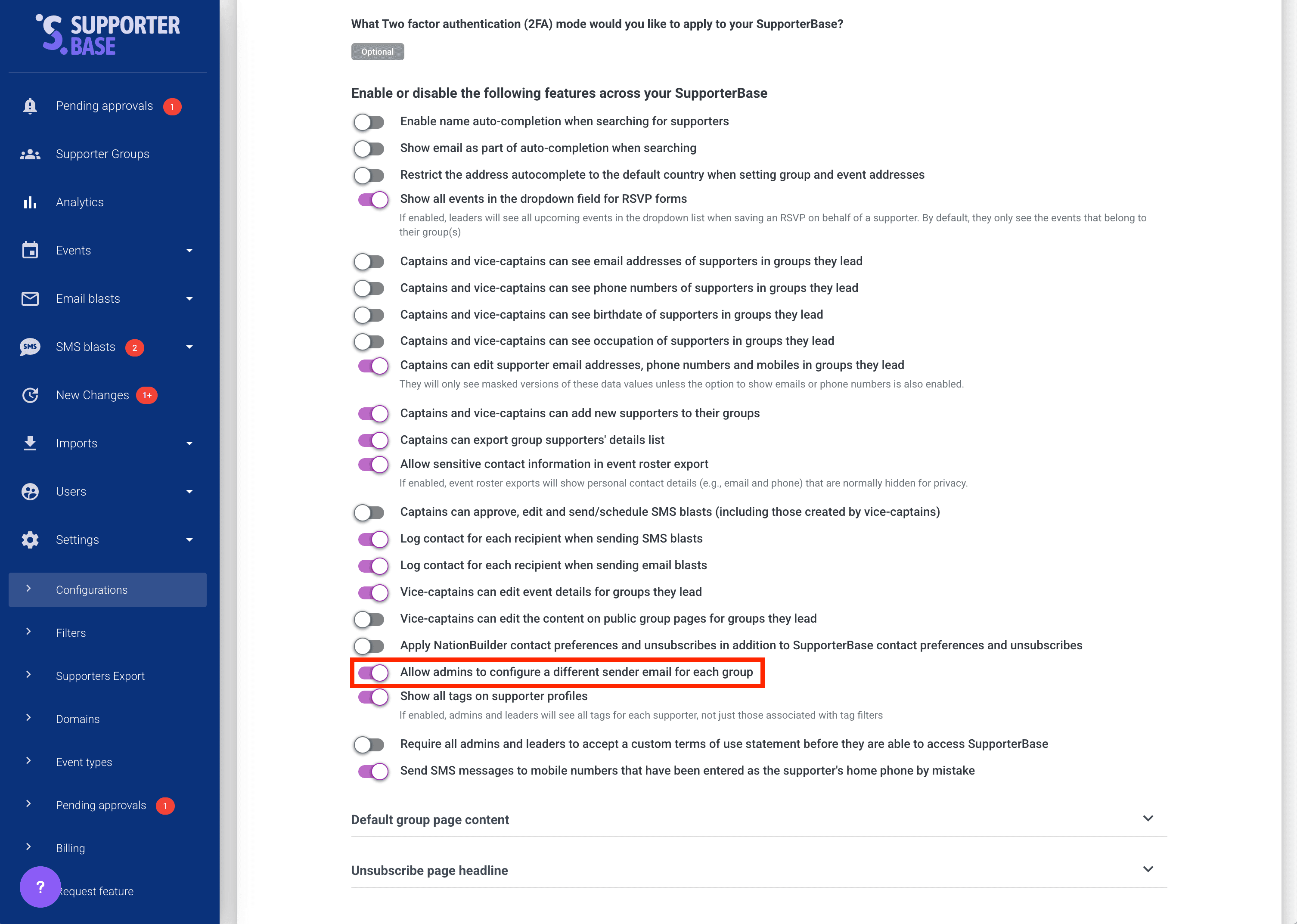
- Turn on Allow admins to configure a different sender email for each group under Settings > Configurations.
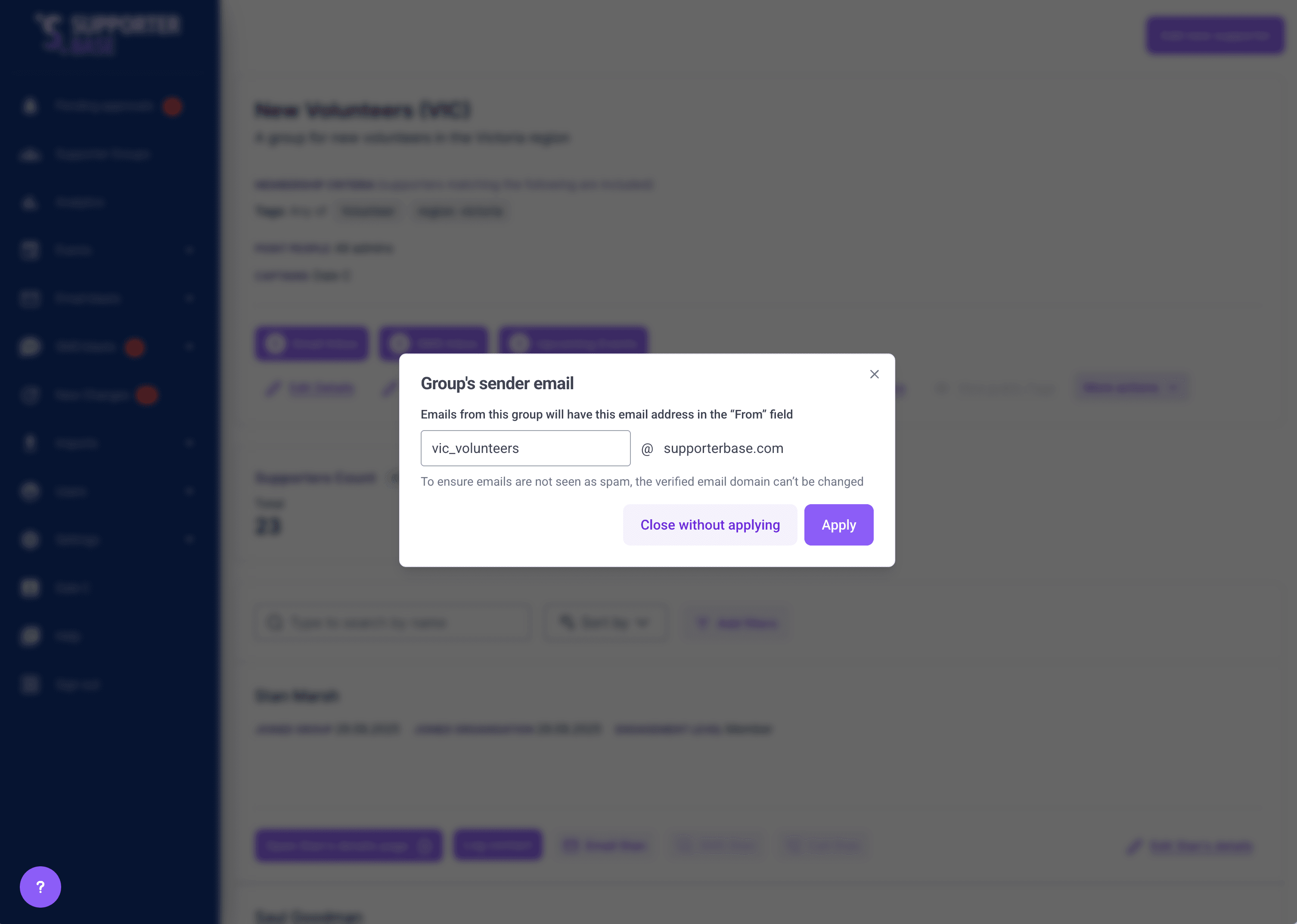
- Open the group and choose More actions > Set group sender email.
- Enter the local part of the address. The domain is fixed to your verified sending domain.
Only admins can set this, and only when the toggle is on. See Domain settings for verifying the domain itself.