

Roster statuses and settings
Every shift status, coverage state and access setting on the roster board
The Roster & shifts board labels every shift with a status, a coverage state and an access setting. To understand how the statuses relate to each other, read How draft and publish work on a roster.
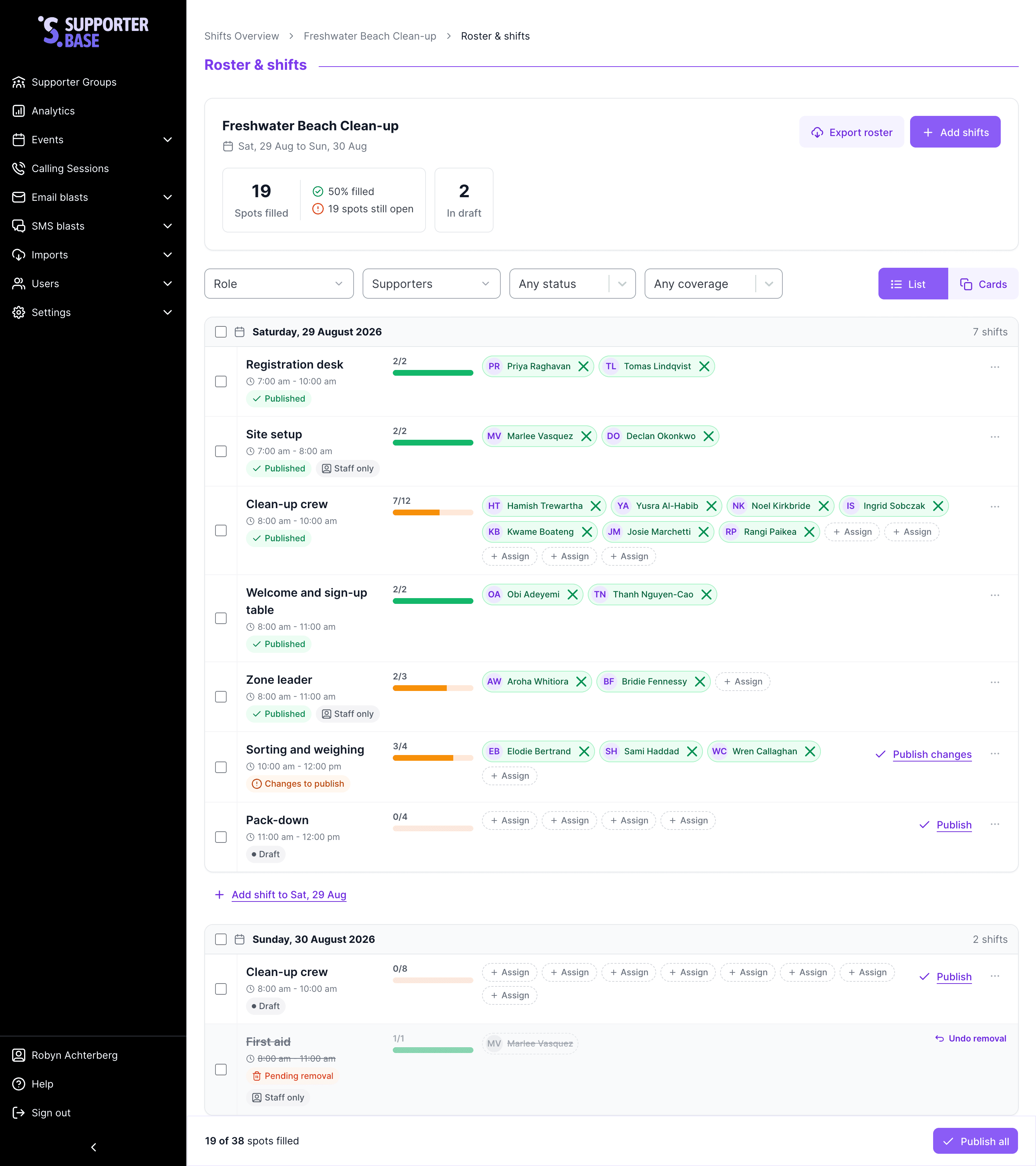
Shift statuses
Every shift on the board carries exactly one of these.
| Status | What it means |
|---|---|
| Draft | The shift has never been published. Volunteers cannot see it, it does not appear on the sign-up form, and it is left out of exports. You can edit, move, duplicate or delete it freely, and nobody is emailed at any point |
| Published | The shift is live. Volunteers can see it, open spots appear on the sign-up form if the shift allows self-signup, and it is included in exports. Anyone assigned to it has been emailed |
| Changes to publish | The shift is published, and you have since edited it. Volunteers still see the last published version, and your edit reaches nobody until you publish again |
| Pending removal | You have removed a published shift, and the removal has not been published yet. Volunteers still see the shift and are still expecting to work it. Nothing is cancelled and nobody is emailed until you publish the removal |
| Removed | A volunteer has been taken off a shift and the removal has not been published. They appear as a dimmed row on the shift, and they are still on the roster your volunteers see |
Undoing an edit or a removal
- Open the change breakdown on the shift to see exactly what differs from the published version. The board tracks changes to Role, Start time, End time, Date, Volunteers and Access, as well as volunteers added or removed.
- Revert all changes, in the shift's actions menu, discards the edit and returns the shift to its published version.
- Undo removal puts back a shift that is pending removal.
- To put a removed volunteer back before you publish, click the back-arrow on their dimmed chip, which shows Restore [name] on hover.
Coverage and access
Coverage
Coverage describes how full a shift is, independently of whether it is published.
| Coverage | What it means |
|---|---|
| Needs people | The shift has at least one empty spot. The board shows the count as spots still open |
| Fully staffed | Every spot on the shift is filled. Nothing further is required |
- The board shows running totals across the whole roster: Spots filled, the percentage filled, and how many spots are still open.
- It also counts how many shifts are In draft.
Access
Set per shift, with the checkbox Let volunteers sign themselves up.
| Setting | Shown on the board as | What it means |
|---|---|---|
| Self-signup on | Anyone can self-select | Once published, empty spots appear on the public sign-up form and volunteers can claim them |
| Self-signup off | Staff only | Volunteers cannot sign up. An organiser assigns every spot |
An empty spot on a staff-only shift stays empty until an organiser assigns someone, and the publish dialog warns you about this case specifically.
What the publish dialog tells volunteers
When you publish, affected volunteers are grouped by what is happening to them.
| Group | The volunteer is emailed |
|---|---|
| Added to a shift | They have been rostered on, with role, date and time |
| Shift details changed | Something about a shift they are on has changed |
| Shift cancelled | A shift they were on is no longer happening |
- Publishing that would cancel somebody's shift requires you to tick an acknowledgement first.
- If a change reaches nobody, the dialog says Nobody gets an email and explains that it only updates your roster board.
Board layout
The board can be displayed as a List or as Cards, using the layout control in the header. On small screens it uses cards and hides the toggle. Both show the same shifts and the same statuses.