

Review roster coverage
Find the gaps on your roster and act on several shifts at once
Find the shifts that still need volunteers, without opening every one.
Reading the summary
The board header carries running totals for the whole roster:
- Spots filled, and the percentage filled
- How many spots are still open
- How many shifts are In draft
Spots still open is your recruiting load, and In draft is the part of the roster volunteers still can't see.
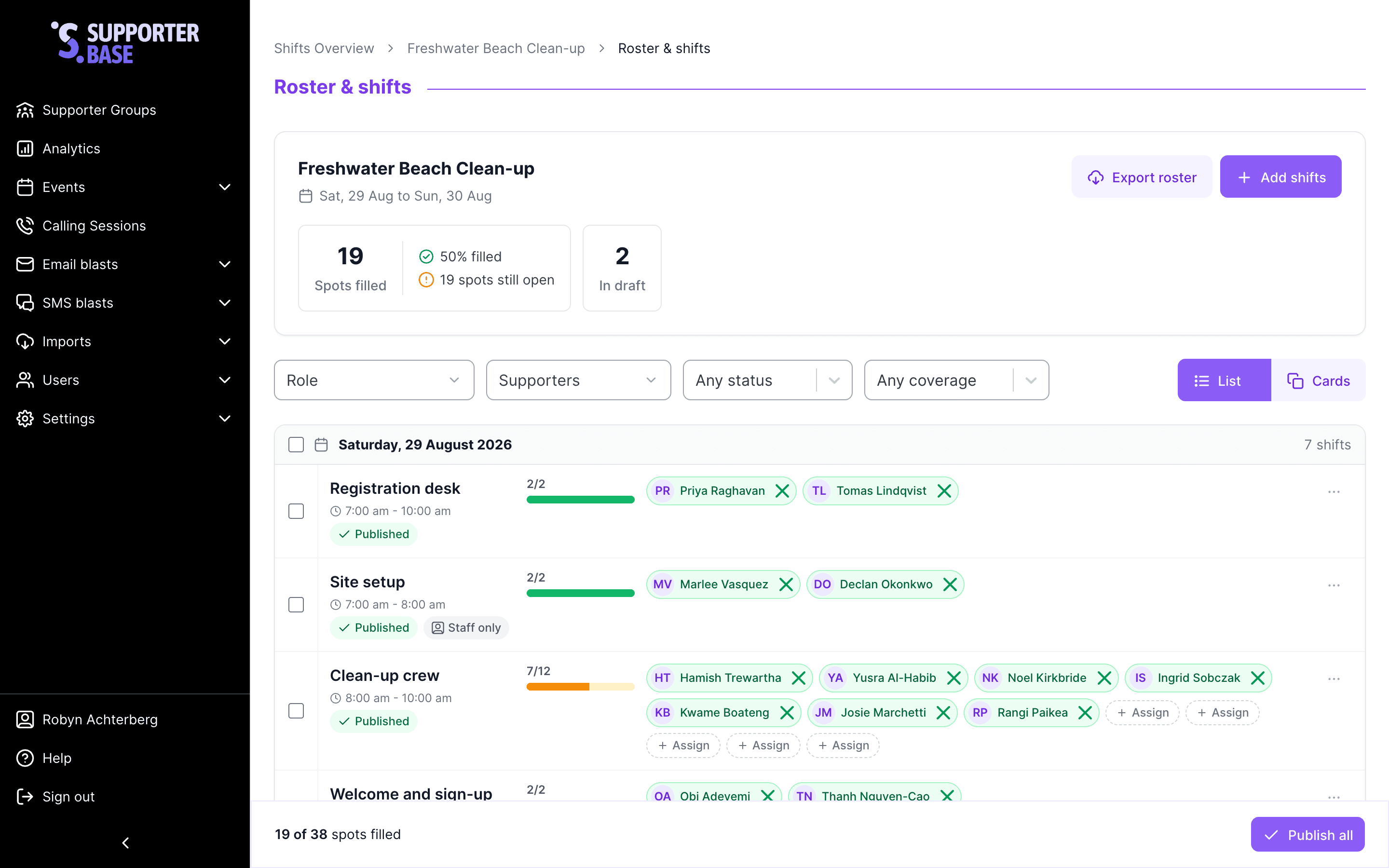
Filtering the board
Choose a filter
The filter toolbar sits above the board.
| Filter | Use it to find |
|---|---|
| Role | Every shift for one role, across all days |
| Supporters | The shifts a particular person is on |
| Status | Draft or Published shifts |
| Coverage | Shifts that Needs people, or ones that are Fully staffed |
Read the active filter chips
Filters stack, and the active ones appear as chips above the board.
Clear what you no longer need
Click a chip to remove that filter, or click Clear filters to drop them all.
Two filters worth checking before the day
Coverage: Needs people gives you your recruiting list, and Status: Draft gives you everything volunteers still can't see.
When a combination matches nothing
The board says so and suggests removing a filter.
Seeing what changed since you published
A shift marked Changes to publish carries a change breakdown, which opens on hover and pins open if you click it.
It lists what differs from the published version, with the total number of changes in its header:
- Role, Start time, End time and Date
- Volunteers, plus anyone added or removed
- Access
Check it before publishing a roster several people have been editing.
Acting on several shifts at once
Select the shifts
Tick the checkbox on each shift, or tick a day's checkbox to take every shift on that day. A bar appears showing how many are selected, with:
- Publish — publish just the selected shifts
- Delete — delete them
- Clear selection — start again
Check what a bulk delete will do
Bulk delete tells you what you're about to do before it happens, including how many volunteers would be unassigned, and reminds you that nobody is emailed until you publish.
Selecting a whole day and publishing it is the normal way to work through a multi-day roster as each day settles.
Switching the layout
The header has a Board layout control offering List or Cards, and both show the same shifts and statuses.
List
Denser, and better for scanning a long roster.
Cards
Easier to read at a glance, and what the board uses on small screens, where the toggle is hidden.