Manage volunteer leaders
View, invite, and manage admins, captains, and vice-captains in your SupporterBase
Leaders in SupporterBase are admins, captains and vice-captains. Viewing them, inviting new ones and removing them are all admin-only actions.
Leader roles at a glance
| Role | Scope | Can invite new leaders? |
|---|---|---|
| Admin | Manage the entire SupporterBase | Yes, including new admins |
| Captain | Lead individual groups | No |
| Vice-captain | Support group leadership | No |
Inviting leaders is an admin-only action. Captains and vice-captains cannot invite one, and cannot propose one for approval.
Viewing admins
Check what the list shows
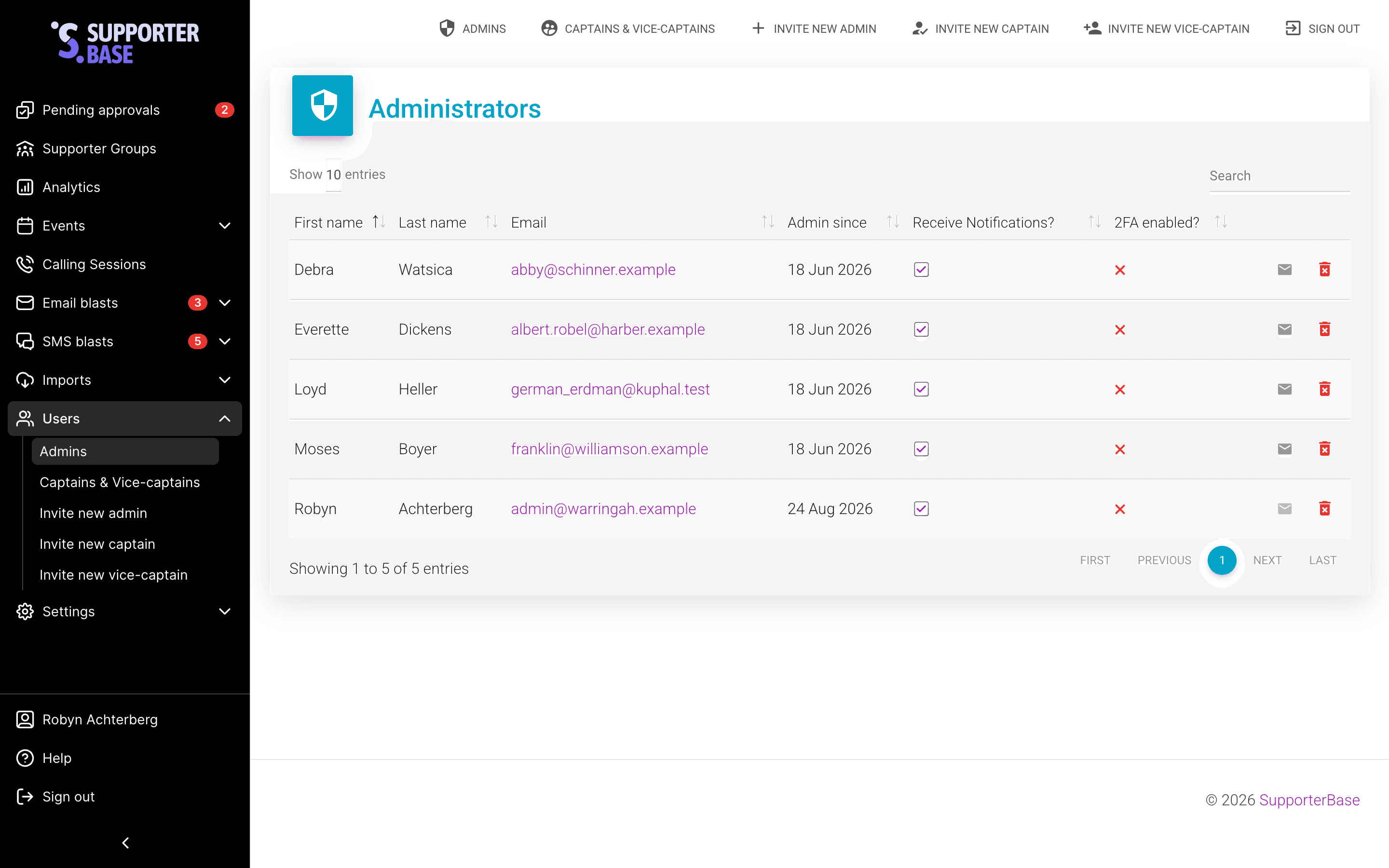
You will see a list of all admins, including full name, email address, and notification preferences (toggle via checkbox).
Remove an admin
To remove an admin, click the red rubbish icon.
Inviting new admins
Admin-only action
Only existing admins can invite new admins.
Open the invite form
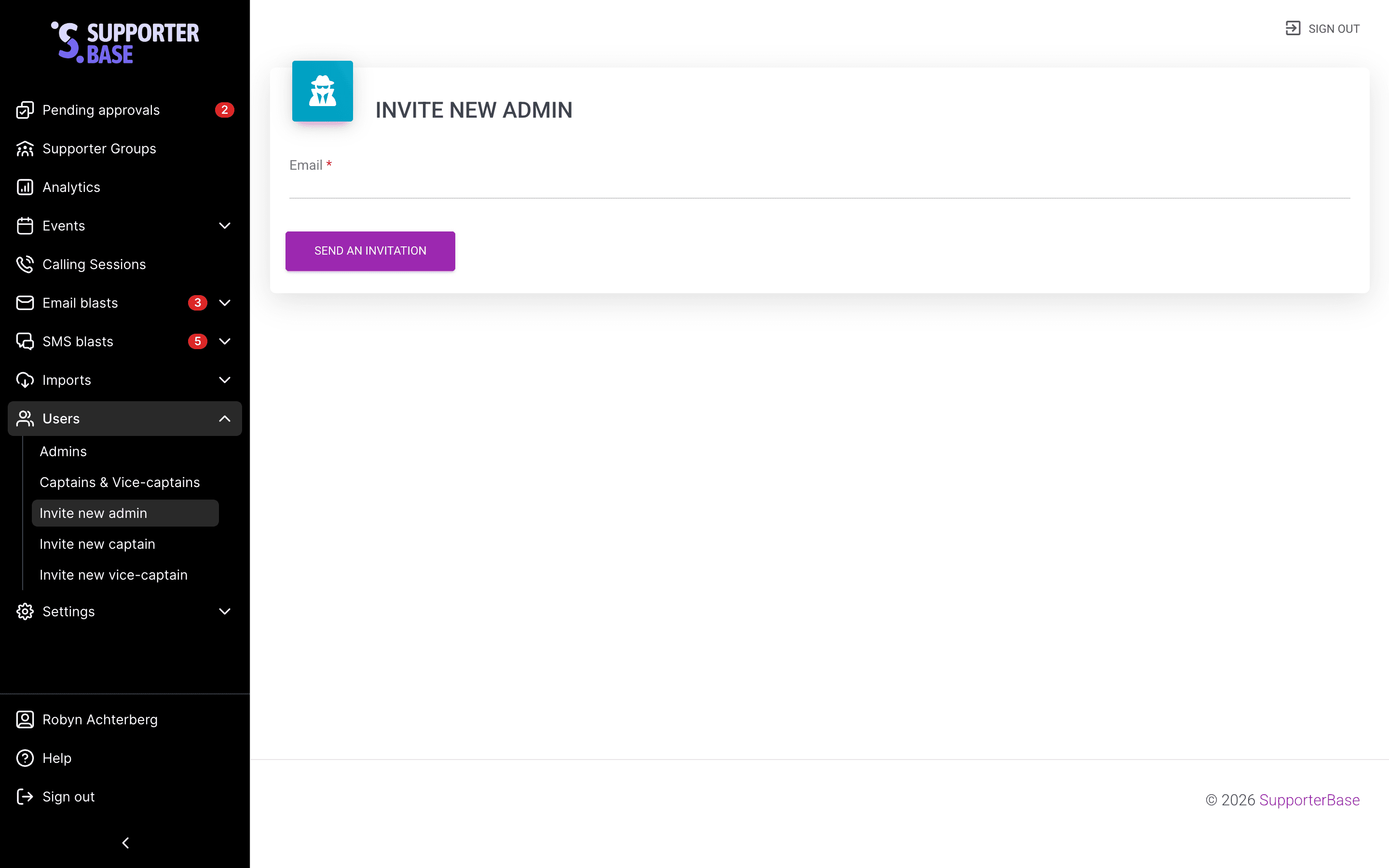
Navigate to Users > Invite new admin (or via the top navigation).
Enter the email address and send it
Enter the new admin's email address and click Send an invitation. The new admin will receive an email invite to create an account and log in.
Viewing captains and vice-captains
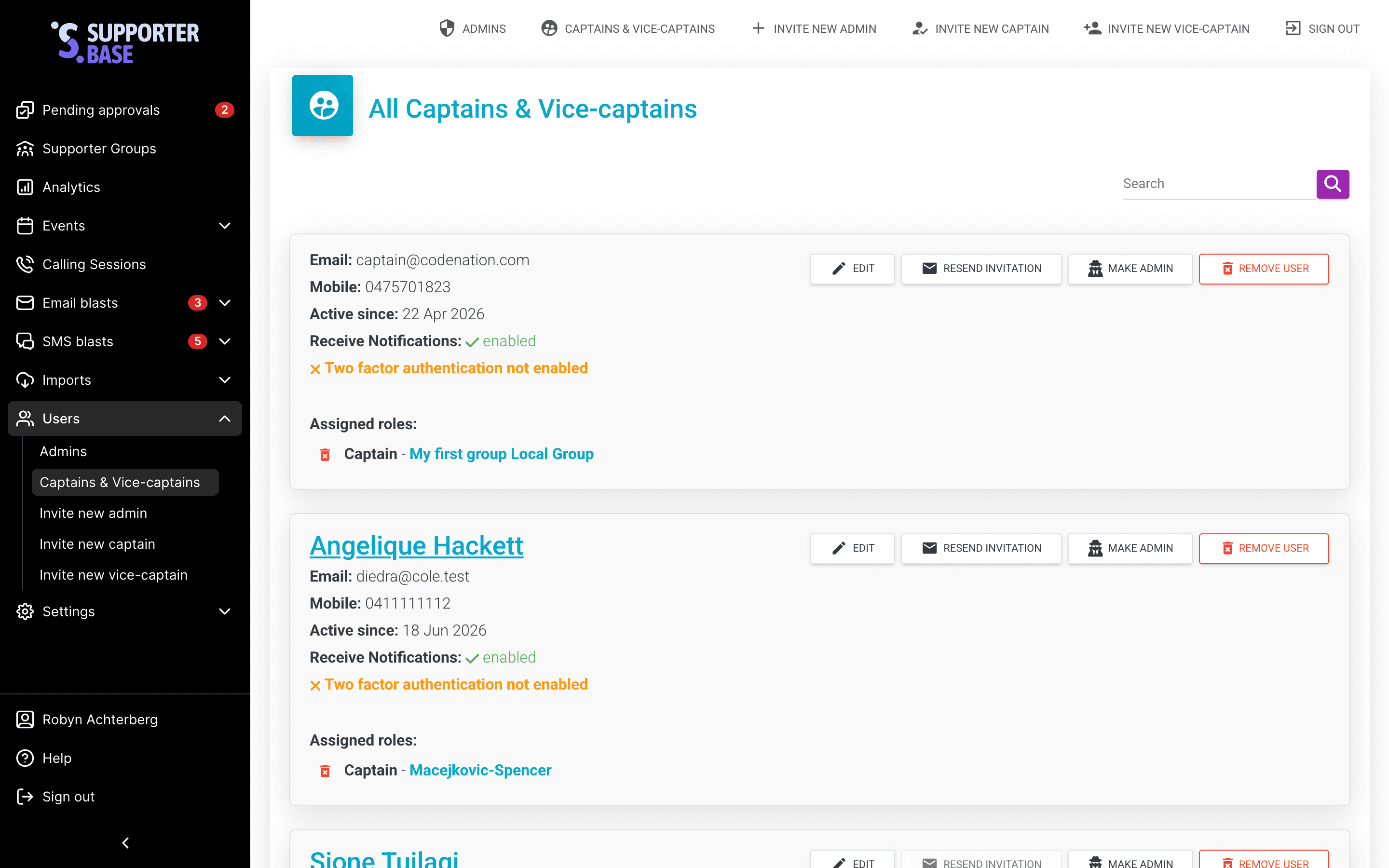
Admins go to Users > Captains & vice-captains for a full list with name, email, role and groups. Each row offers Edit, Resend invitation, Make admin and Remove user.
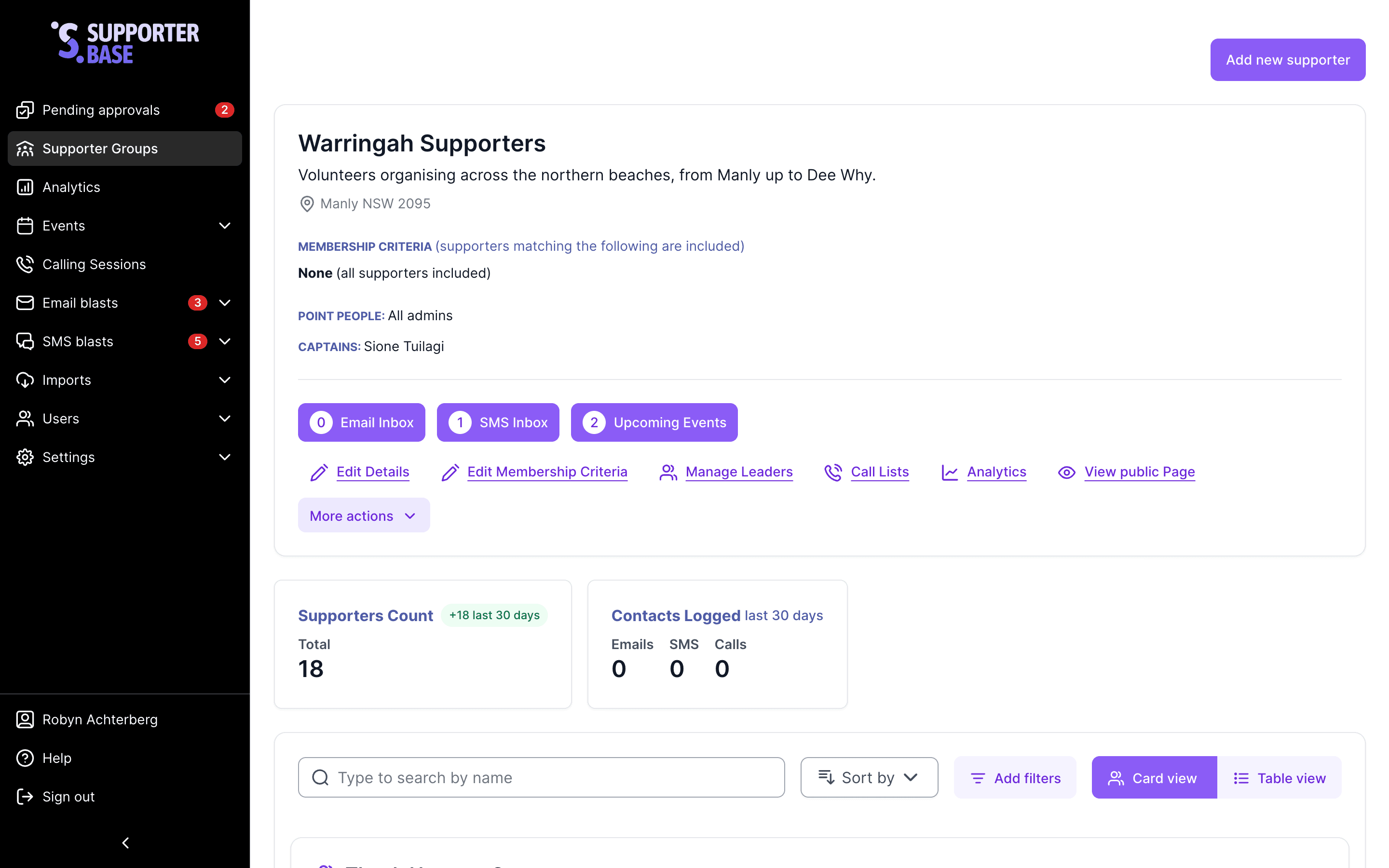
Captains and vice-captains have no equivalent list. Their group page shows a Captains and Vice-captains line naming the group's leaders, without roles or email addresses.
Inviting new captains and vice-captains
Admins can do this from two places. The new leader is invited straight away, there is no approval step, and Manage leaders does not appear for captains or vice-captains.
From the Users menu
- Go to Users > Invite new captain or Invite new vice-captain.
- Enter the new leader's email address.
- Select the supporter group they should lead.
- Click Send an invitation.
From the group itself
- Open the group and click Manage leaders.
- Click Add new leader.
- Enter the email address and select captain or vice-captain.
- Click Send invitations.
Resending invitations
If an invitation email is lost:
- Navigate to Users > Admins or Users > Captains & vice-captains.
- Locate the person (or search).
- Click the mail icon to resend the invitation. It is only active for people who have never signed in.