Use filtering tools
Master levels of engagement, tag filters, and advanced filters to segment your supporters
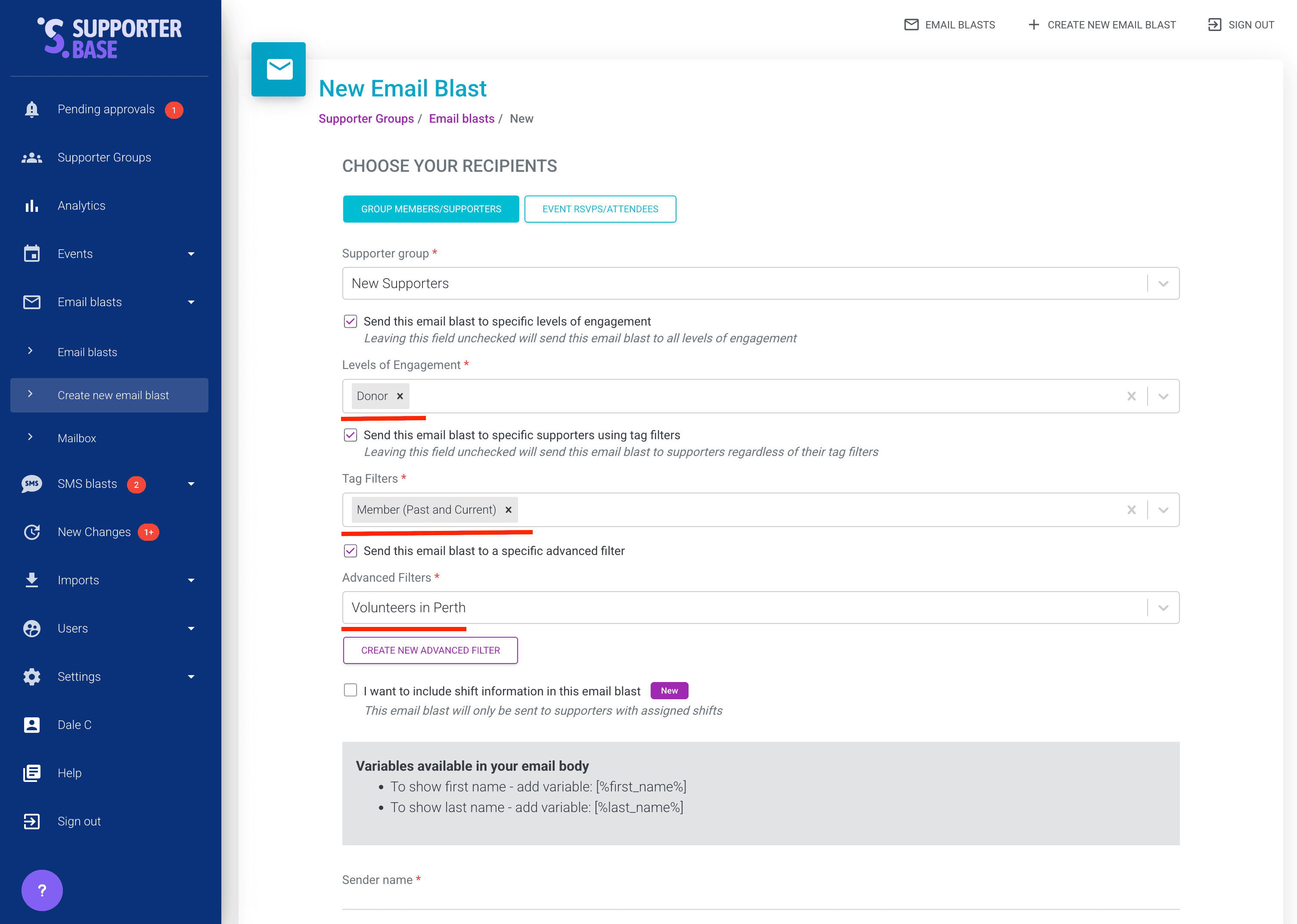
SupporterBase has three filtering systems: levels of engagement, tag filters, and advanced filters. Each serves a different purpose for segmenting your supporters.
Filtering cheat sheet
| Filtering system | Exclusive or non-exclusive? | Who can manage them | Best used for | Key notes |
|---|---|---|---|---|
| Levels of engagement | Exclusive: each supporter can only have one level | Admins create/edit; Captains update supporters' levels | Segmenting by overall supporter commitment (e.g. "Core volunteer" vs. "Occasional supporter") | Hierarchy ensures supporters only appear at their highest matching level |
| Tag filters | Non-exclusive: supporters can match multiple | Admins create/edit; Captains can apply to supporters | Segmenting by interests, actions, or group membership | Can mirror NationBuilder tags, but do not have to |
| Advanced filters | Custom logic-based (AND/OR across fields) | Admins (all groups); Captains/Vice-captains (their groups) | Targeting specific subsets (e.g. "joined after date X and lives in Y suburb") | Saved per group; can be copied to all groups by admins |
Levels of engagement
Levels of engagement reflect how committed a supporter is, from highly active to less involved. They are exclusive, meaning a supporter can only appear in one level at a time.
- Use them to create clear audience segments for blasts and call lists.
- Admins define and edit levels at Settings > Filters.
- Captains can update which level an individual supporter is in.
- Reorder levels by dragging in the hierarchy.
- Only the highest level applied is shown on a supporter's profile; others are removed automatically.
Tag filters
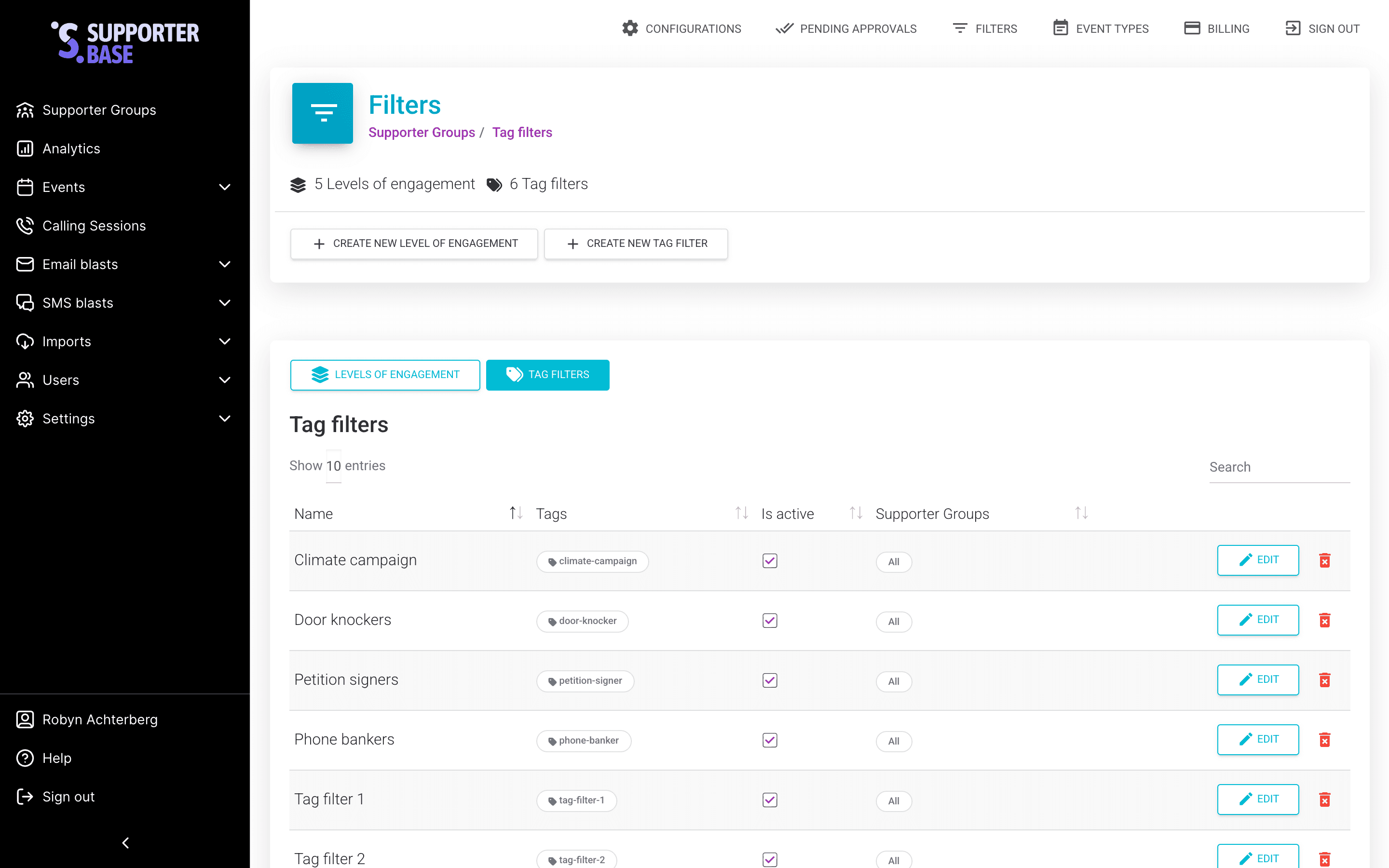
Tag filters group supporters based on tags, similar to NationBuilder but more flexible. They are non-exclusive, so supporters can belong to multiple tag filters.
- Use them to filter by interest, action, or affiliation (e.g. "Climate campaign", "Petition signer").
- Admins create and edit tag filters at Settings > Filters > Tag filters.
- Tag filters can be linked to NationBuilder tags or set up independently.
- The sync process runs hourly, so group membership updates with a slight delay.
Advanced filters
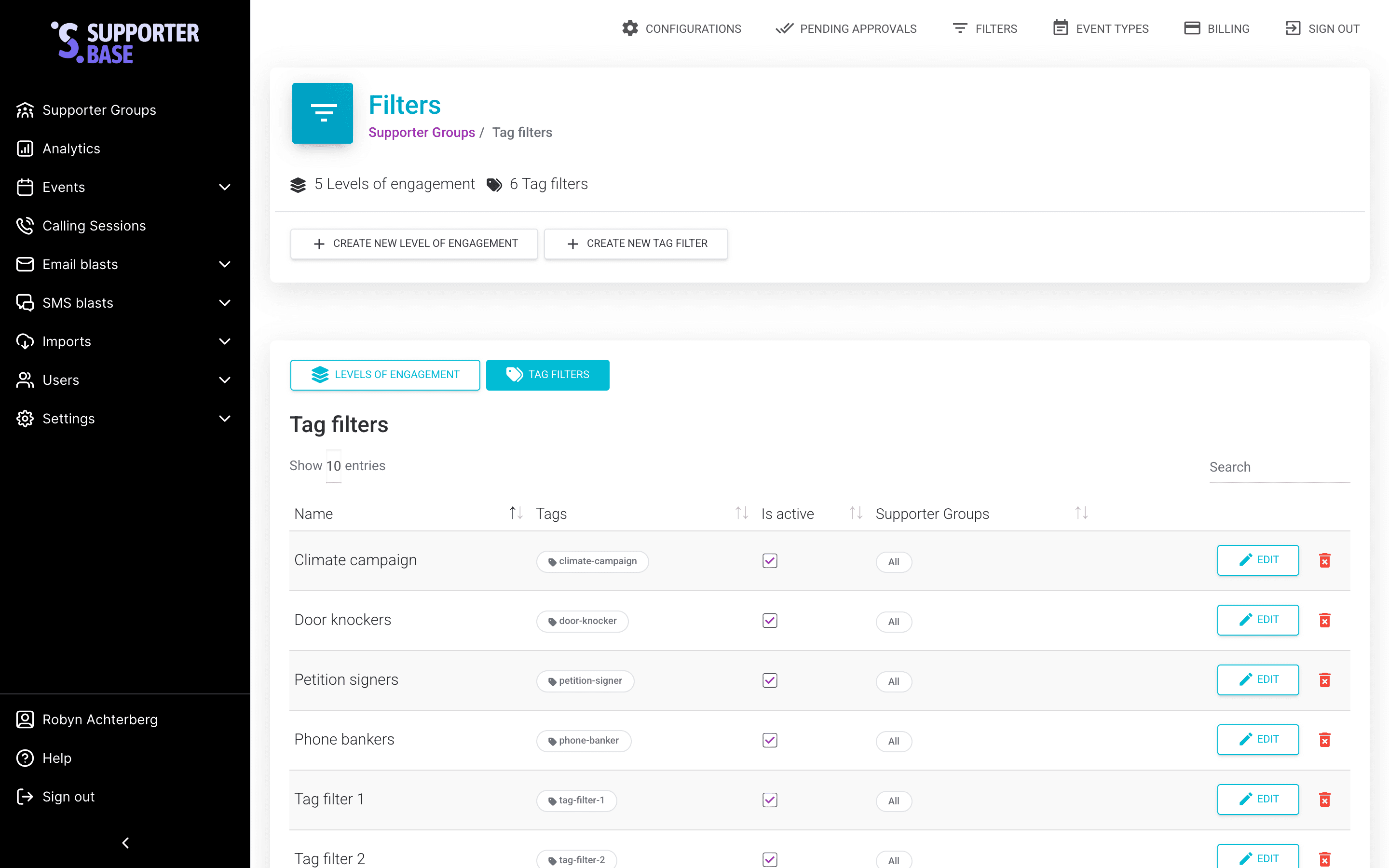
Advanced filters let you build custom, logic-based filters across supporter data. For example: "People who live in 'Region A' AND joined after Jan 1st, 2024."
| Role | Permissions |
|---|---|
| Admins | Create, edit, clone, and delete across all groups |
| Captains | Create, edit, and delete for their groups |
| Vice-captains | Create and edit, but not delete |
| All leaders | Use existing advanced filters when targeting communications |
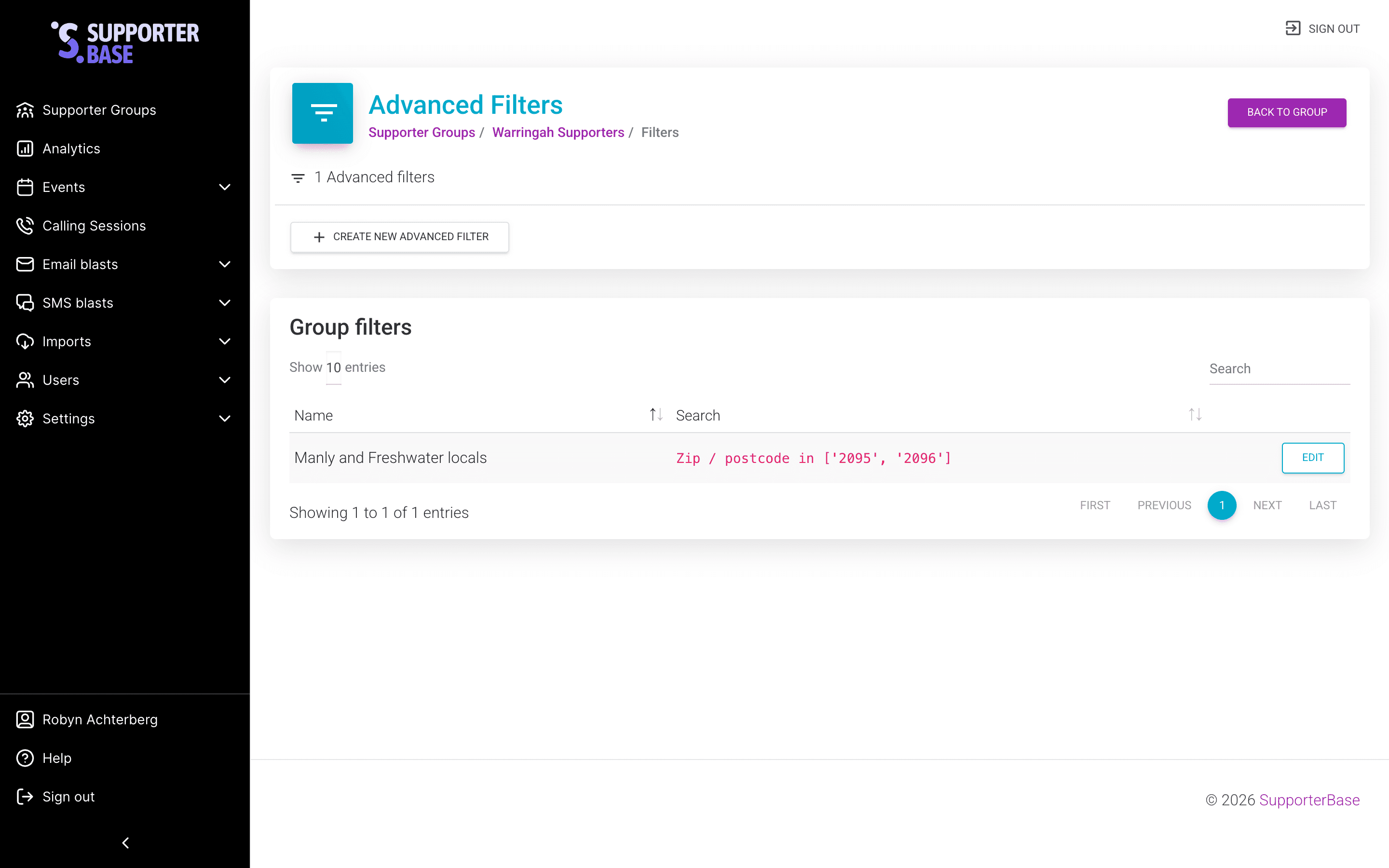
Creating an advanced filter
Navigate to your group
Go to Supporter groups > [Your Supporter Group].
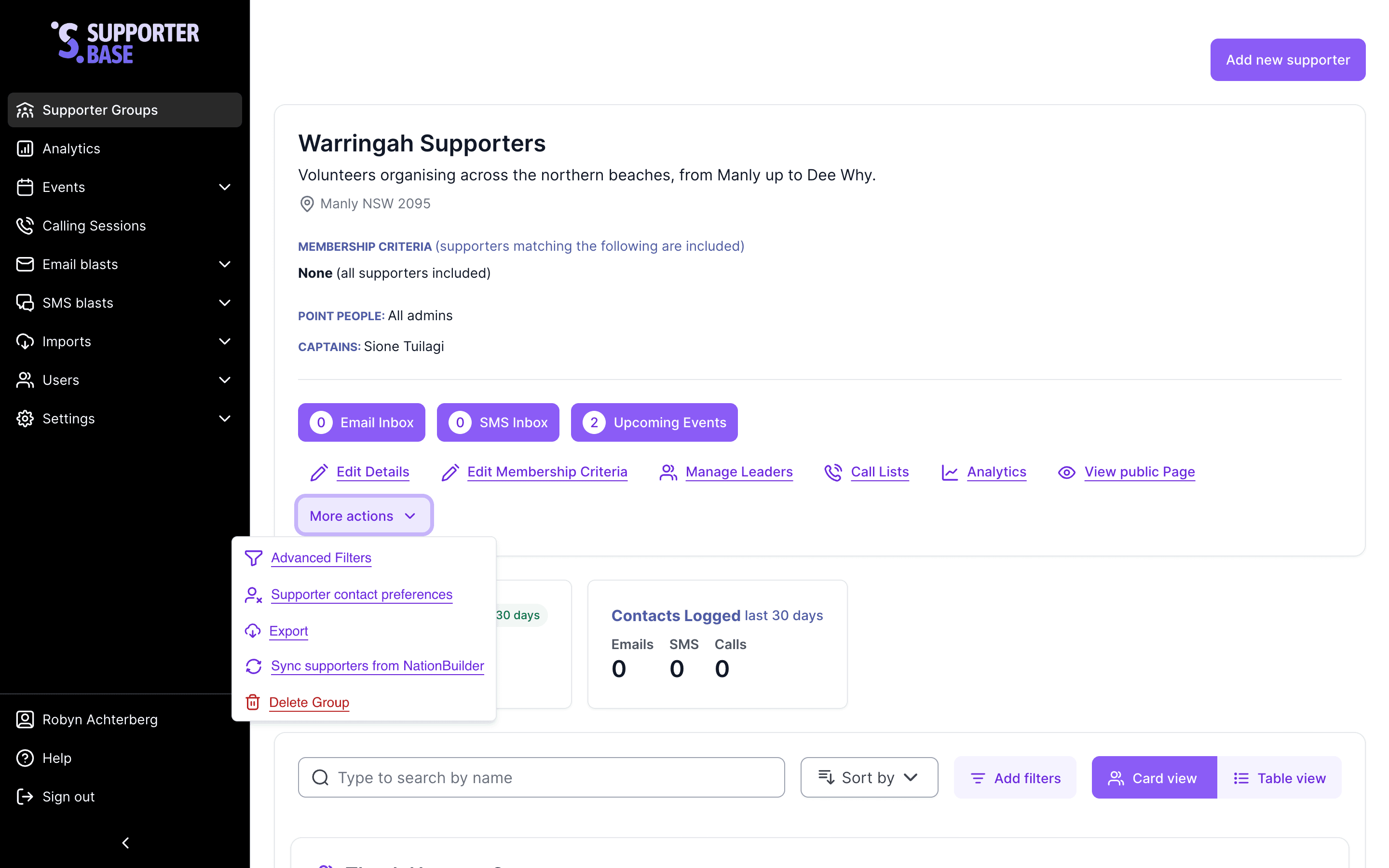
Create a new filter
Click Create new advanced filter. Enter a name and description.
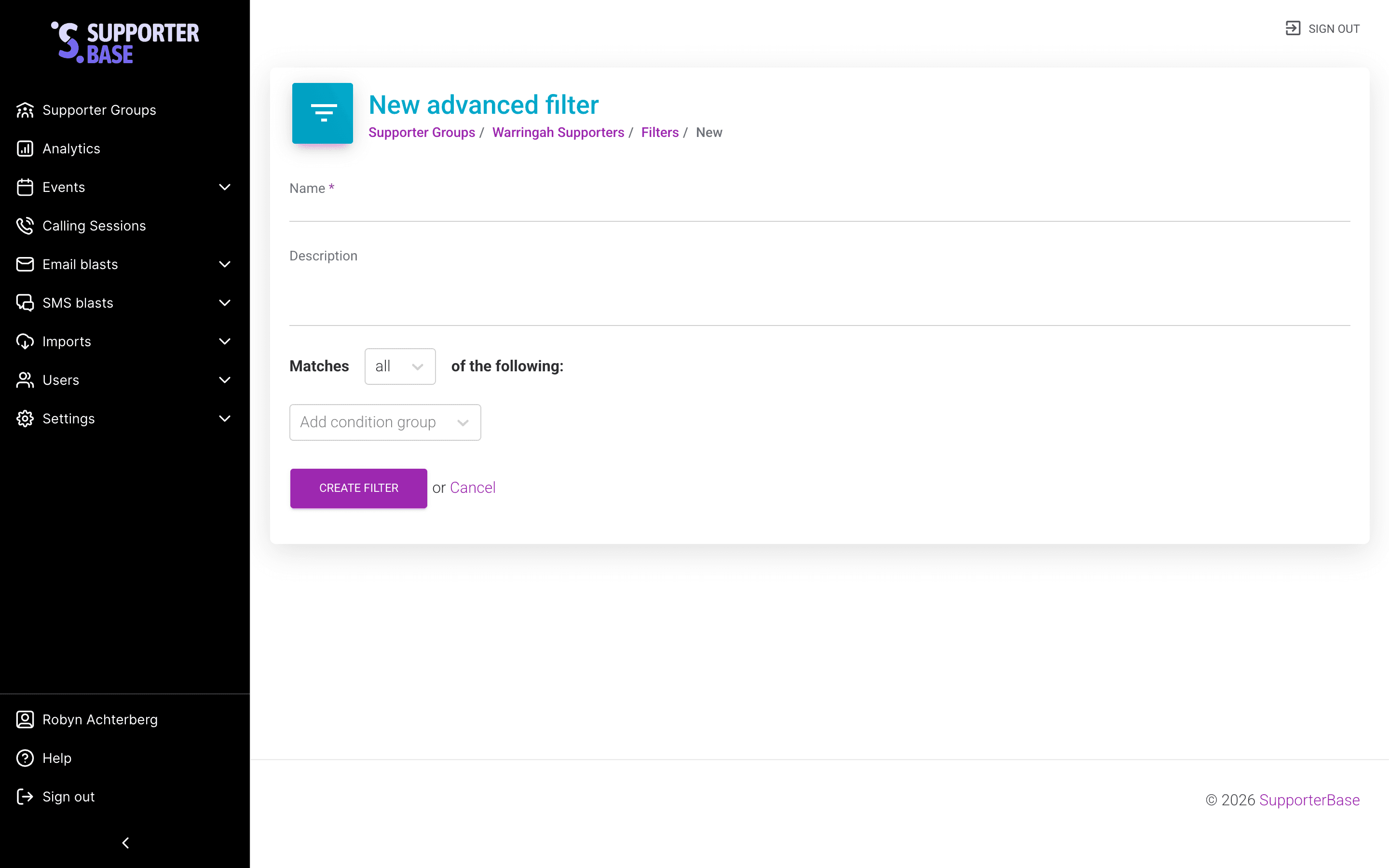
Save
Click Create filter.
Editing an advanced filter
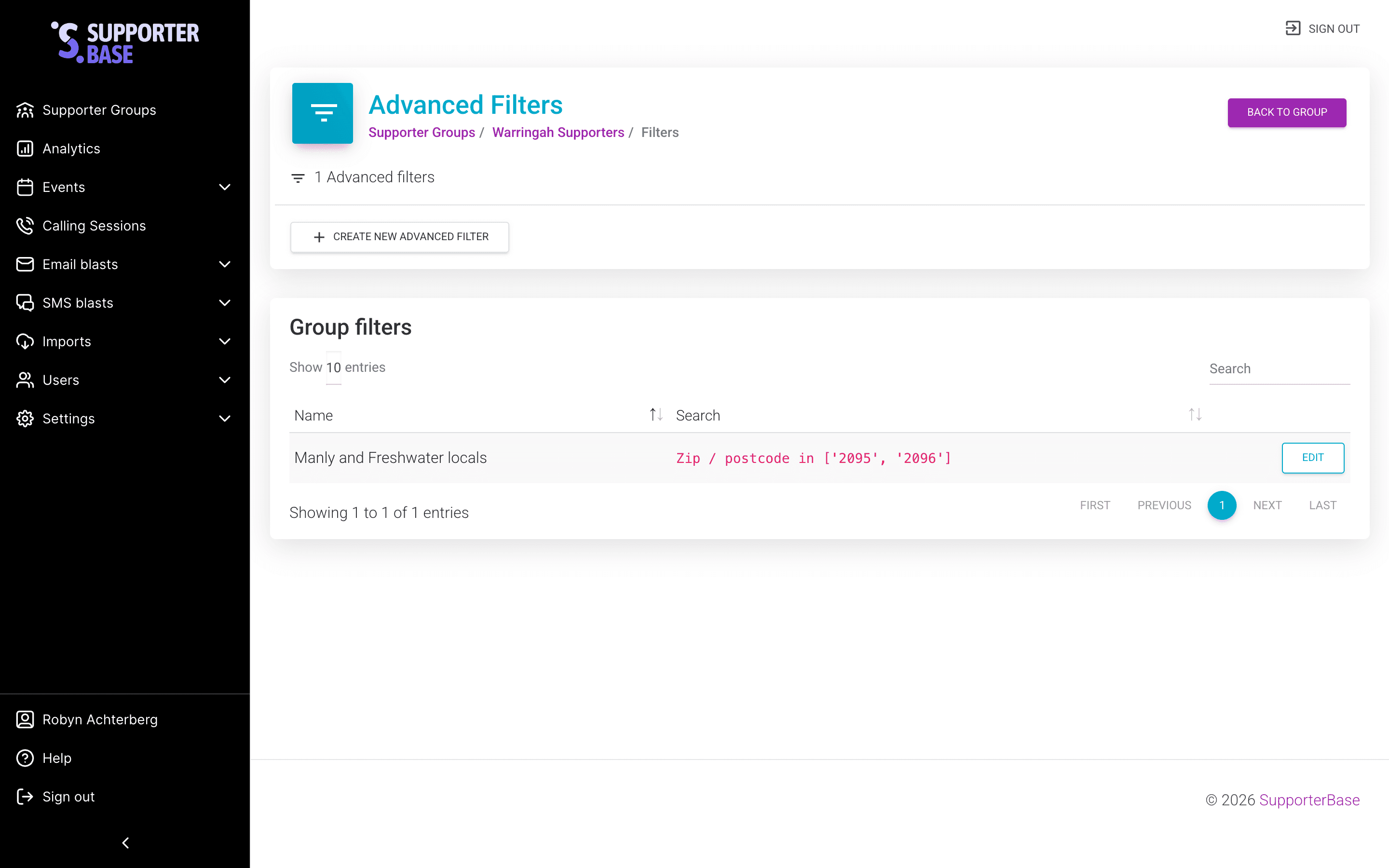
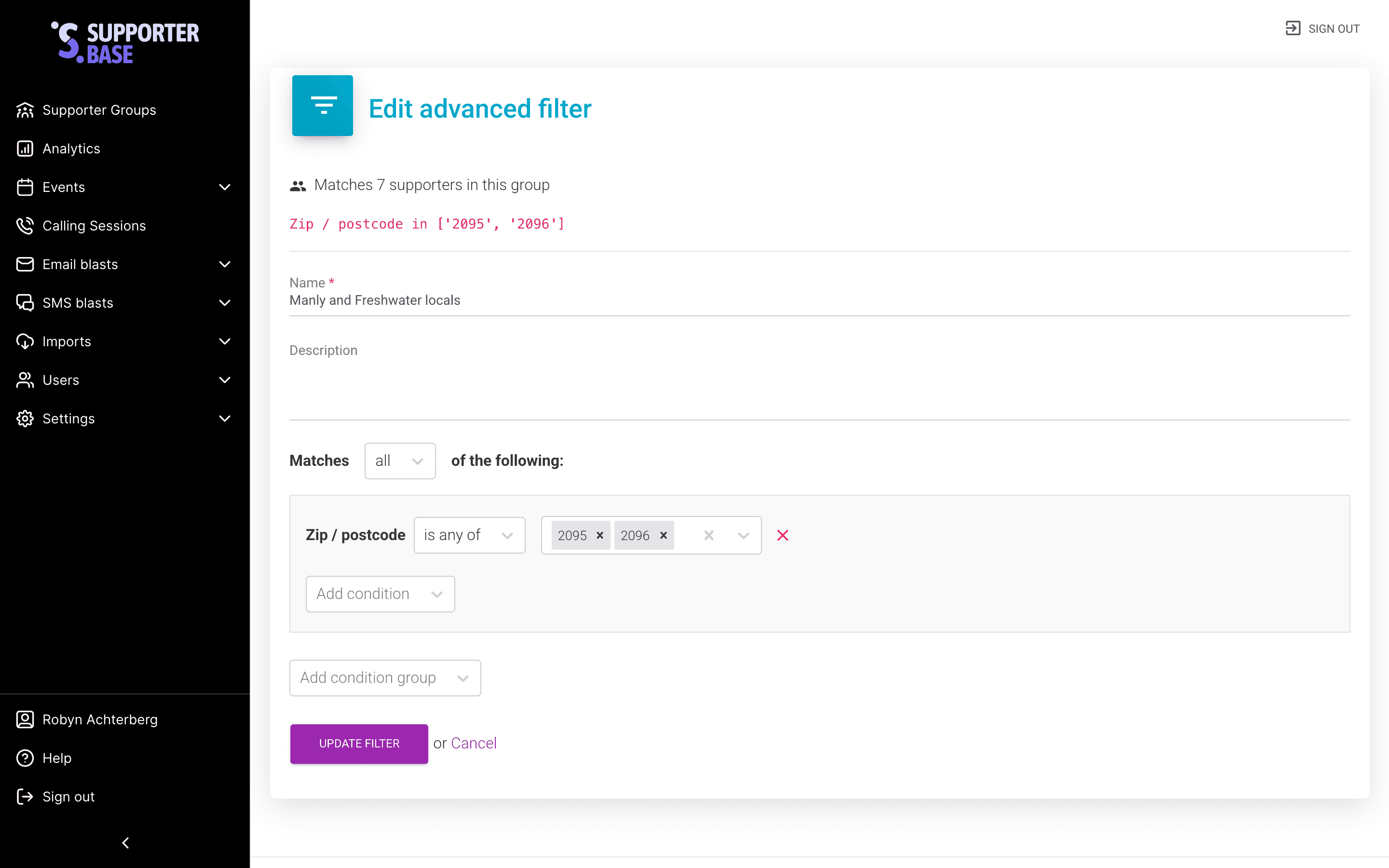
Change the logic
Make your changes.
Save
Click Update filter.
Make it available in all groups
Click Copy this filter to all groups to make it accessible across your whole SupporterBase.
Scheduled blast restriction
Filters cannot be edited if they are tied to a scheduled blast.
Using advanced filters in blasts
When creating an email or SMS blast, you can target by levels of engagement, tag filters, and advanced filters. If you select more than one type, the blast will only go to supporters who meet all criteria.