Set up and use two-factor authentication (2FA)
Enable two-factor authentication and secure your SupporterBase account
Two-factor authentication (2FA) adds an extra layer of security to your SupporterBase account. When enabled, logging in requires both your email and password, plus a one-time code (sent by SMS, generated in an authenticator app, or scanned via QR code). Someone who has your password still cannot reach your account without your one-time code.
Enabling 2FA for all users (admin)
As an admin, you can require 2FA for every user in your SupporterBase.
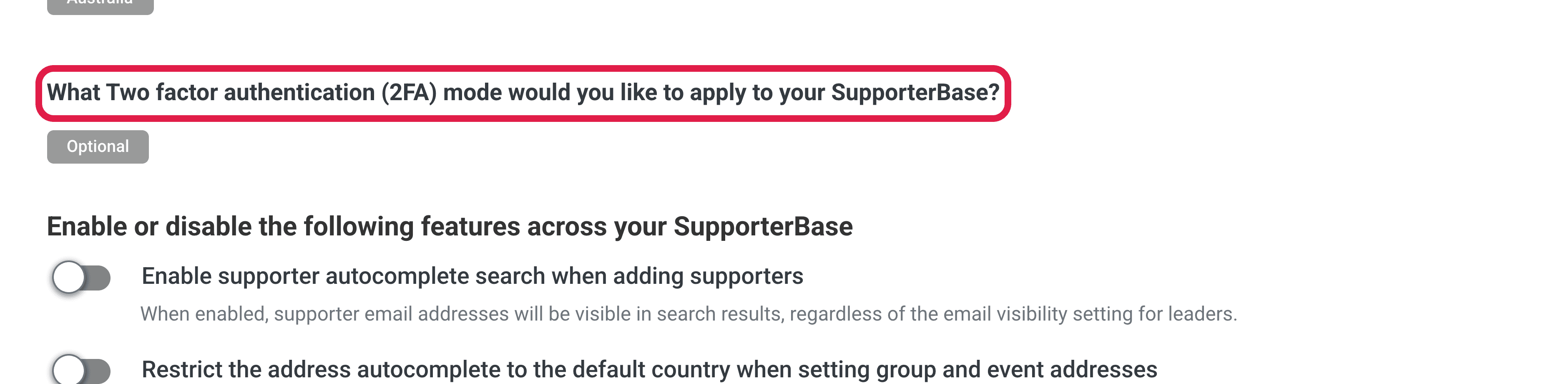
- Navigate to Settings > Configurations.
- For the setting "What Two factor authentication (2FA) mode would you like to apply to your SupporterBase?", select Required from the dropdown.
- All users will now need to set up 2FA when they create their accounts or the next time they log in.
Enabling 2FA for your own account
Open your account page
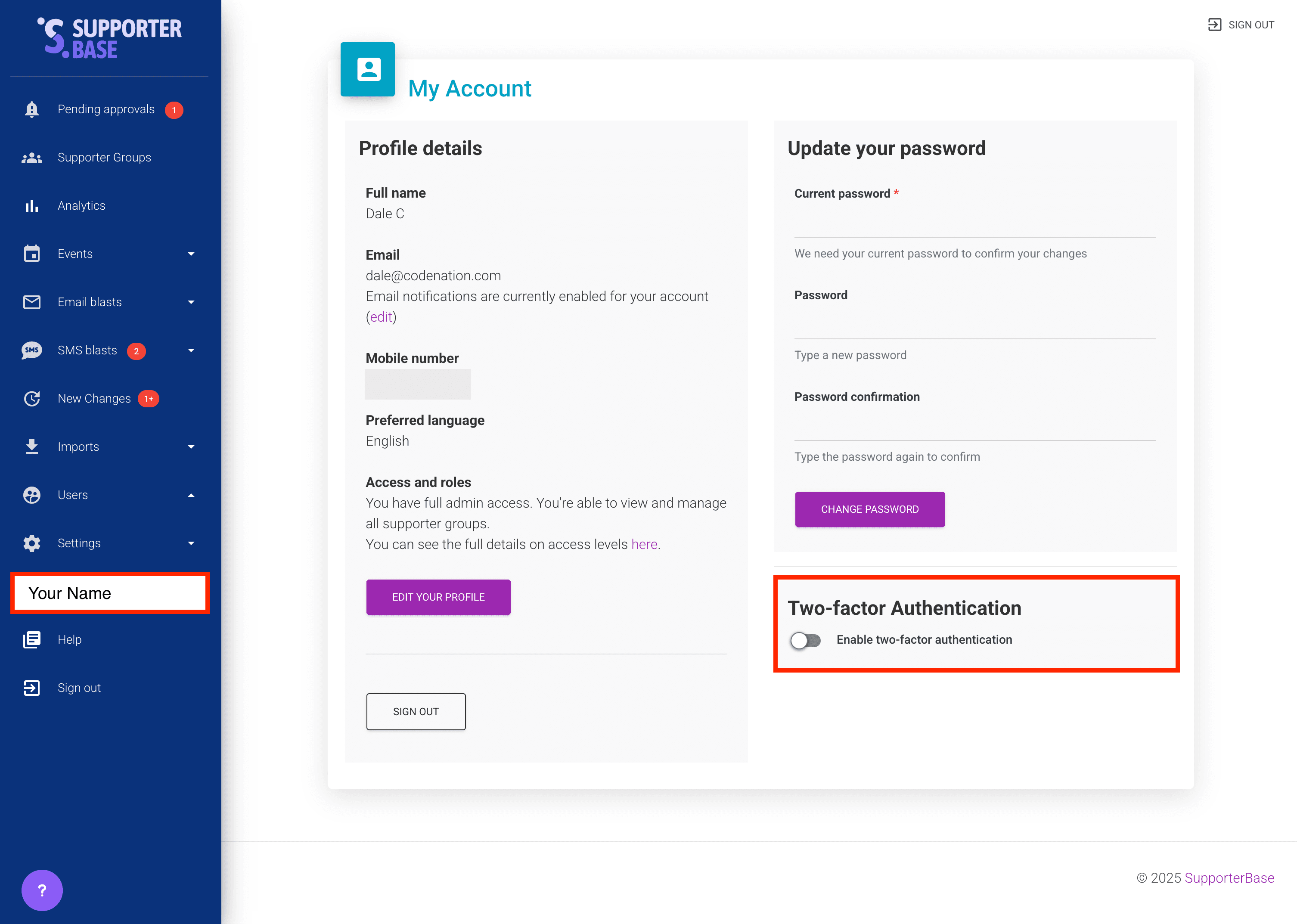
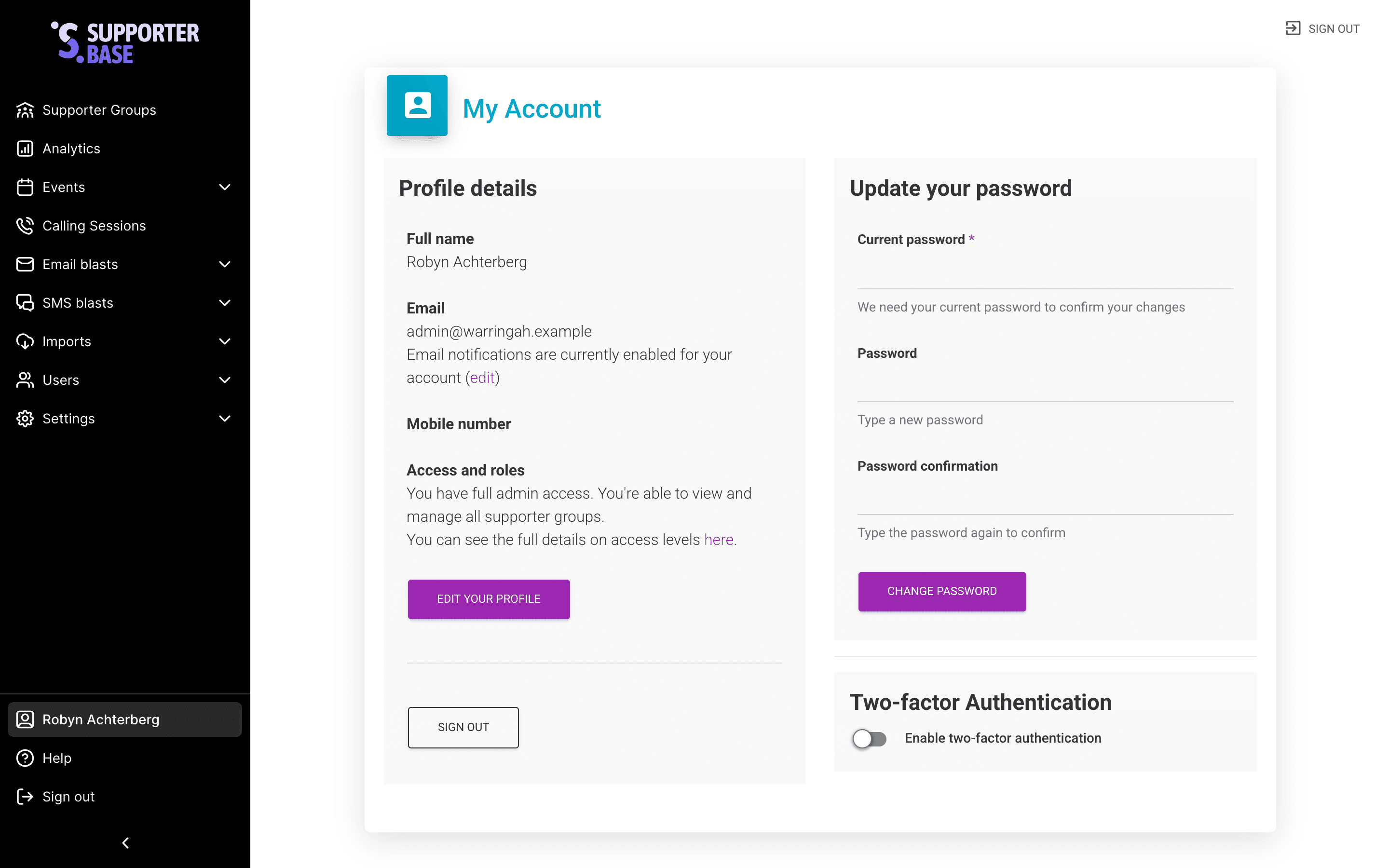
In the left-hand navigation, click your own name at the bottom.
Turn 2FA on
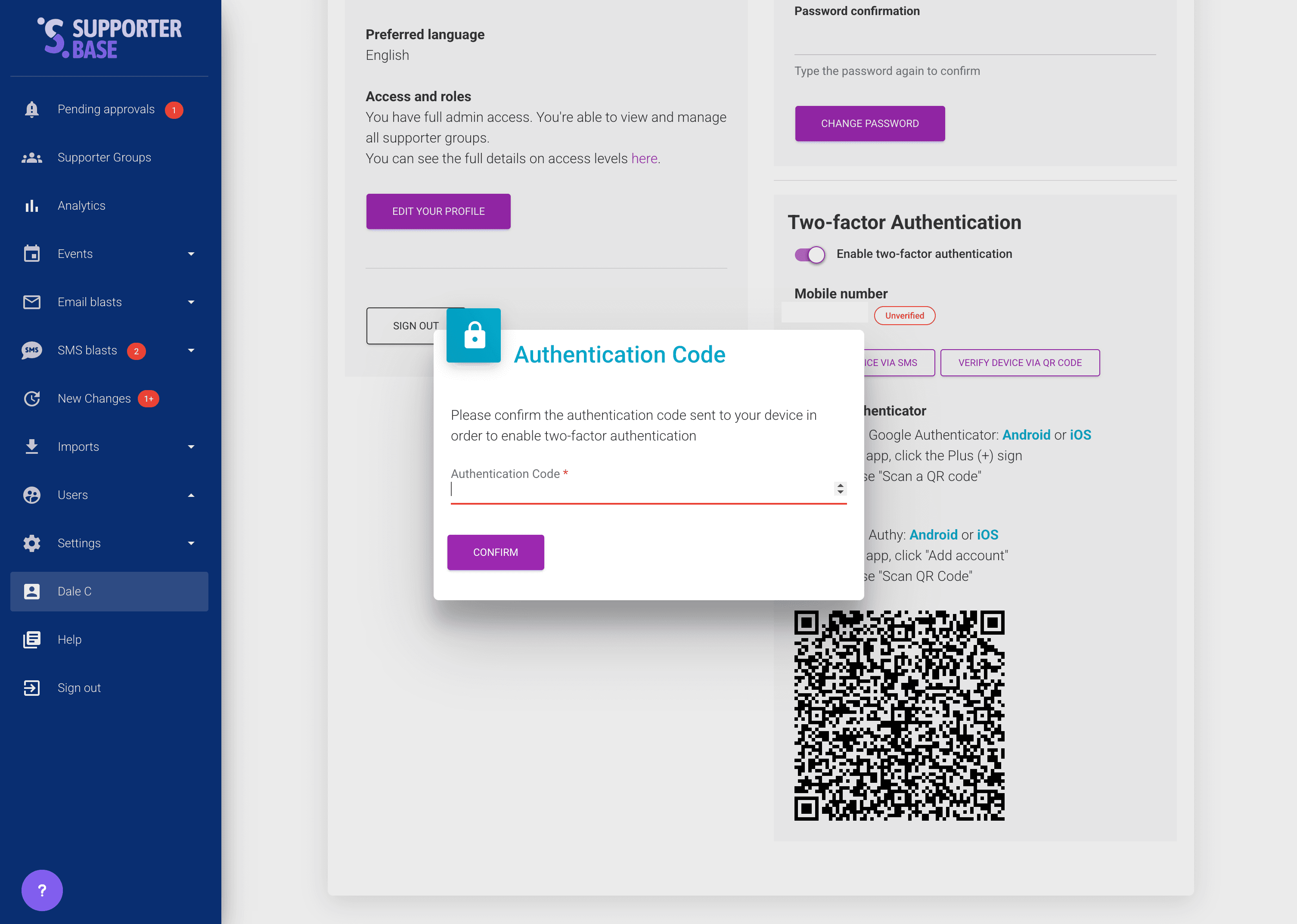
Find the Two-factor authentication panel and turn on Enable two-factor authentication.
Enter your mobile number
Enter your Mobile number. This is the number your codes are sent to, and it is held separately from the mobile number on your supporter profile. It shows as Unverified until you complete the next step.
Choose how to verify
Click Verify device via SMS to get a code by text message, or Verify device via QR code to scan it with an authenticator app such as Google Authenticator or Authy.
Confirm the code
Enter the code under Authentication code and click Confirm.
Save your backup codes
Your backup codes appear under Important: Backup codes. Save them somewhere secure, such as a password manager. Each one works once, and they are your way back in if you lose access to your phone.
Save your backup codes immediately
Backup codes are shown only once. You must save them before closing the page.
Using 2FA when logging in
- Log in with your email and password as normal.
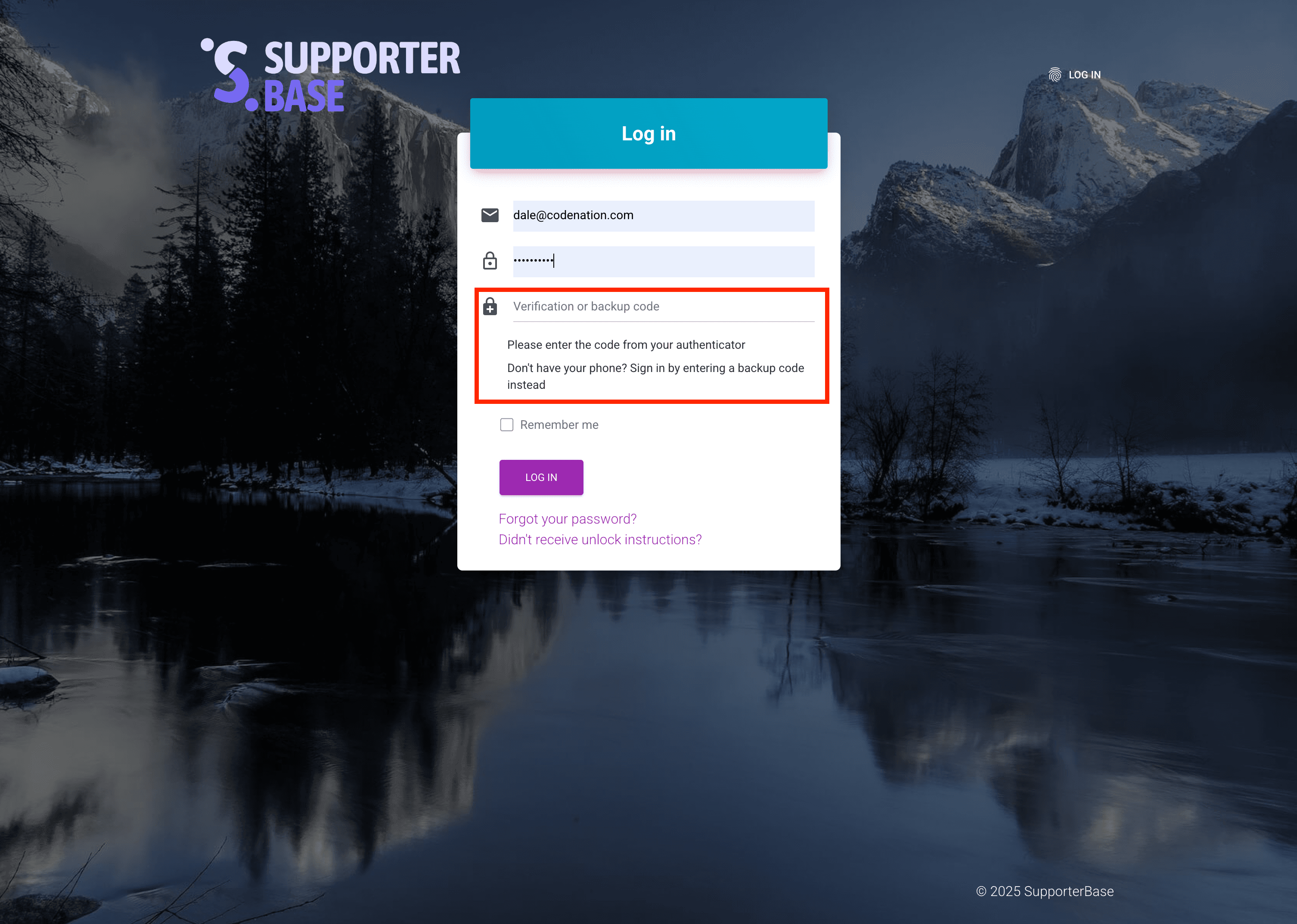
- You will be prompted for a verification code.
- Enter the one-time code from your SMS message, your authenticator app, or a backup code (if you cannot access your device).
- Once the code is accepted, you will be logged in.