

Export supporters for a group
Filter a group's supporters and export them as a PDF or CSV
Export a group's supporter details list as a PDF or a CSV, for reporting, list-checking, or working with the data elsewhere. Apply filters first and you export exactly the supporters you need.
Who can export
Exporting is off until an admin switches it on, and two toggles control it:
- Admins can export the supporter details list for any group.
- Captains can export for the groups they lead.
See Controlling who can export.
Exporting a group's supporters
Open your group
Go to Supporter groups in the left-hand sidebar and open your group.
Apply any filters
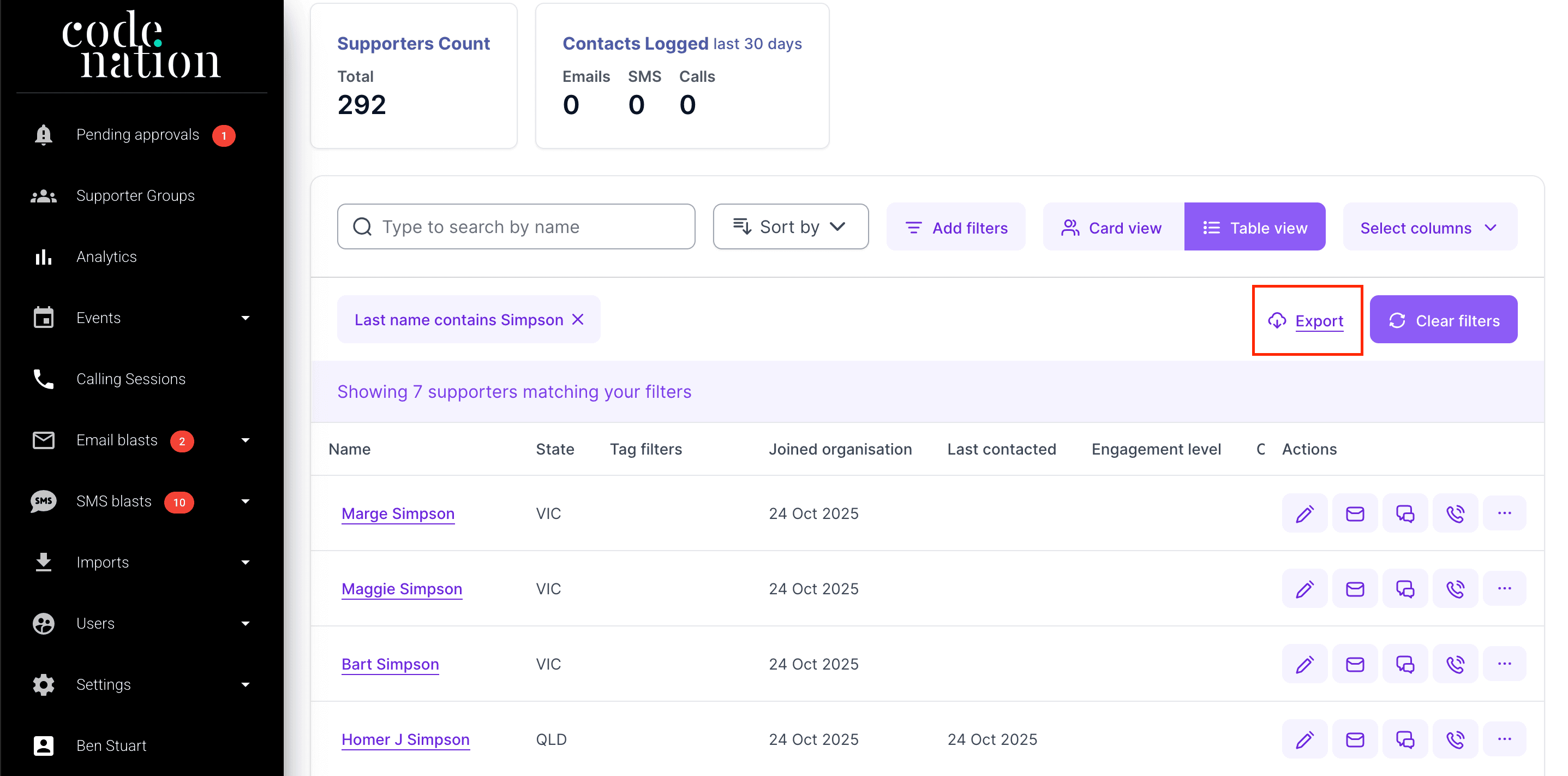
Click Add filters and set any filters you need, since the export includes only supporters who match them.
Click Export
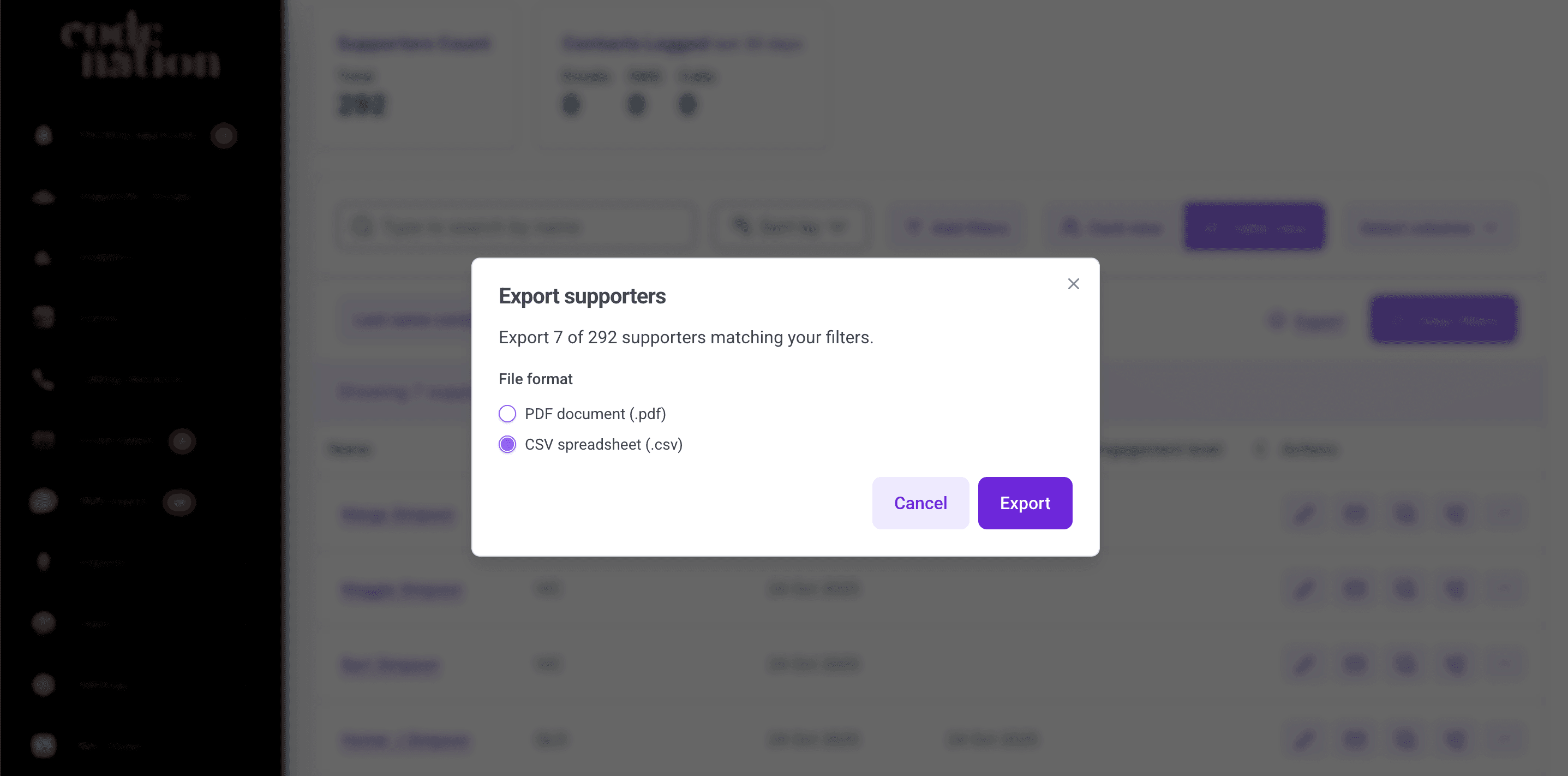
Click Export above the supporter table, then check the count of supporters in the Export supporters dialog.
Choose your format
Pick one of the two, then click Export:
- PDF document (.pdf) gives you a formatted document.
- CSV spreadsheet (.csv) is best for a spreadsheet or another tool.
Exporting a whole group without filtering
Click More actions on the group card and select Export.
Downloading your export
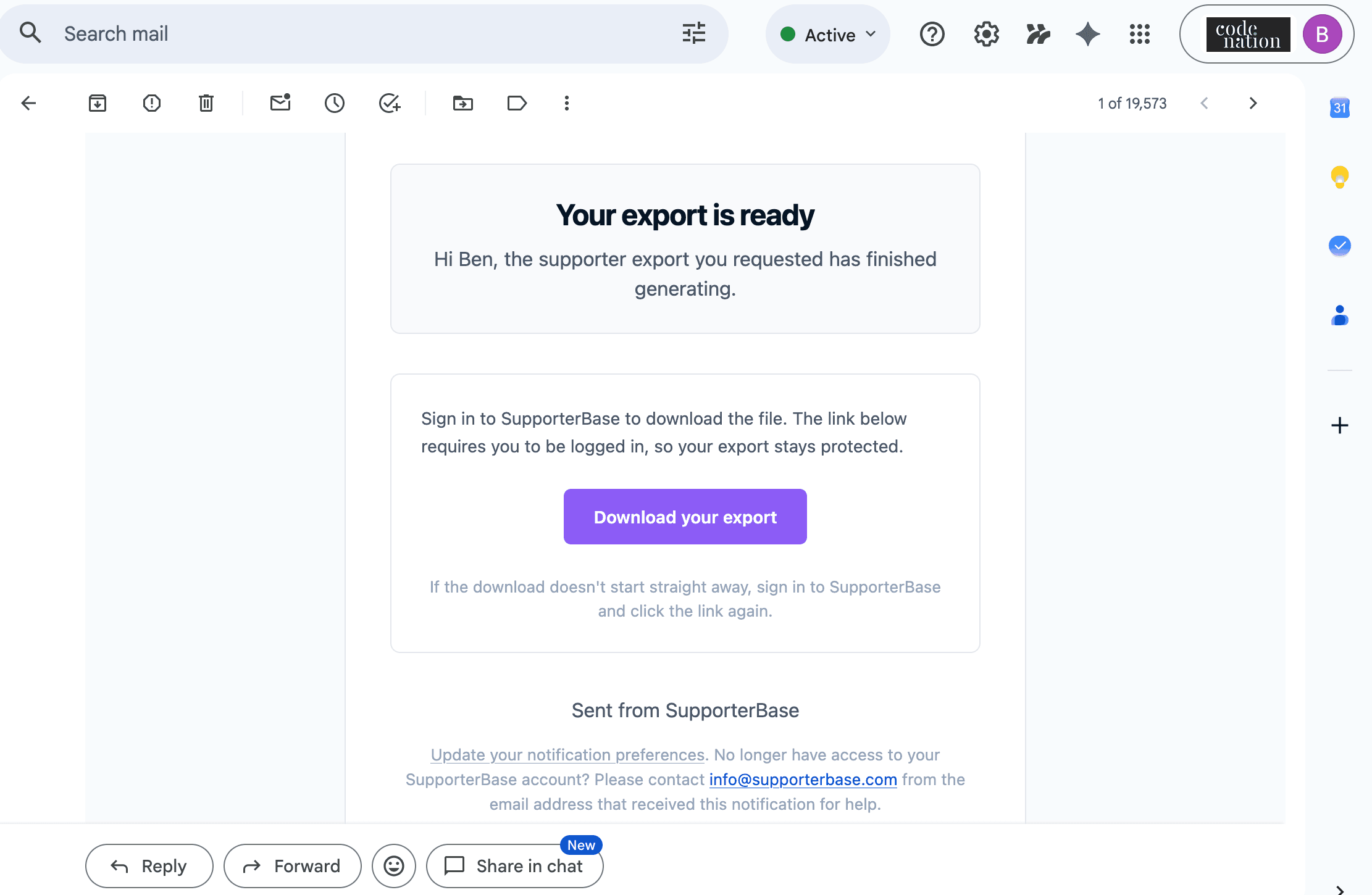
Exports generate in the background, and when yours is ready you get an email with a Download your export link, which requires you to be signed in, so click it, sign in if prompted, and the download starts.
Exporting every group member at once
The export above is scoped to one group and whatever filters you've applied, and there's a second, blunter export for the whole organisation. Go to Settings > Supporters export and click Export supporters. It sends you an export of all SupporterBase group members to your email address, and the page tells you which address it'll use before you click. Use it for:
- A whole-of-organisation snapshot
- A migration
- A backup
This is every member in every group
There's no filtering on this one, so if you only need one group's supporters, or one segment, use the group export.
Controlling who can export
Export access is managed under Settings > Configurations, in the permissions toggles. Two settings control it:
| Setting | What it does |
|---|---|
| Admins can export the supporter details list for any group | Lets admins export from any group in your organisation. |
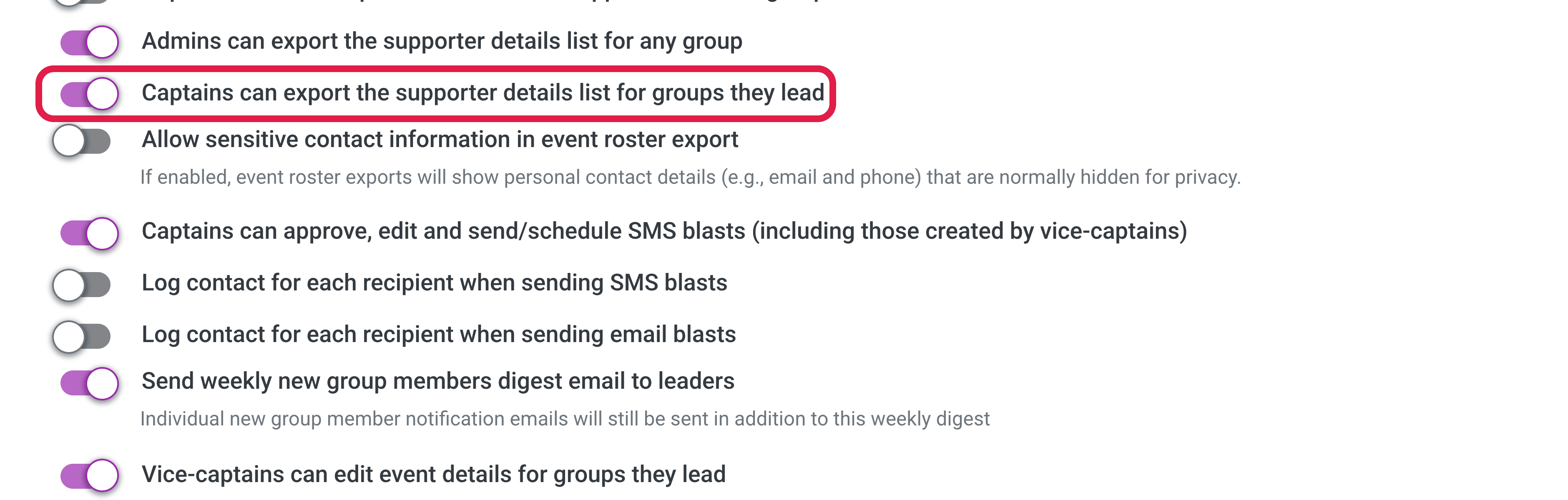
| Captains can export the supporter details list for groups they lead | Lets captains export from the groups they lead. |
Turning export on
Both are off by default, so no one can export until an admin enables it.
- Turn on Admins can export the supporter details list for any group to let admins export.
- Turn on Captains can export the supporter details list for groups they lead to let captains export their own groups.
An admin-only setup
Enable the admin toggle and leave the captain toggle off.
Tightening data controls
If you want fewer people pulling supporter contact details out of the platform, leaving captain export off keeps exports in admins' hands without affecting captains' day-to-day group management. See the Configurations reference for the full set of privacy and permission options.