

Run and manage calling sessions
Create a session, work the queue, skip and prioritise supporters, and run more cycles
A calling session is a structured way to work through a call list. You get a live queue, progress tracking, skip controls and cycle-by-cycle reporting, and the tutorial walkthrough covers your first one.
Creating a calling session
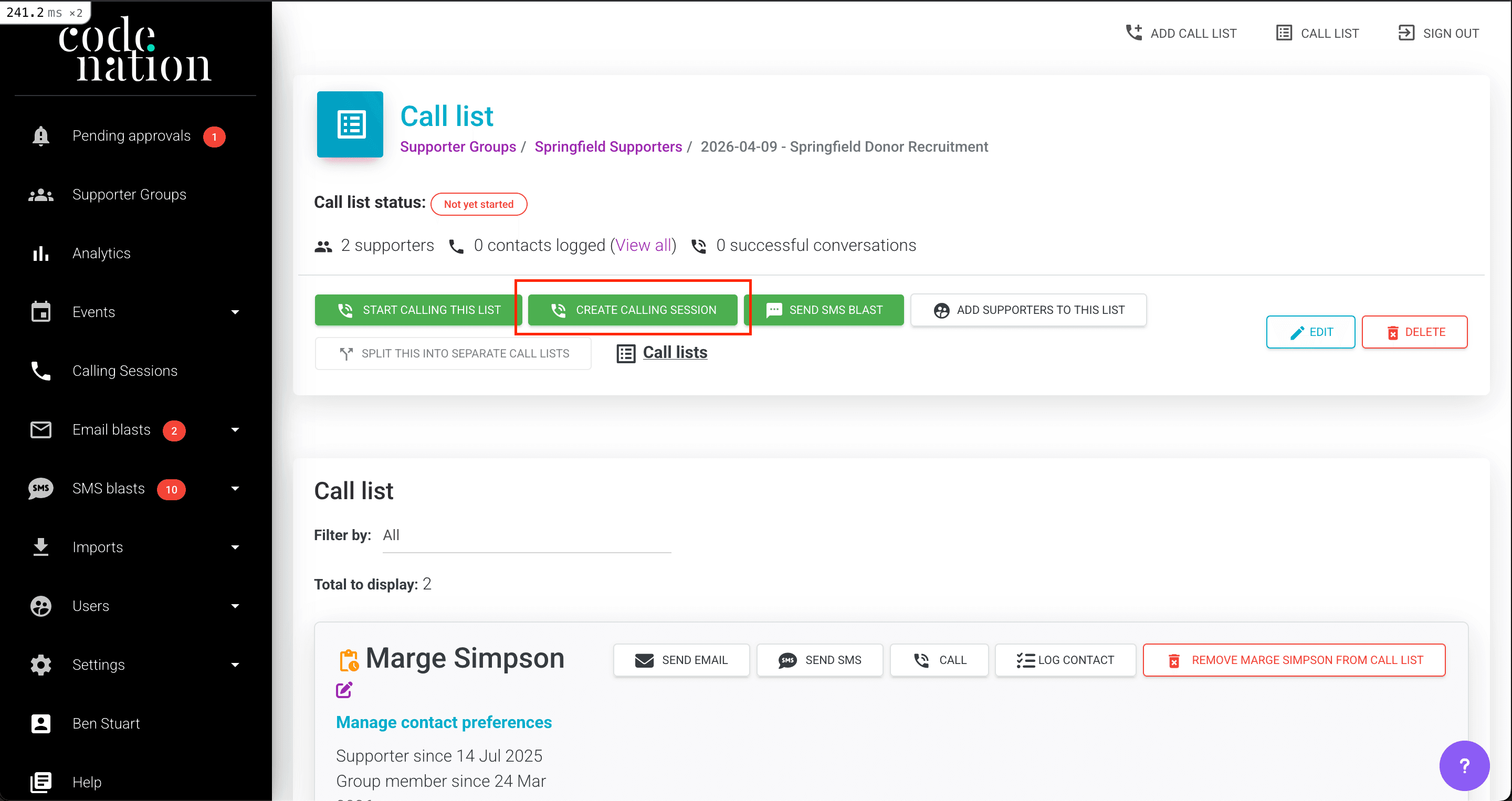
- Go to Supporter groups > [Your Group] > Call lists > [Your List].
- Click Create calling session.
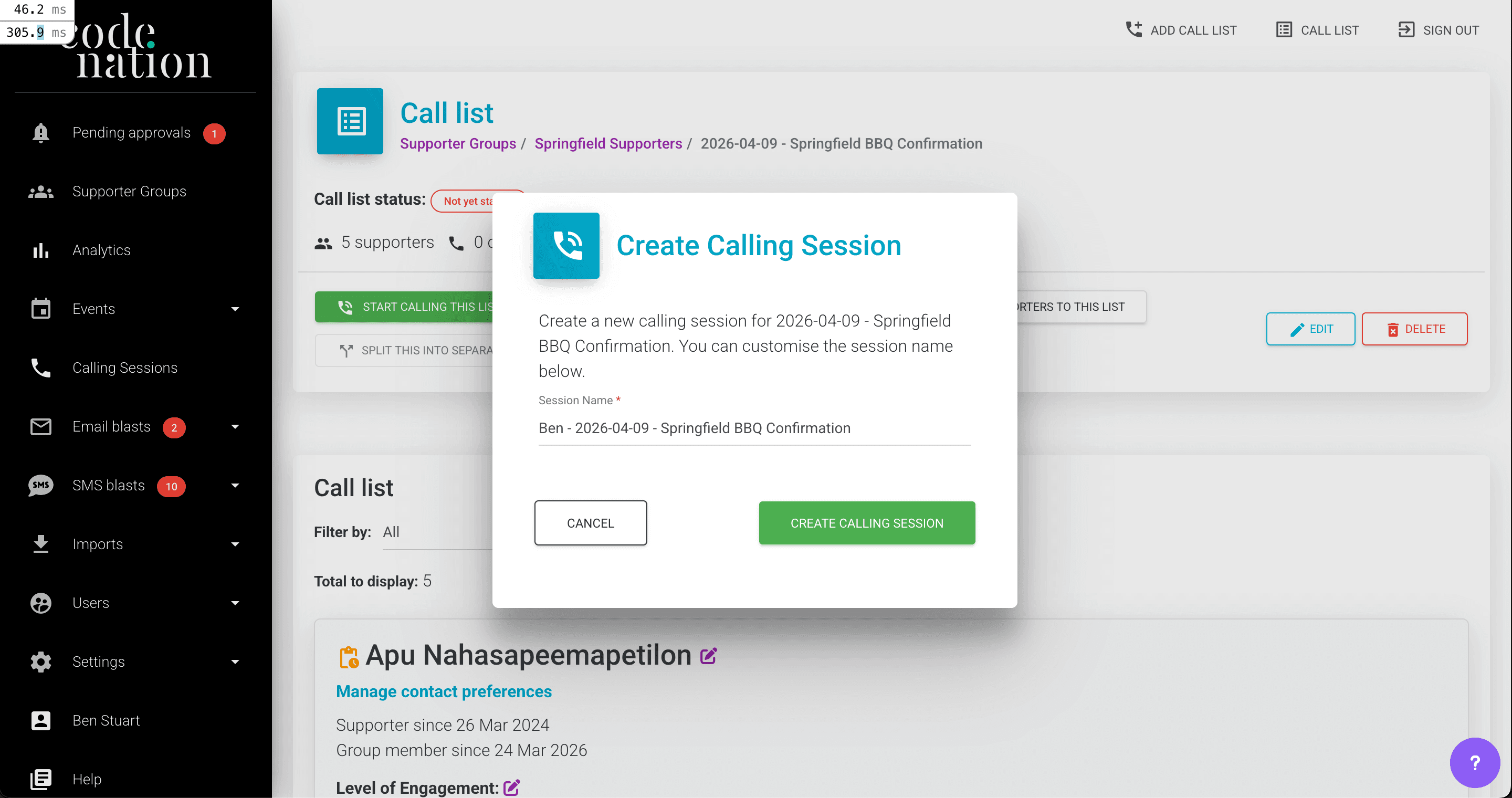
- Edit the pre-filled name if you want. It defaults to
[Your first name] - [Call list name]. - Click Create.
Can't see the button?
Create calling session appears once you have a mobile number saved on your user profile.
- Click your name in the left-hand navigation and open Edit your profile.
- Add your mobile number, then return to the call list.
- See phone troubleshooting if the button is still missing.
Naming your sessions
We recommend the convention [Your name] - [Date] - [Purpose], which keeps sessions recognisable at a glance on the Calling sessions index when several are paused or several leaders are calling in parallel.
- Ben - 15 Apr - Event RSVPs
- Sarah - Tuesday - Lapsed donor follow-up
The calling session dashboard
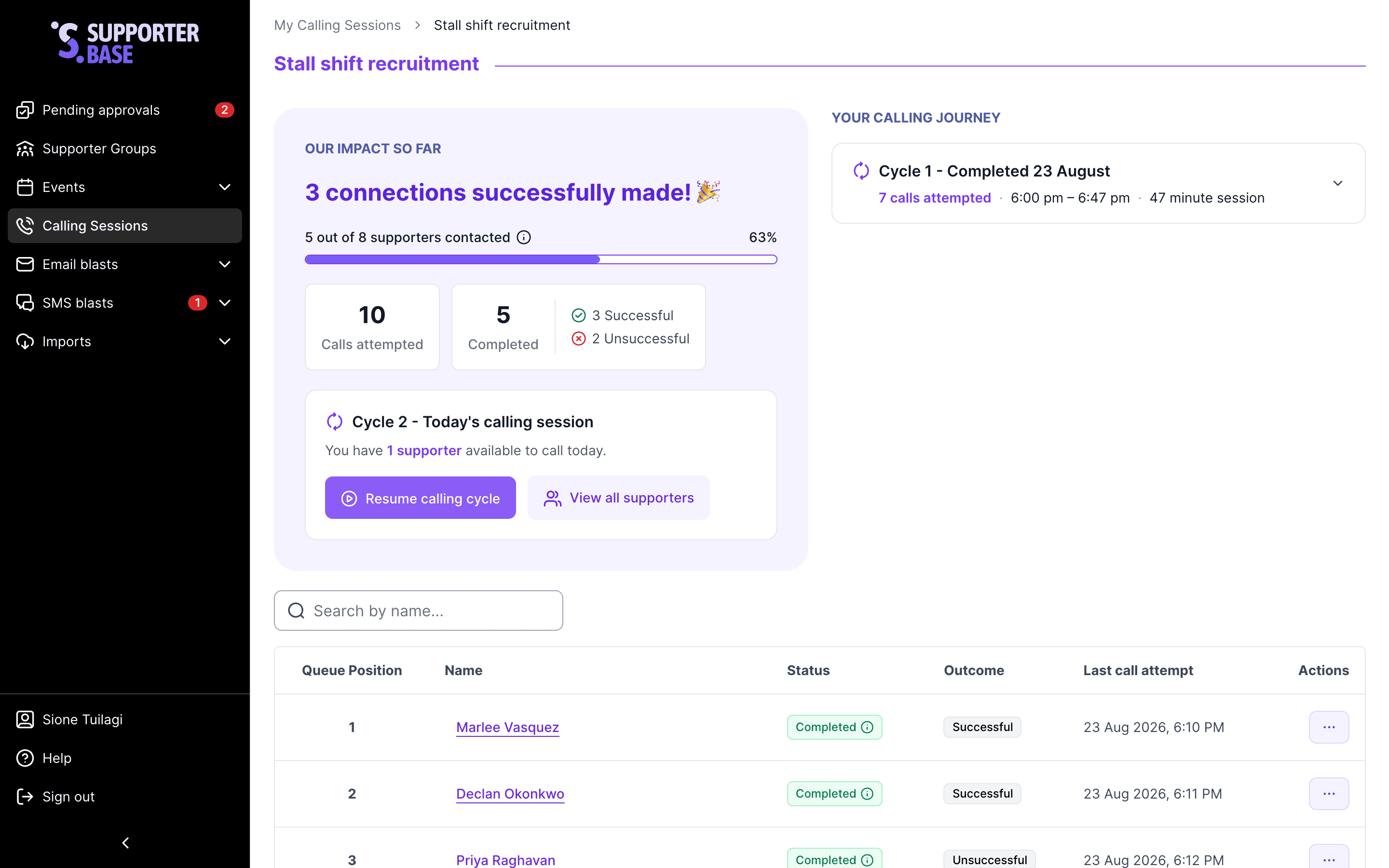
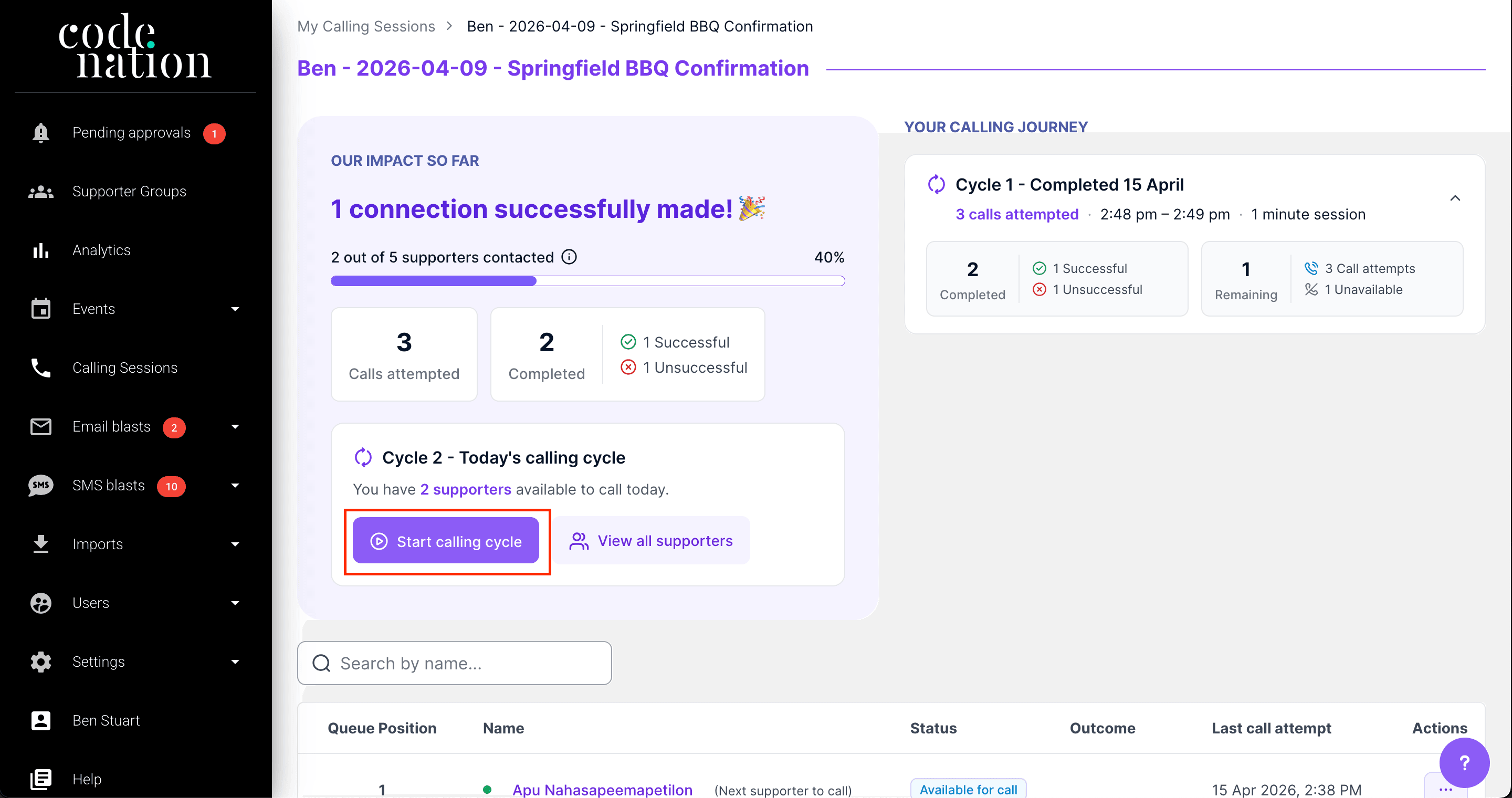
Opening a session takes you to its dashboard, and What the calling dashboard is telling you covers what those numbers count.
| Panel | Shows |
|---|---|
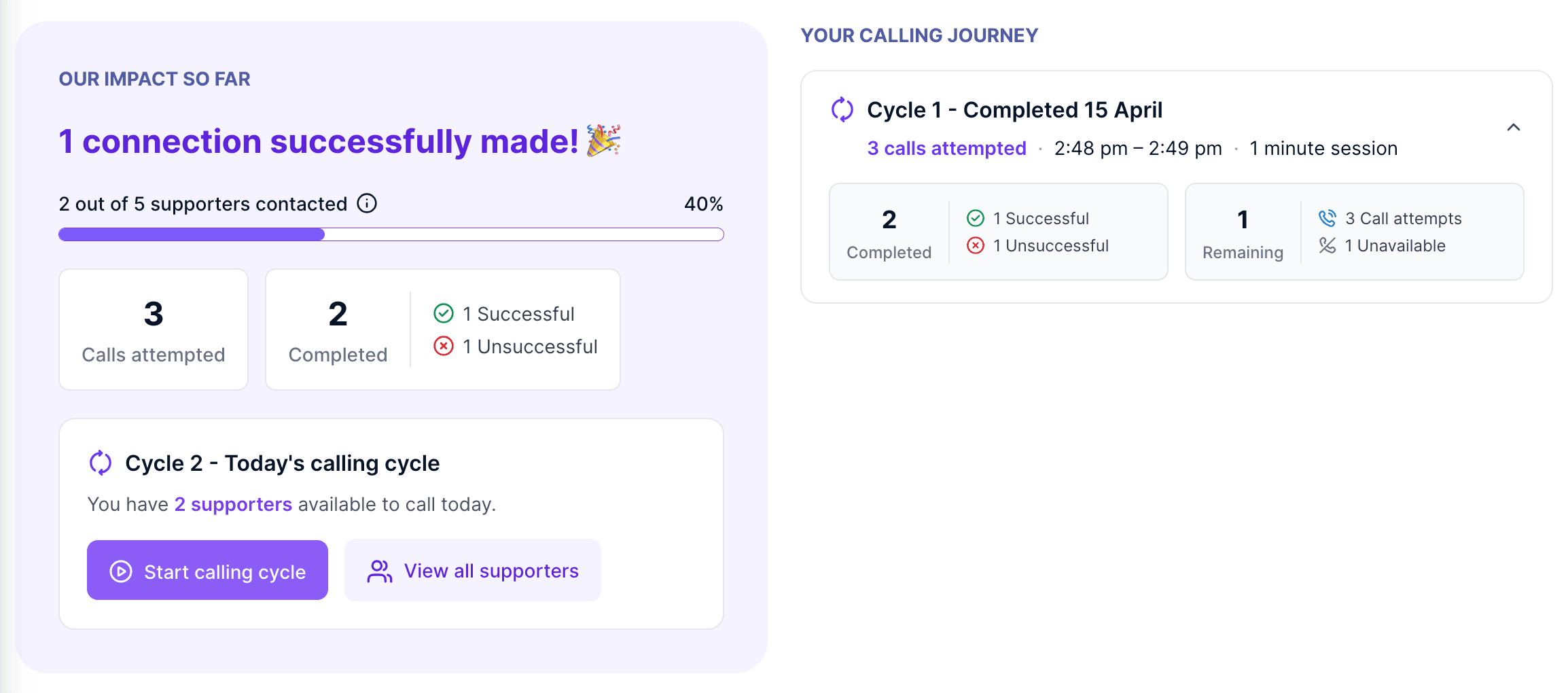
| Progress bar | Completed supporters out of the total, across all cycles in this session |
| Impact panel | Session-wide stats: calls attempted, contacts made, and an outcome breakdown |
| Current cycle card | The active cycle, with the count of available supporters and the Start/Resume calling cycle button |
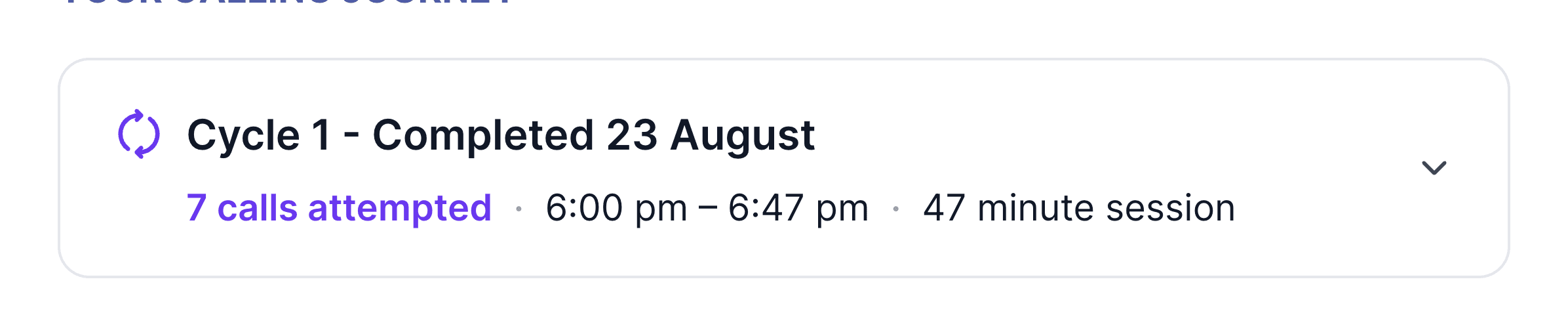
| Calling journey | An accordion of completed cycles, each with its own stats |
Starting, pausing and resuming
| To do this | Do this |
|---|---|
| Start a session or cycle | Click Start calling cycle on the current cycle card. You'll be called on your registered mobile and connected to the first supporter in the queue |
| Pause | Hang up or close the page. There is no explicit "pause" button, and the session holds its position automatically |
| Resume | Come back to the session, where the button now reads Resume calling cycle, and click it to pick up where you left off |
Billing
Calls are billed to your organisation's SupporterBase subscription and never to your personal phone account, and you update your registered number via Edit your profile in the left-hand nav.
Reviewing results
Session and cycle stats live on the dashboard itself, and the group page carries the org-wide figures under Analytics > Calls.
Logging a contact
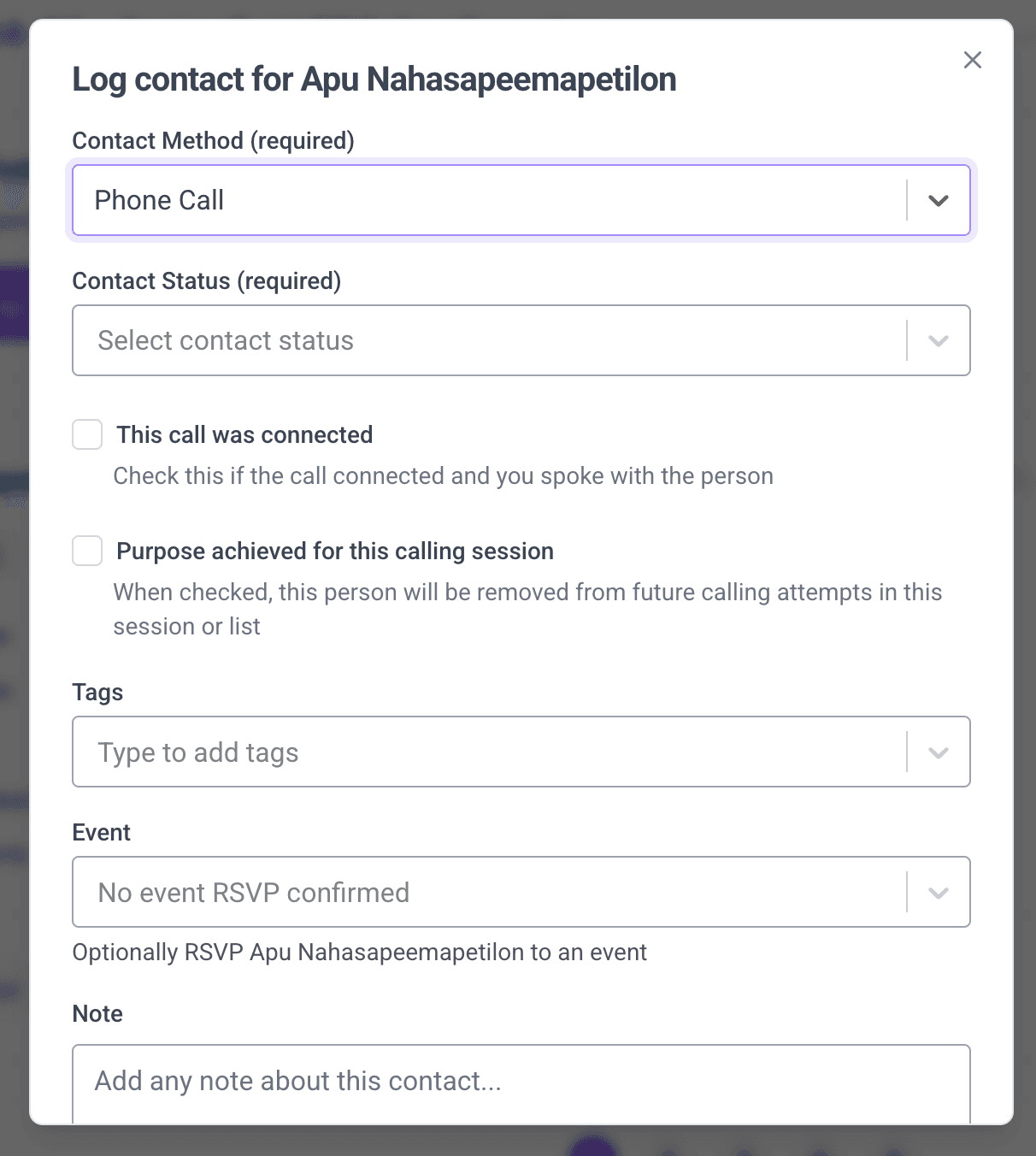
After every call the Log contact dialog captures what happened, and the statuses reference lists every option on every field.
| Field | What to do |
|---|---|
| Contact method, Contact status, Contact outcome | Set all three. Contact method defaults to Phone call in a calling session |
| This call was connected | Tick if the call connected and you spoke with the person |
| No further contact attempts needed | Tick to take the supporter out of the queue |
| Event, Add to call list | Optionally RSVP them to an event, or add them to another call list for follow-up |
| Note and tags | Free text, and tags you can search or create inline |
| Once the contact is logged | Press any key on your phone to continue to the next supporter |
Marking a supporter done
No further contact attempts needed records the outcome against the session, and its reach is wider than the session.
| The checkbox | What happens |
|---|---|
| Ticked | SupporterBase marks the supporter complete and stores the Contact outcome you chose against them. They also come out of the underlying call list and every other calling session built on that list, open at the time or not |
| Unticked | The contact is still logged, notes and tags and all, and still counts in the group's Analytics > Calls, but the session records no outcome and the impact panel and calling journey count nothing. Check the box first when the dashboard looks wrong |
| You want to | Use |
|---|---|
| Record the outcome and stop everyone calling them | No further contact attempts needed on the log contact form |
| Stop your session calling them, leave others alone | Remove from this session in the skip dialog |
| Come back to them later today | Call back later or Skip for today |
This is what makes shared lists work
Two leaders can each run their own session on the same call list without ringing the same person twice, because completing somebody drops them out of the other's queue.
Skipping a supporter
Skipping takes a supporter out of the active queue for a defined period and brings them back automatically, with an audit trail of who skipped, when, why, and what type.
- Open the three-dot menu on the supporter's row, in the data table, the View all supporters sheet, or on their detail card.
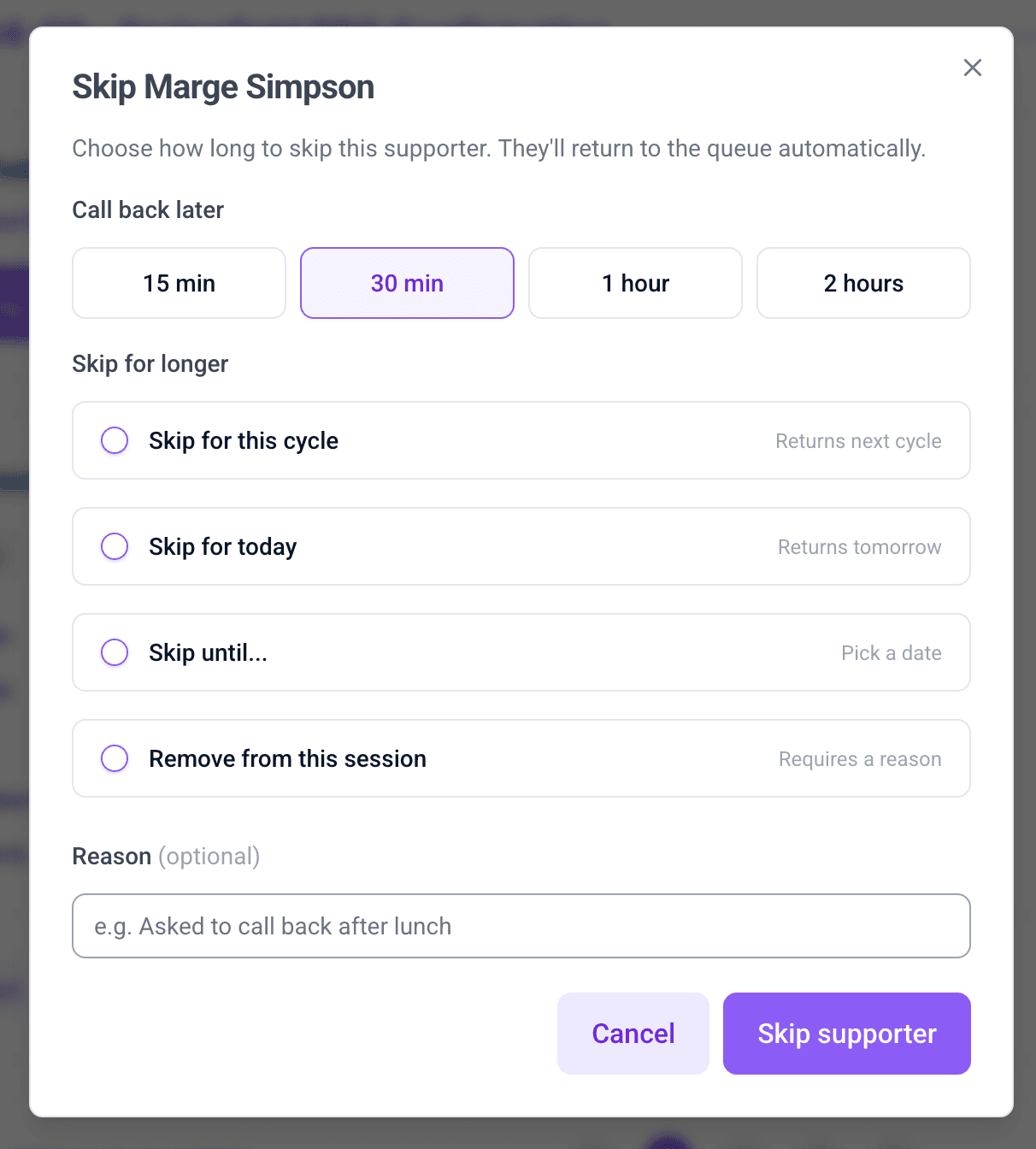
- Choose Skip for..., and the dialog headed Skip [name] opens.
- Click a Call back later duration: 15 min, 30 min, 1 hour or 2 hours.
- Or choose one under Skip for longer: Skip for this cycle, Skip for today, Skip until... or Remove from this session.
- Add a Reason, optional everywhere except Remove from this session. Something like "Asked to call back after lunch" is enough, and it is what the next caller sees.
- Confirm with Skip supporter, and the skip types reference sets out when each variant brings them back.
Unskipping
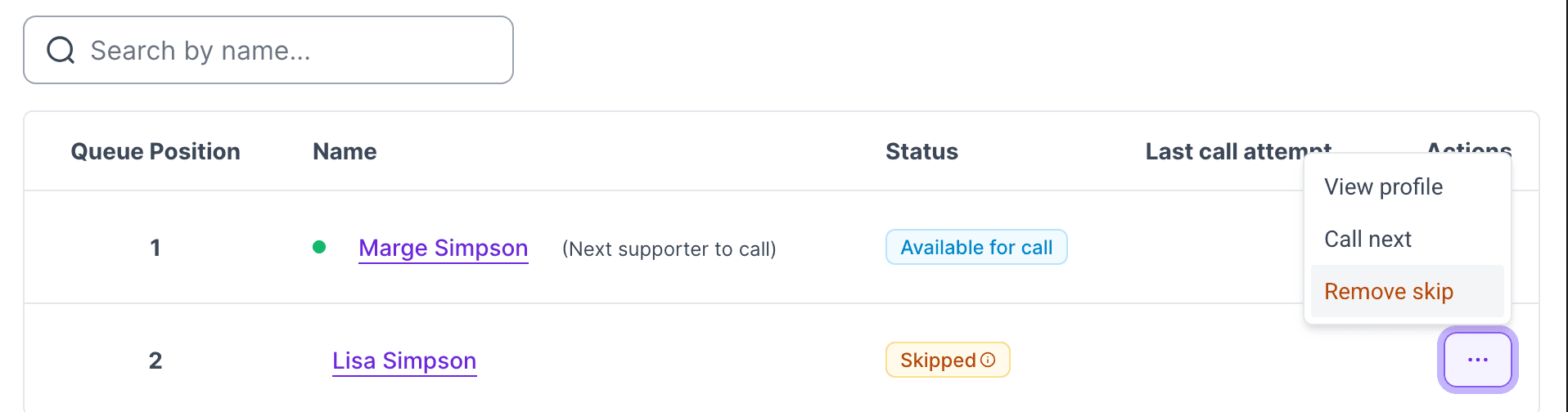
Open the same three-dot menu on a skipped supporter, where the option now reads Remove skip.
| Skip set by | Can you use Remove skip? |
|---|---|
| You or another leader | Yes. Clicking it is instant, with no dialog, and returns them to the queue immediately |
| The system | No, it clears itself. The tooltip on the Skipped badge is how you tell the two apart |
Calling someone next
Move a supporter to the front of the queue when they need calling next, for example after they reply to your earlier SMS.
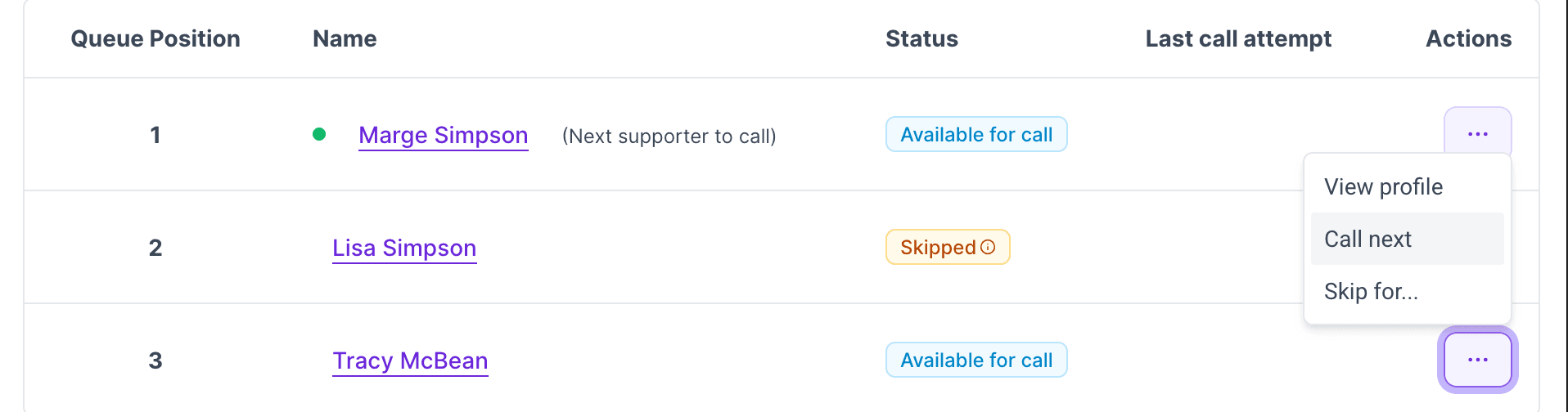
- Open the supporter's three-dot menu, or their detail page.
- Click Call next.
- They jump to the position immediately after whoever is currently next to call, and a success alert confirms the move.
| Availability | Which supporters |
|---|---|
| Call next greyed out | Supporters already next in the queue, and supporters marked as completed |
| Call next available | Unavailable supporters, so you can queue them up for when they come back |
Working with calling cycles
A cycle is one pass through the available supporters in a session, and clicking Start calling cycle on the current cycle card begins the next one.
| Cycles | Behaviour |
|---|---|
| Most sessions | Finish in one cycle, and you can run as many as you need |
| A cycle completes | Automatically, once every available supporter has been contacted or skipped past |
| This cycle skips | Expire when the next cycle starts, and those supporters return to the queue |
| Longer skips: today, custom date, permanent | Stay in place |
| Contacted supporters | Stay out of the queue, done for this session |
| The cycle just finished | Drops into the calling journey accordion |
| Why a second pass is worth running | Covered in why cycles exist |
Viewing all supporters in a session
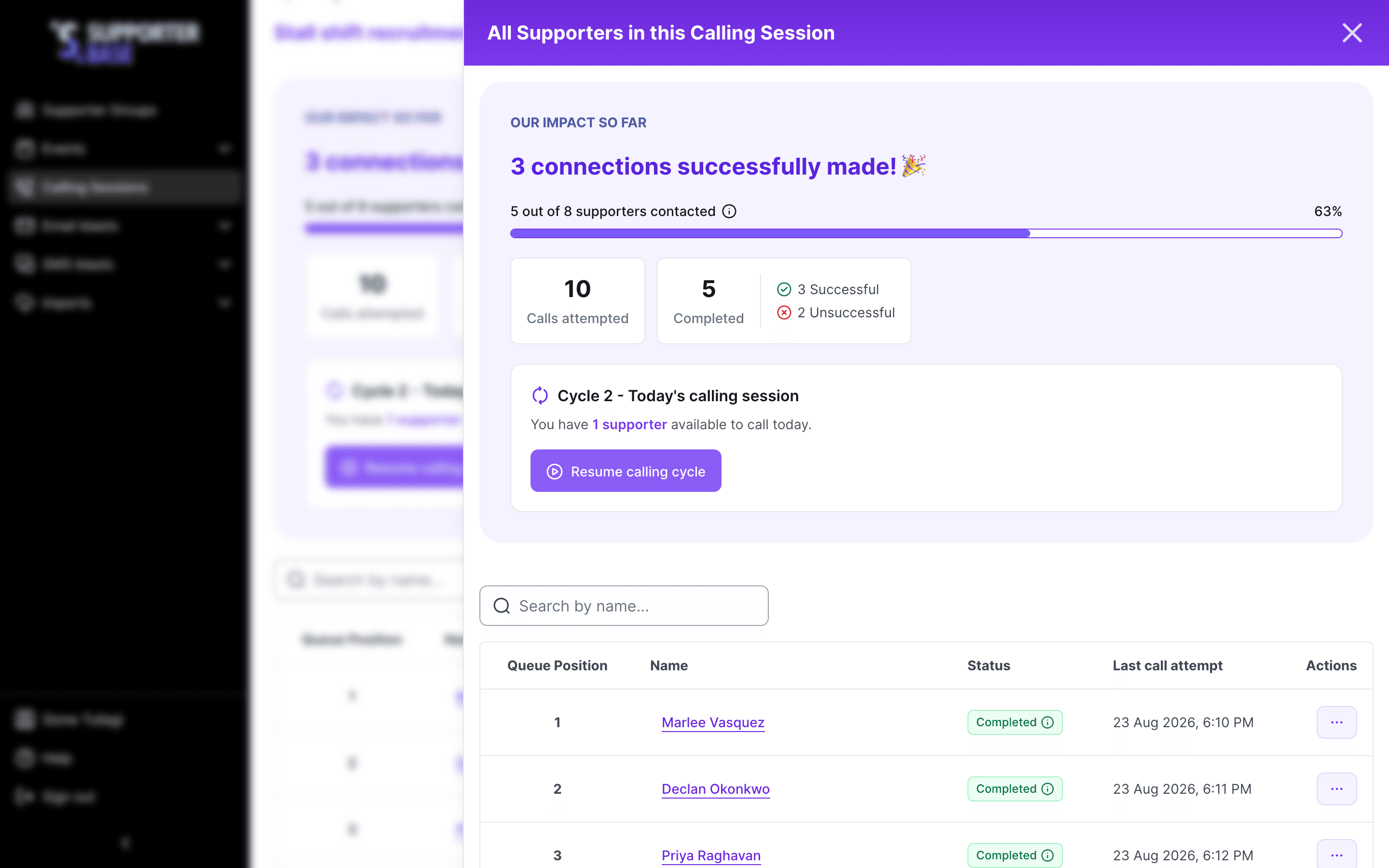
The session's supporter table tracks the whole list. View all supporters on the current cycle card opens it as a side sheet.
| Column | Shows |
|---|---|
| Queue position | Where they sit in the order |
| Name | Links to their profile |
| Status | Available, unavailable, skipped or completed |
| Outcome | Successful or Unsuccessful, once one has been recorded |
| Last call attempt | When they were last tried |
| Actions | The menu with Call next, Skip for... and Remove skip, available in the side sheet too, without leaving the call |
| Sort by | To see |
|---|---|
| Status | Who still needs a call |
| Outcome | How the completed ones went, and an unticked call leaves it blank |
Managing your sessions
Each caller gets one session on a given call list. Returning to a list you are already working resumes the session you have.
| Where you can have multiple sessions | How |
|---|---|
| Different lists. | Run one session on "event RSVPs" and another on "lapsed donors" in parallel |
| Different callers on the same list. | Two leaders working the same call list each get their own session, and the list shows both on its Calling sessions tab |
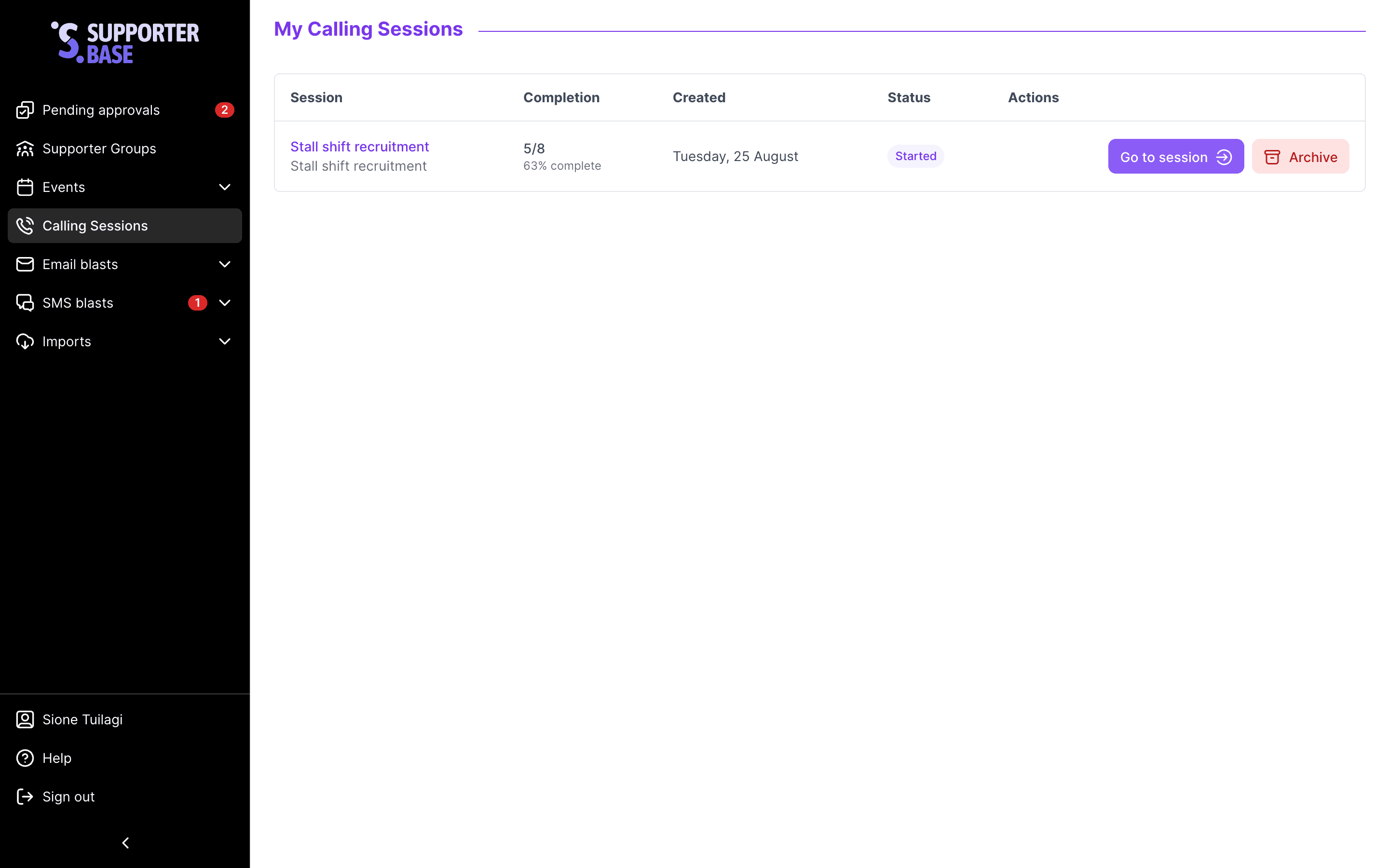
The Calling sessions index page in the sidebar lists every session you have access to. It has a status column of Not started, Started, In progress and Completed, each defined in the reference.
Keeping the session in sync with the call list
Supporters added to the underlying call list after you start a session join the queue automatically. Supporters removed from the list leave the session. There is nothing to refresh by hand.
Archiving a finished session
| Archiving | Detail |
|---|---|
| How to archive | On Calling sessions, open the session's menu, choose Archive, and confirm with Archive session |
| What the dialog says | "Archiving moves this session out of your active list. Its calls, notes and outcomes stay saved for reporting, and the call list it's based on won't be affected." |
| What survives | The calls still count in analytics, and the contacts are still on supporter profiles |
| The call list | Untouched, and ready to be worked again |
| When to archive | Once the reason for the calls has passed, such as after the event you were recruiting for. A paused session is still useful, because coming back to it picks up where you left off |
Further reading
Run your first calling session
Step-by-step tutorial for your first session.
Supporter statuses and skip types
Every status and skip variant explained.
Call lists vs calling sessions
How the two relate and when to use each.
Call lists
Create and manage the call lists that feed sessions.
Phone troubleshooting
Fix common phone and call issues.