

Use shifts with events
Create shifts, recruit volunteers, and manage shift coverage for events
Shifts let you break an event into specific times and roles, making it easier to:
- Recruit the right number of volunteers
- Allow supporters to choose times that suit them
- Track coverage and identify gaps in recruitment
- Manage recruitment centrally or let volunteers self-select
Shift method cheat sheet
| Method | Best used when | Key benefits | Notes |
|---|---|---|---|
| Manual assignment | You need to centrally manage critical or skilled roles (e.g. safety, logistics) | Ensures the right people are in the right roles | Leaders search and assign supporters directly in the shift screen |
| Supporter self-signup | You want broad volunteer recruitment for general roles (e.g. greeters, setup/packdown) | Saves time; supporters choose shifts that suit them | Shifts display automatically on the event's public signup page |
Creating an event with shifts
You can add shifts when creating a new event, editing an existing one, or bulk importing multiple events.
Create or open your event
Create an event as normal in SupporterBase, or use the event import tool for bulk creation.
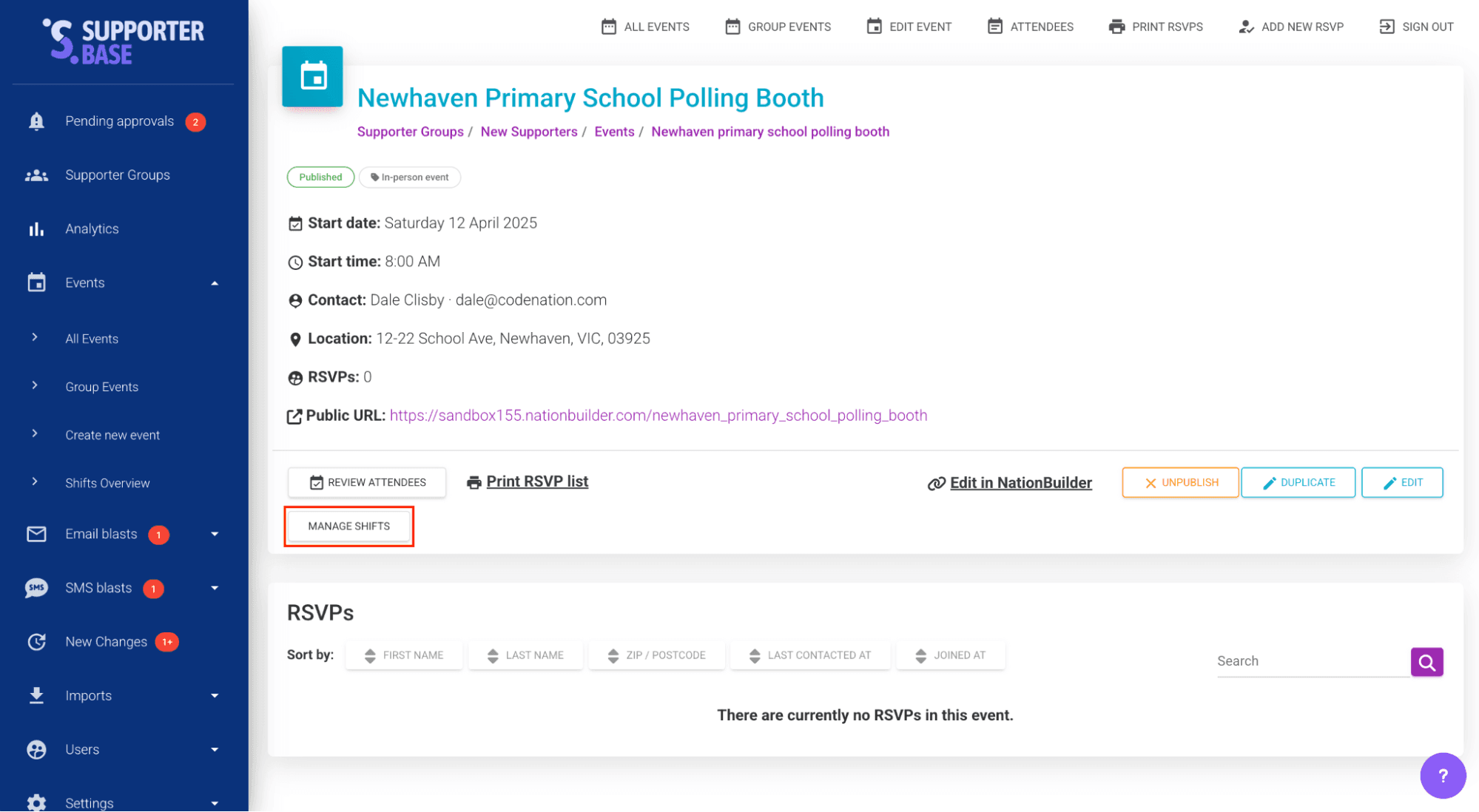
Open the shift manager
On the event page, click Manage Shifts.
Add roles and shift times
Add roles (e.g. Greeter, Setup, Packdown) and set the number of shifts needed for each role. Define shift times for each role.
Controlling which roles appear publicly
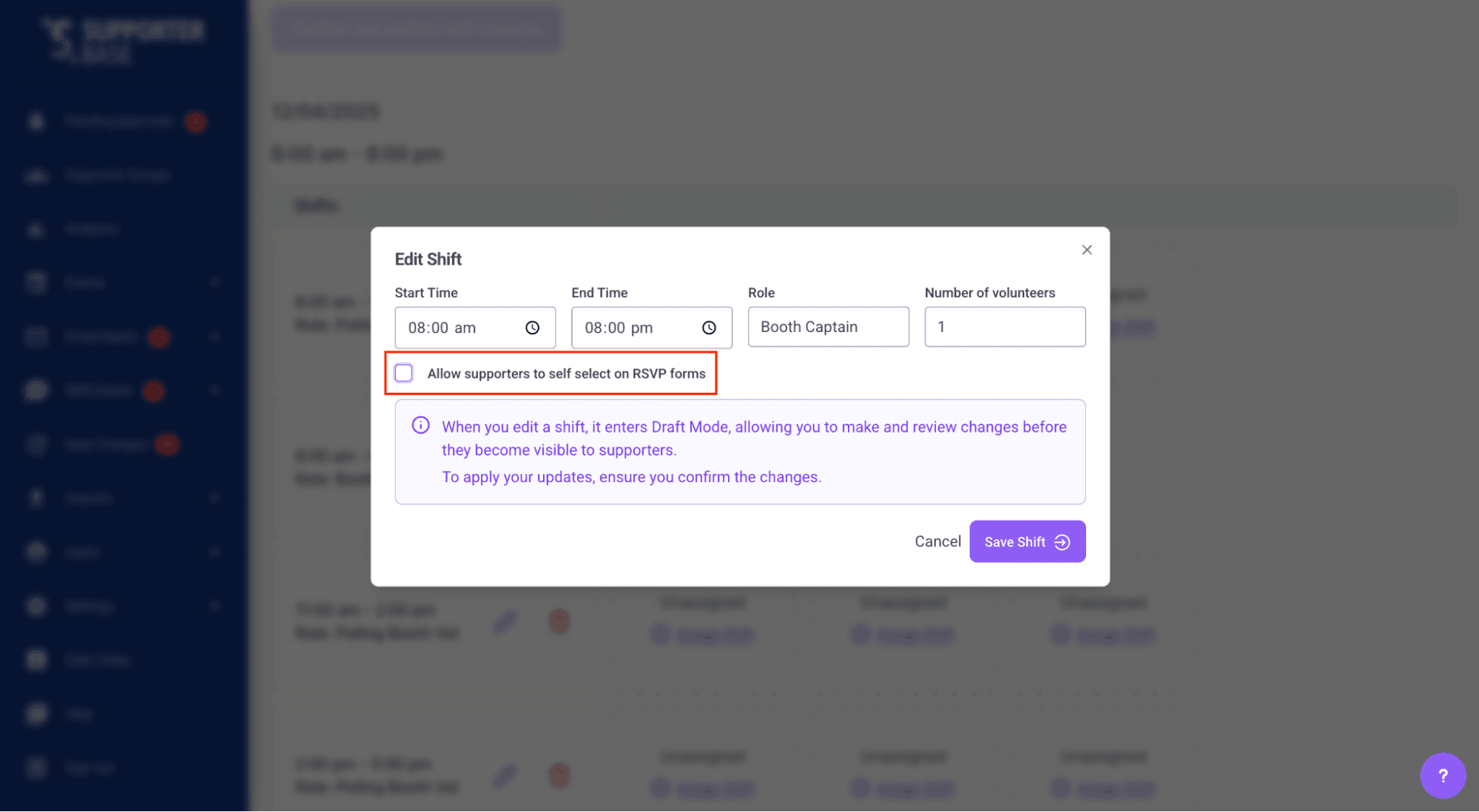
If you do not want a particular role to appear on your public signup form (e.g. roles you recruit privately), you can hide it.
Edit the role
On the event page, click Edit Role.
Toggle public visibility
Deselect the option to display this role publicly.
Recruiting supporters into shifts
There are two ways to roster supporters:
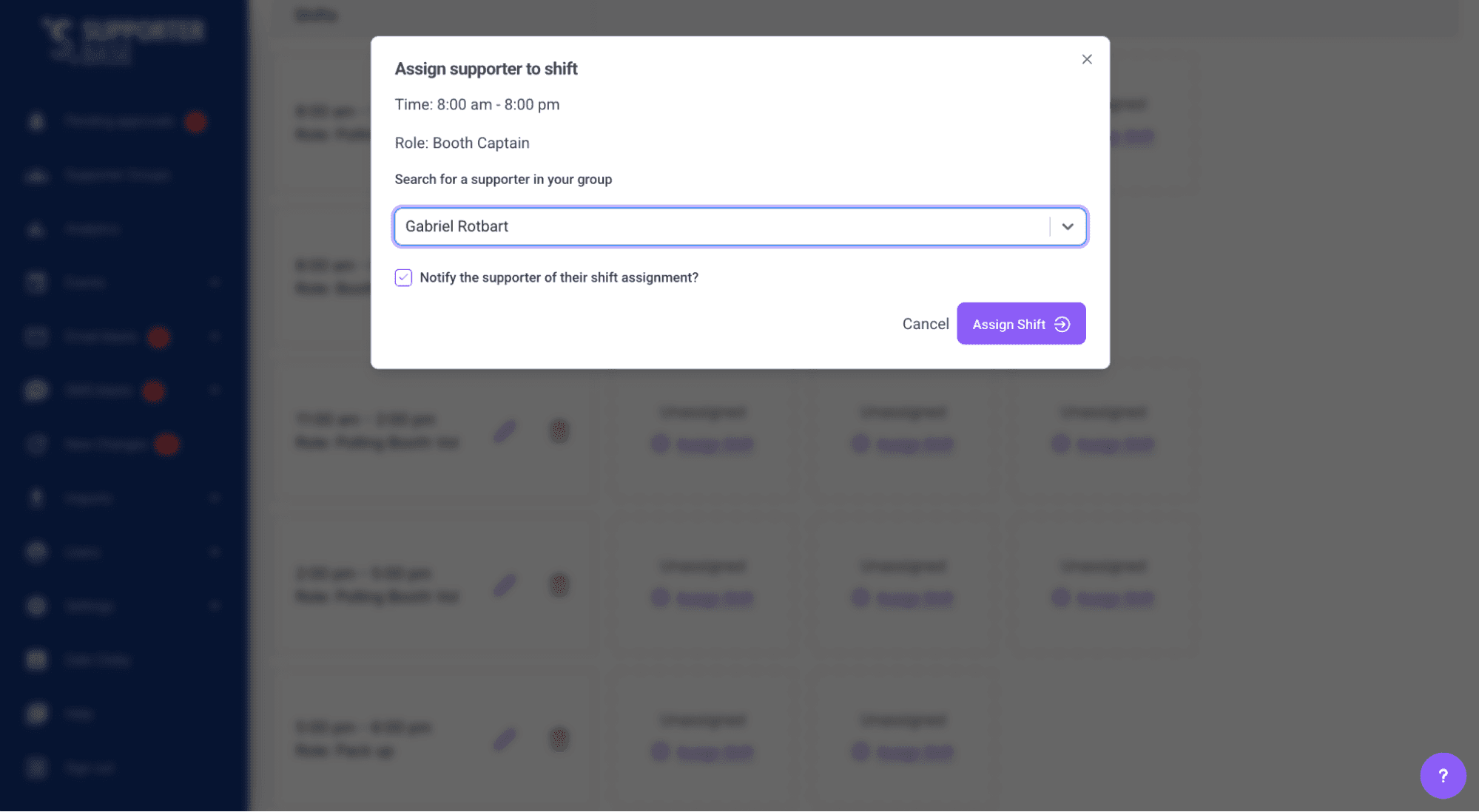
Manual assignment
- In the shift screen, click Assign Shift on any available slot.
- Search for the supporter and assign them to the role.
- Useful for centrally managing critical roles.
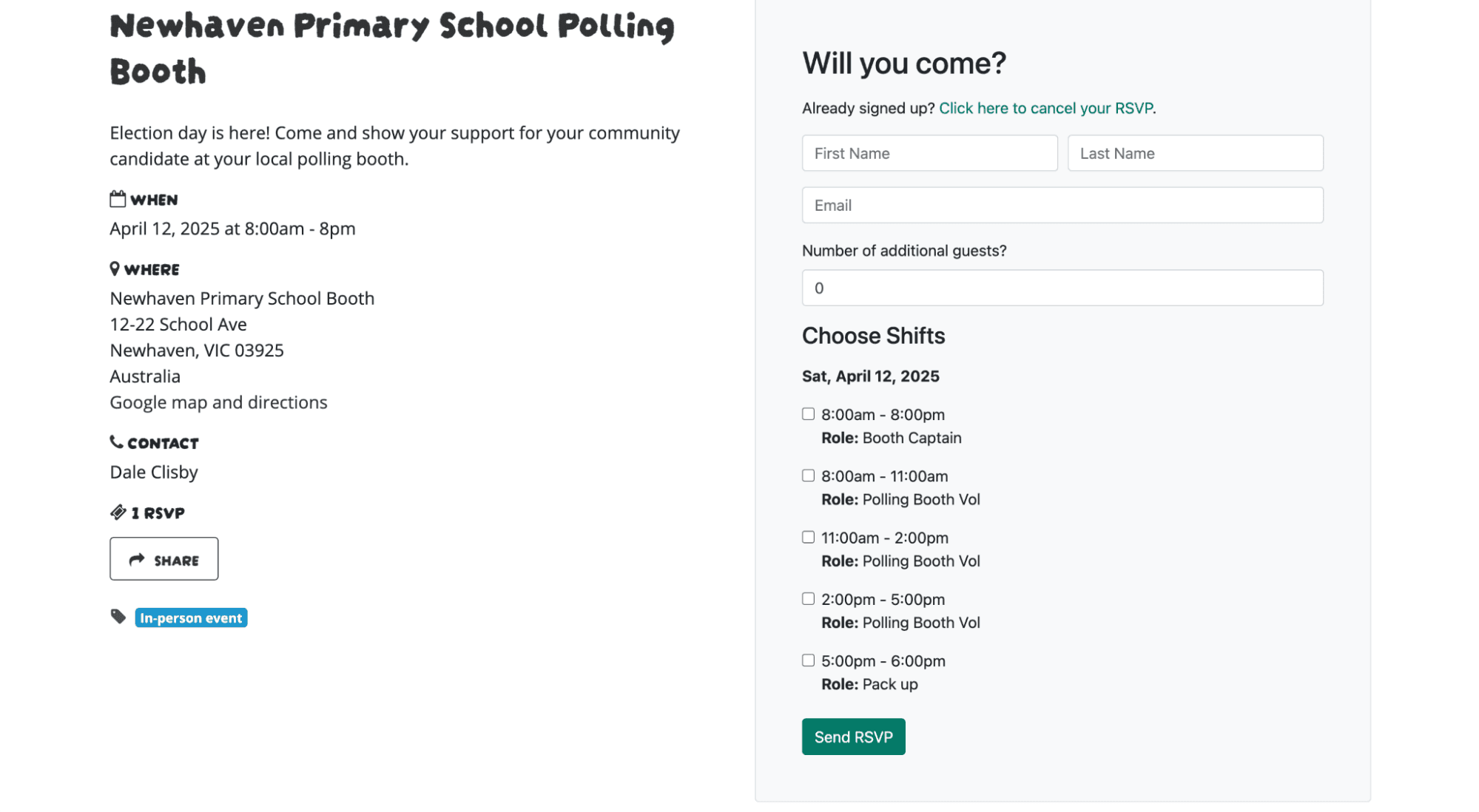
Supporter self-signup
- Supporters can choose their own shifts via the event signup page.
- Shifts and roles will appear automatically on your group's calendar page.
- You can customise how shifts display (lists, calendars, maps, colour-coded layouts, etc.)
Self-signup requires setup
Please get in touch with us if you would like to allow supporters to self-sign up. We will need to add a form to your website to display shift data.
Managing recruitment and coverage
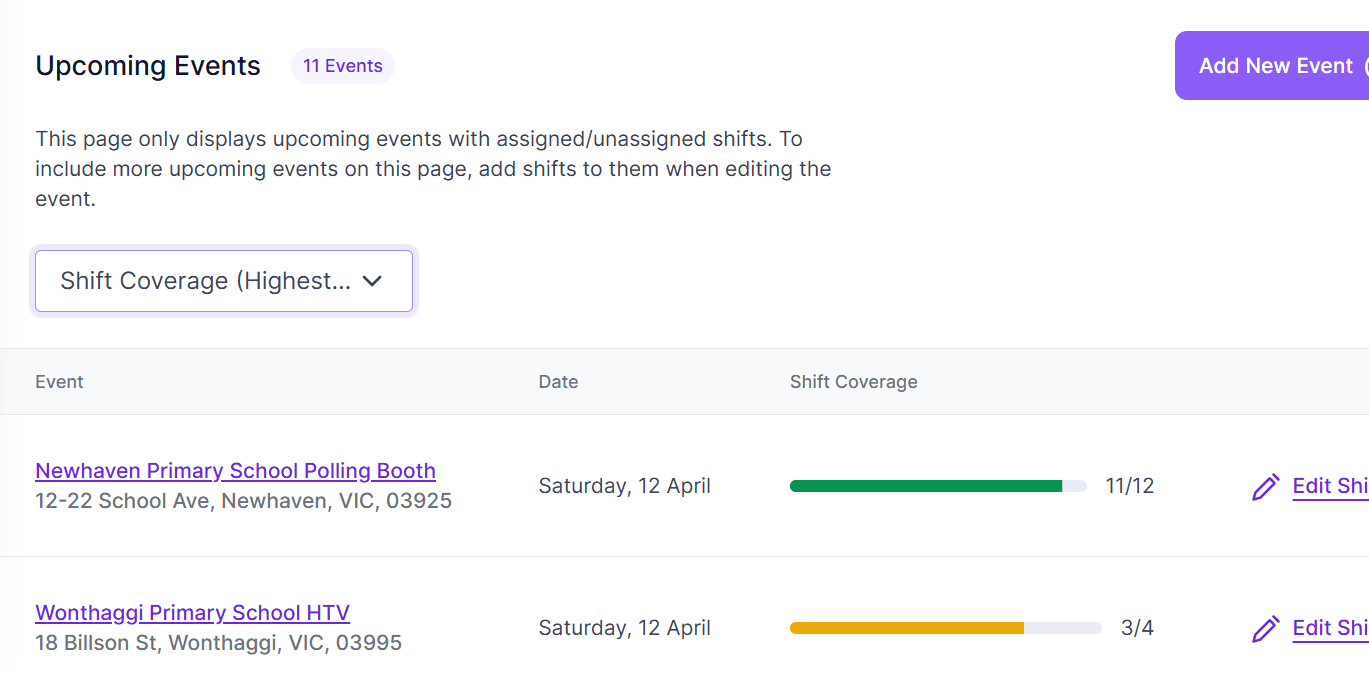
Use the Shifts Overview (located in the "events" menu item) to see recruitment progress at a glance:
- Filter by upcoming events, coverage percentage, or event name
- Quickly identify which events need more promotion or follow-up
- Edit shifts or roles at any time (with the option to notify supporters of changes)
Pre-event reminder
Before the event, use SMS or call lists to remind supporters of their shift times and confirm attendance.
Event setup options
Depending on the nature of your event, you can set it up in different ways:
- Single-day event: Best for one-off activities.
- Multi-day event: Add shifts for multiple days in a single event form. Supporters can RSVP to multiple days and shifts at once.
Group setup options
You can manage shift recruitment either:
- Within existing supporter groups (decentralised management by local leaders), or
- By creating a dedicated group that holds all shift-based events (centralised management)
This depends on how your organisation wants to coordinate volunteers.
Specialised roles
If your event includes roles that need separate tracking (e.g. safety marshals, tech support), you can:
- Add them as roles within the main event, or
- Create a separate event specifically for that role, to manage recruitment and reporting separately
Importing events in bulk
For large efforts (like multi-day events, festivals, or days of action), you can save time by importing events with their shift data in bulk instead of creating them one by one.
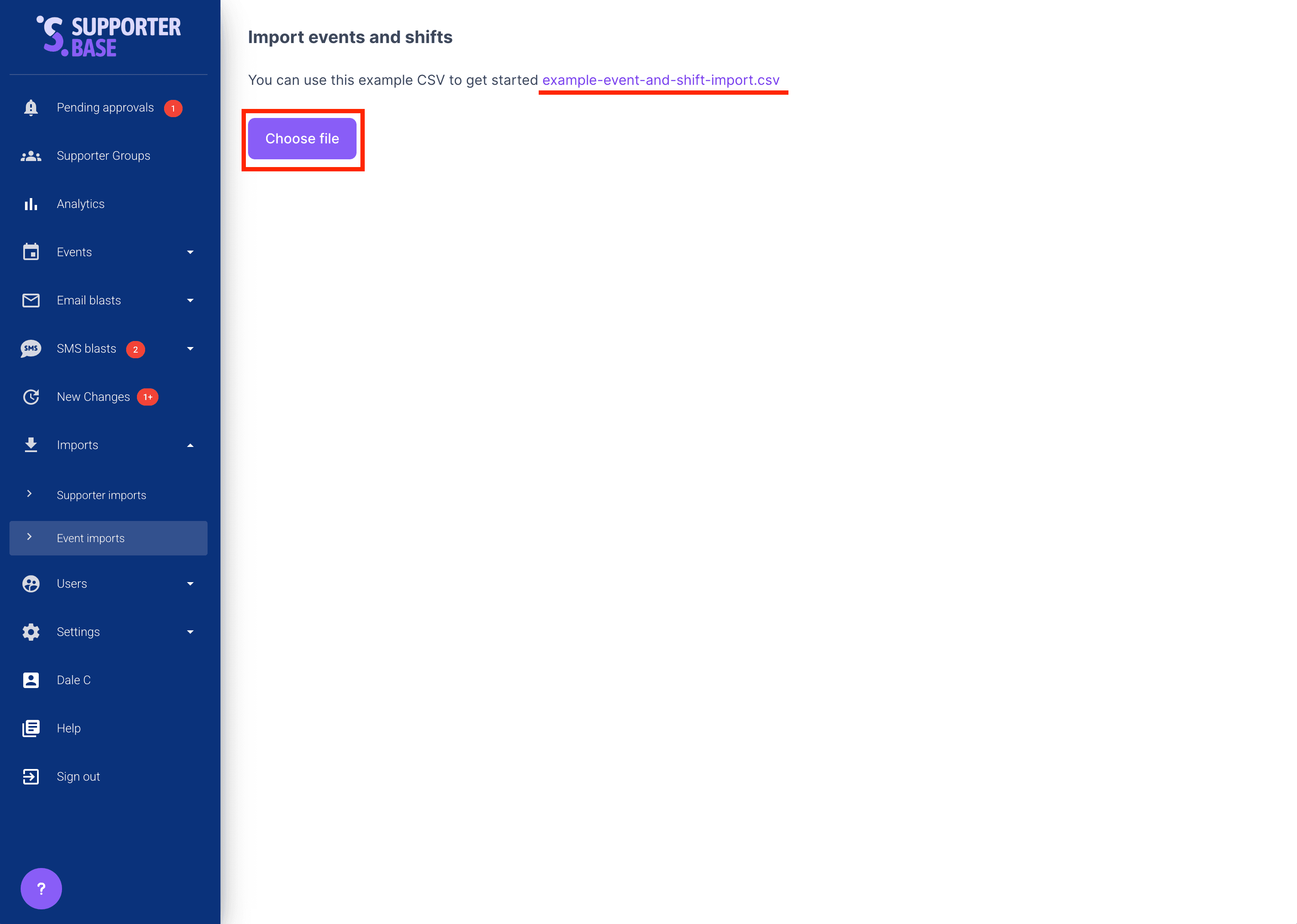
SupporterBase includes an Event Import tool that lets you upload a CSV to automatically create events and associated shifts. A template CSV file is available for download from the import tool.
Open the import tool
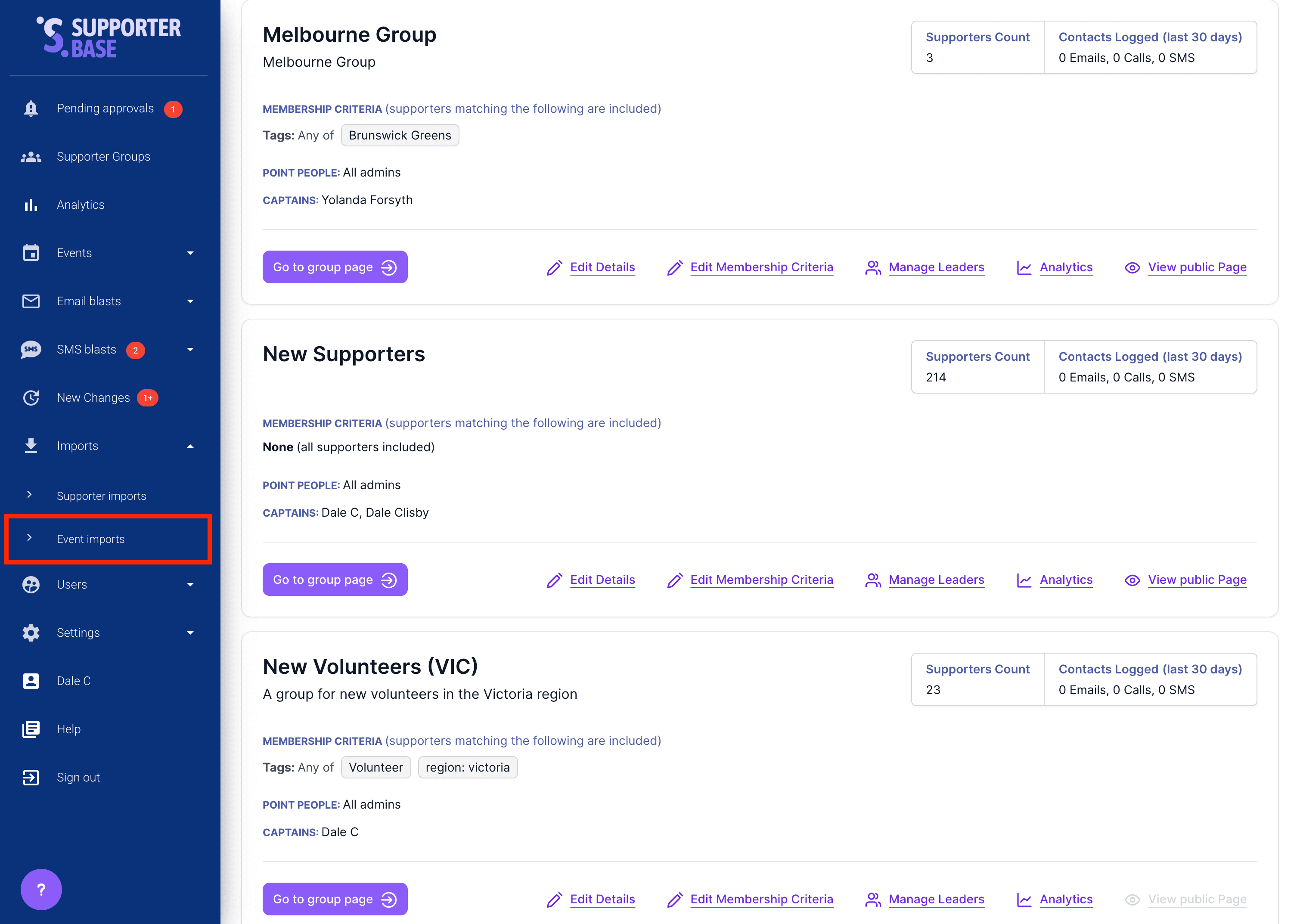
In the left-hand menu, go to Imports > Event Import.
Upload your data
Click Choose file. You can either paste spreadsheet data or upload a CSV file.
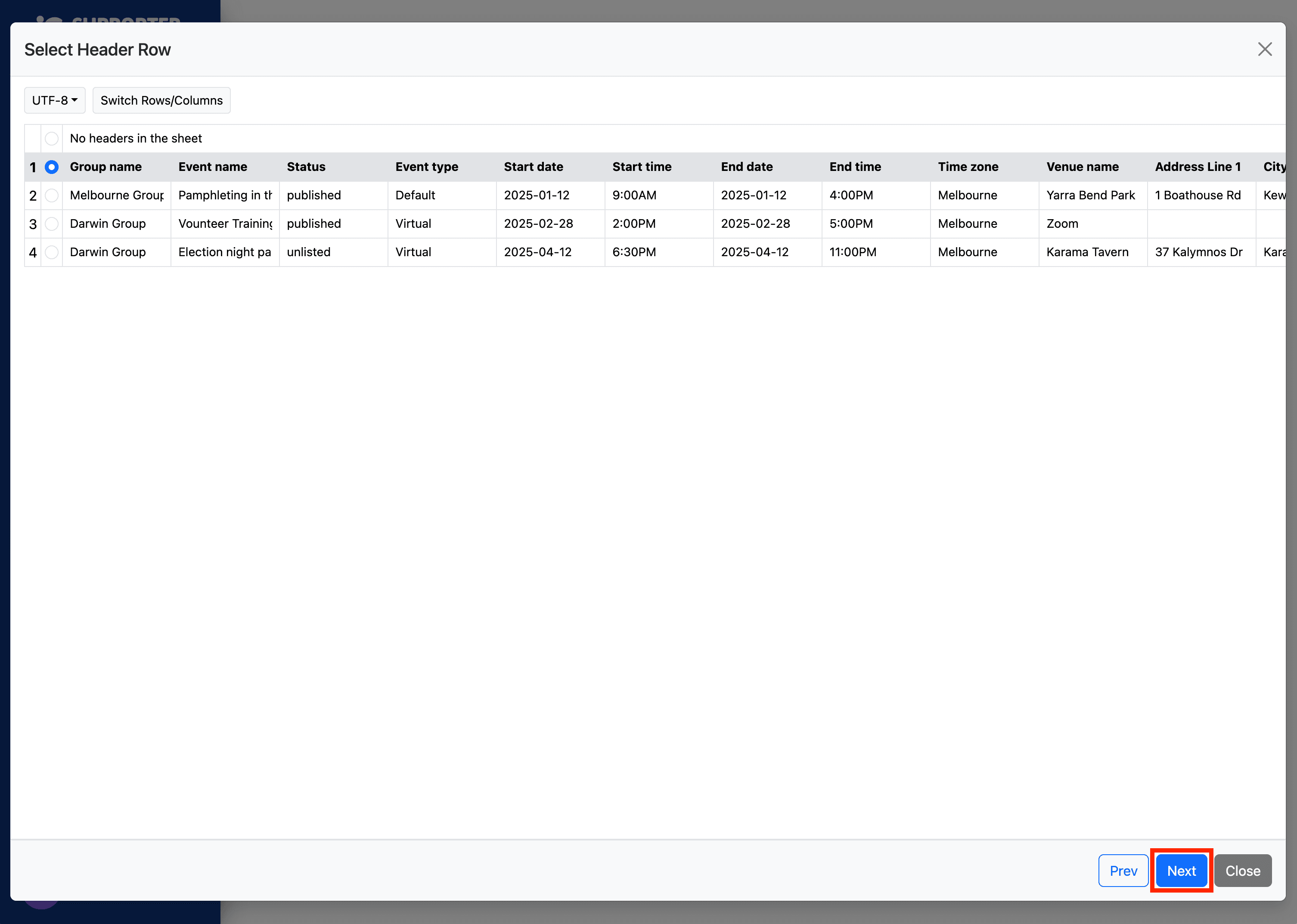
Preview your data
Once loaded, you will see a preview of some rows.
Required field
Make sure the Group name field is present. The import will not work without it.
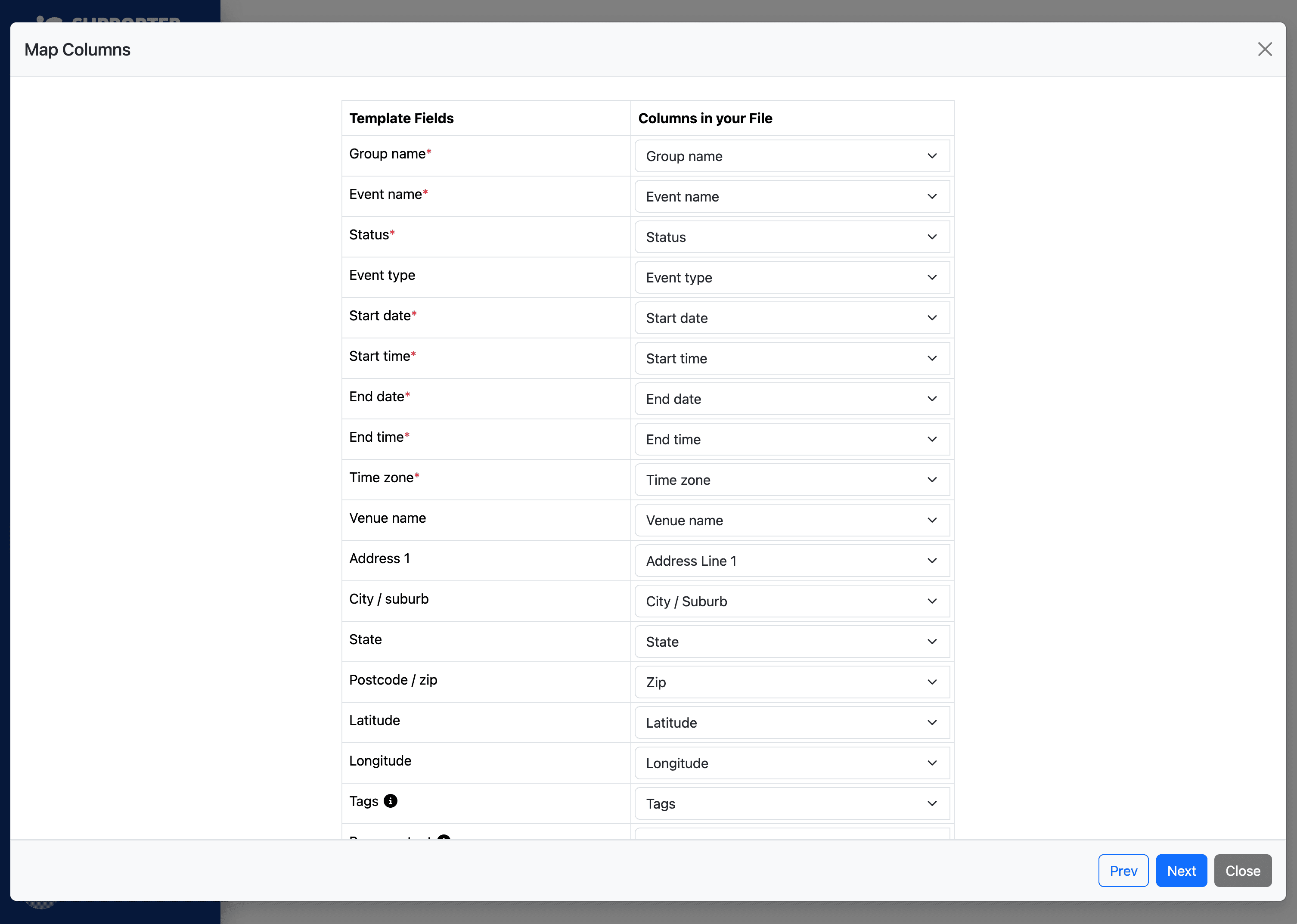
Map fields
Map the fields from your spreadsheet to the correct SupporterBase fields (e.g. Event name, Date, Start time, End time, Role, Shift count).
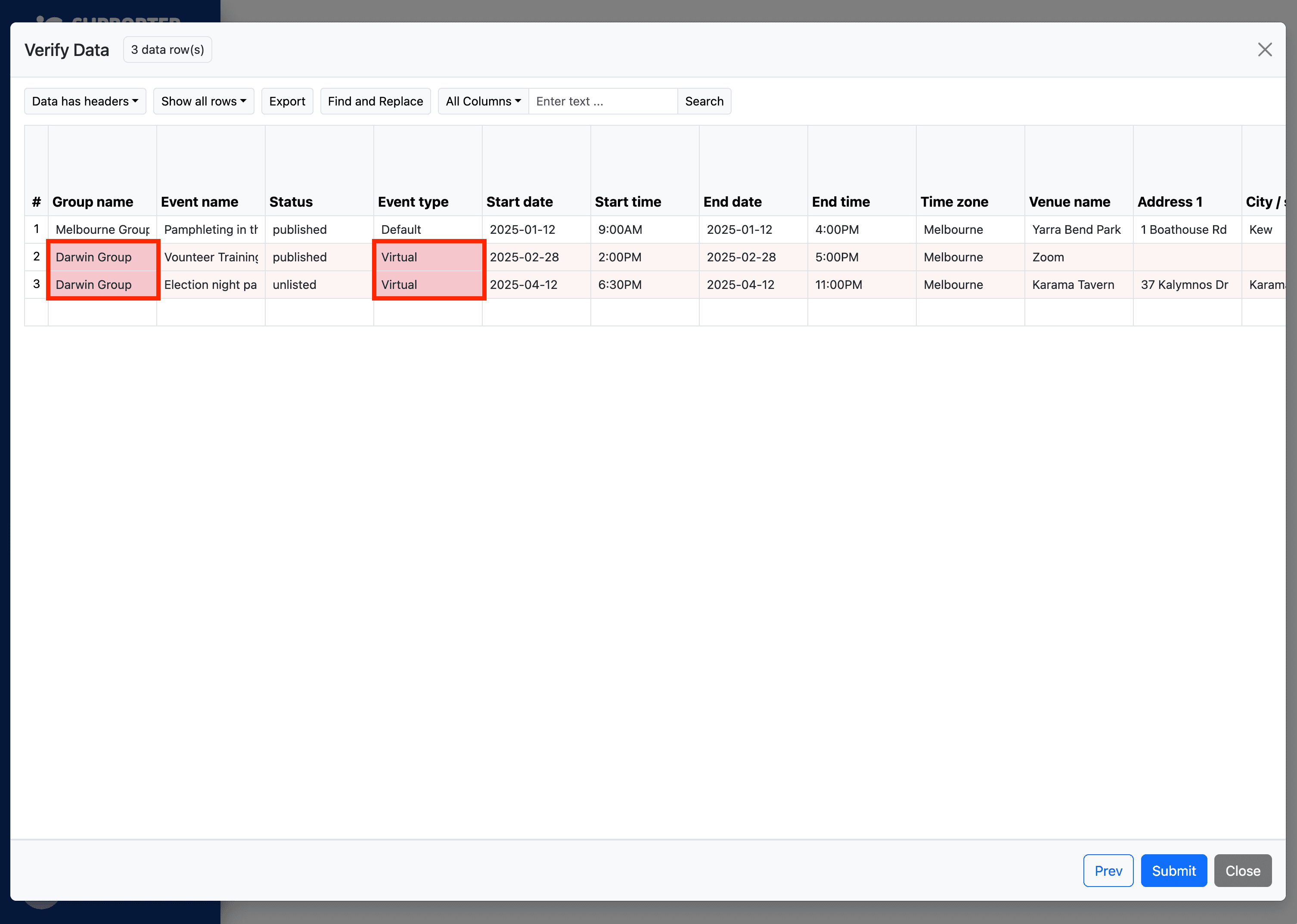
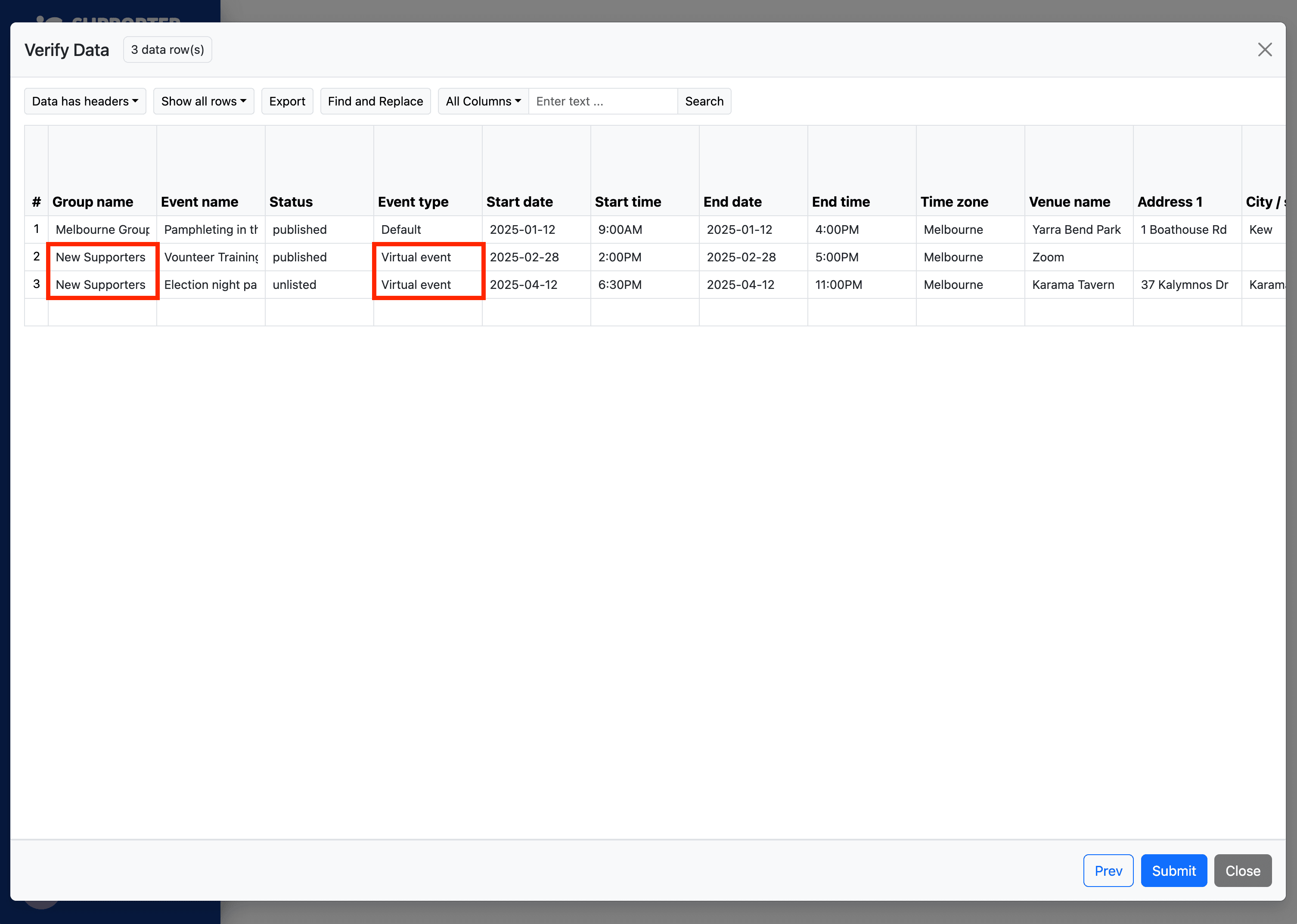
Review validation
If there are errors (e.g. missing group names, invalid dates), they will be highlighted so you can fix them before final submission.
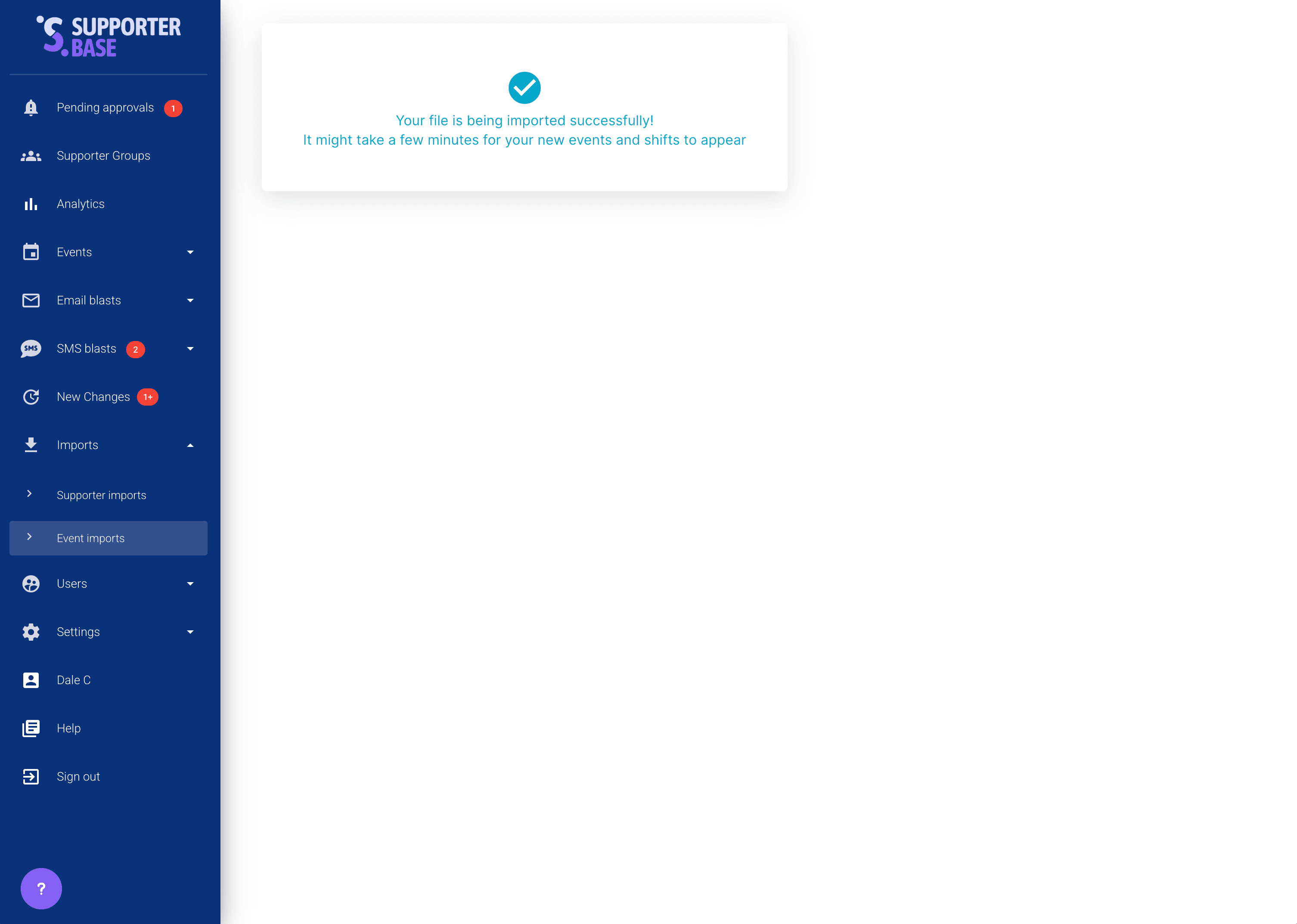
Submit
Once all errors are resolved, click Submit to complete the import.
Need help?
If you need any help uploading your CSV or validating your data, please get in touch with our team.