

Reply to supporters in the SMS inbox and mailbox
Find, filter and answer incoming conversations, and act on them without leaving the thread
When a supporter replies to something you sent, it lands in one of two places depending on the channel.
| Channel | Where replies land | Menu |
|---|---|---|
| SMS | The SMS inbox | SMS blasts > SMS inbox |
| The Mailbox | Email blasts > Mailbox |
The mailbox only appears if an admin has enabled it under Settings > Configurations, with the toggle Mailbox enabled. With it off, your organisation can't receive or reply to incoming supporter emails, and the menu item isn't there. The SMS inbox has no such toggle.
Finding your conversations
Open the inbox
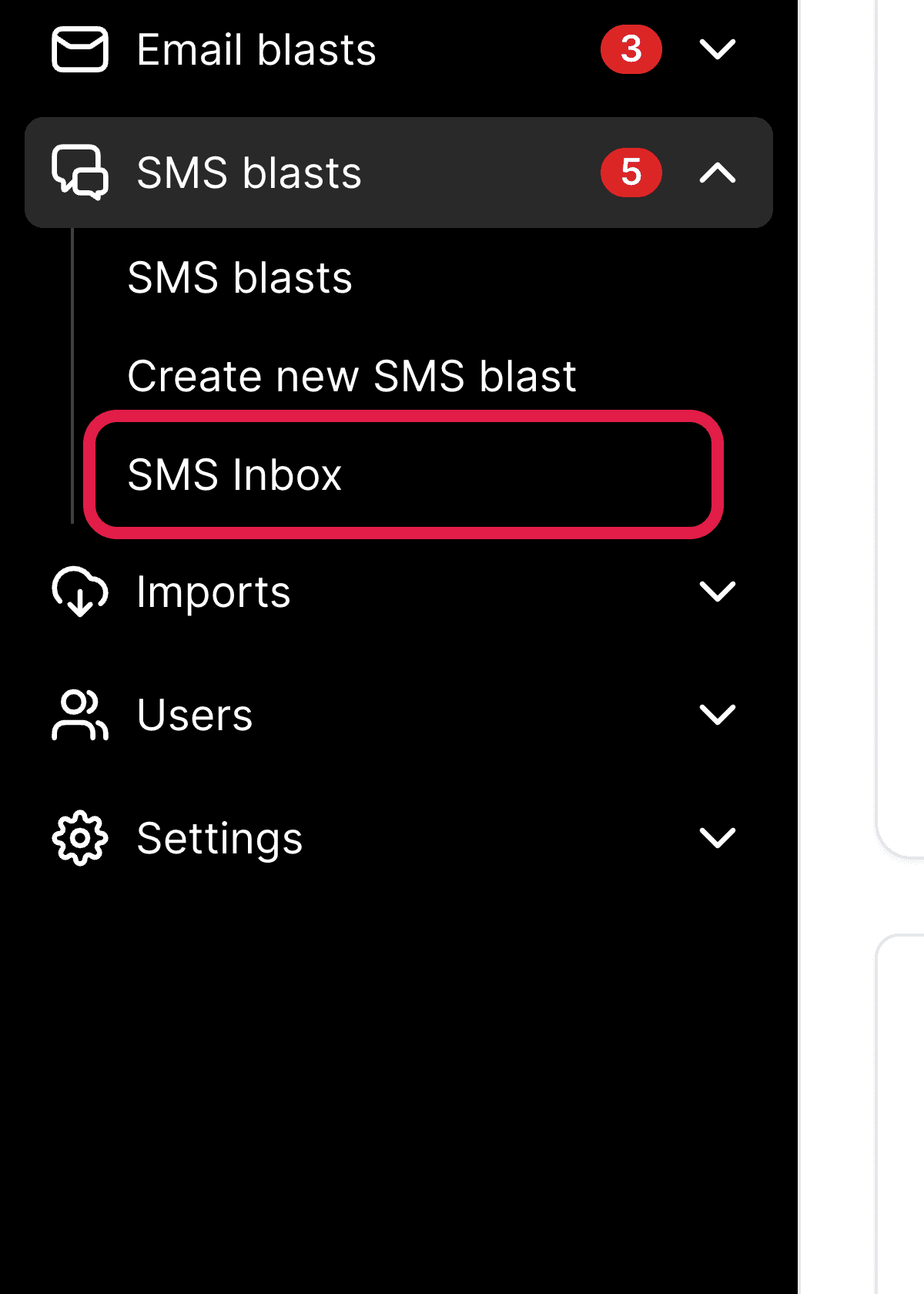
Go to SMS blasts > SMS inbox.
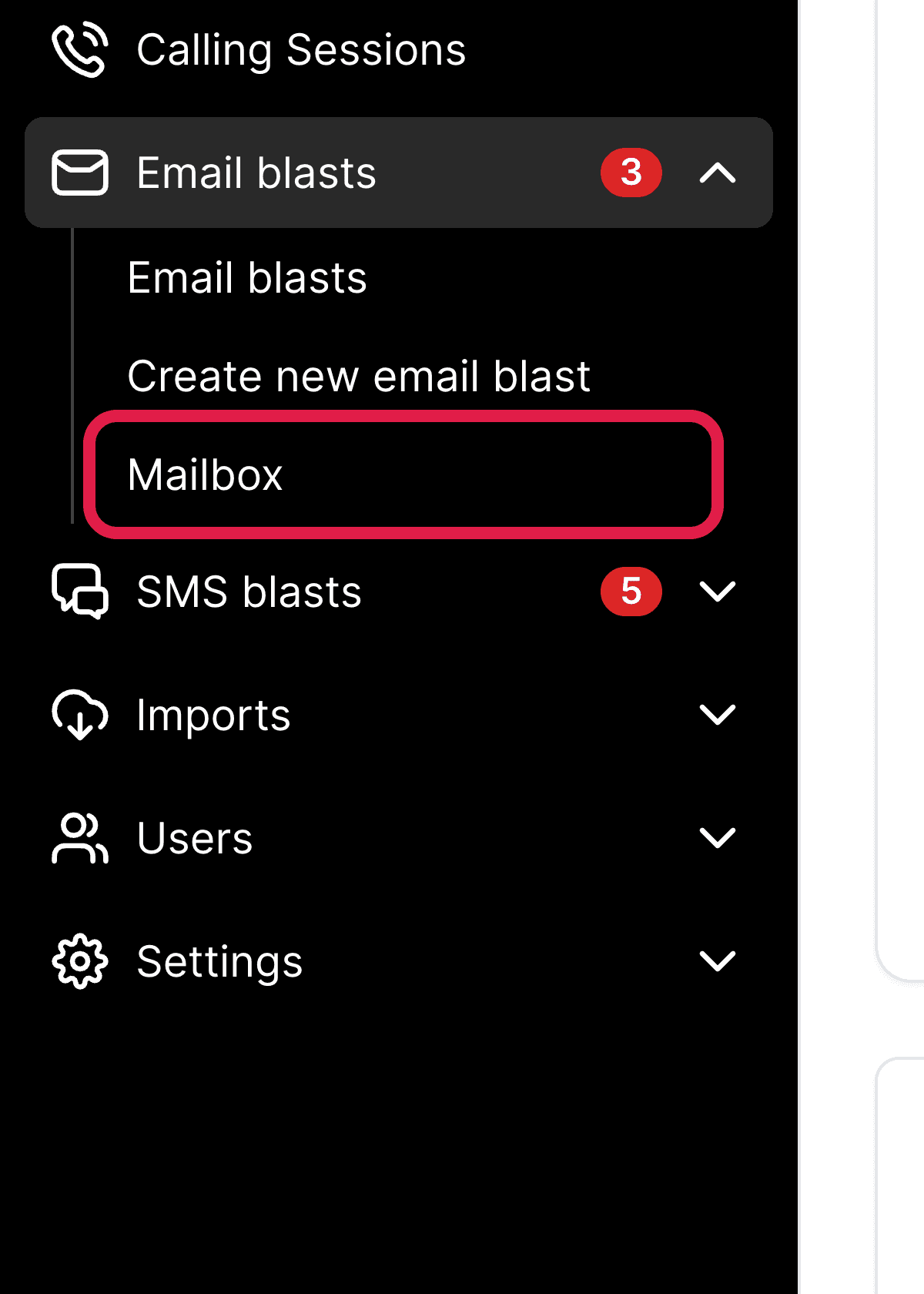
Go to Email blasts > Mailbox.
Choose your group
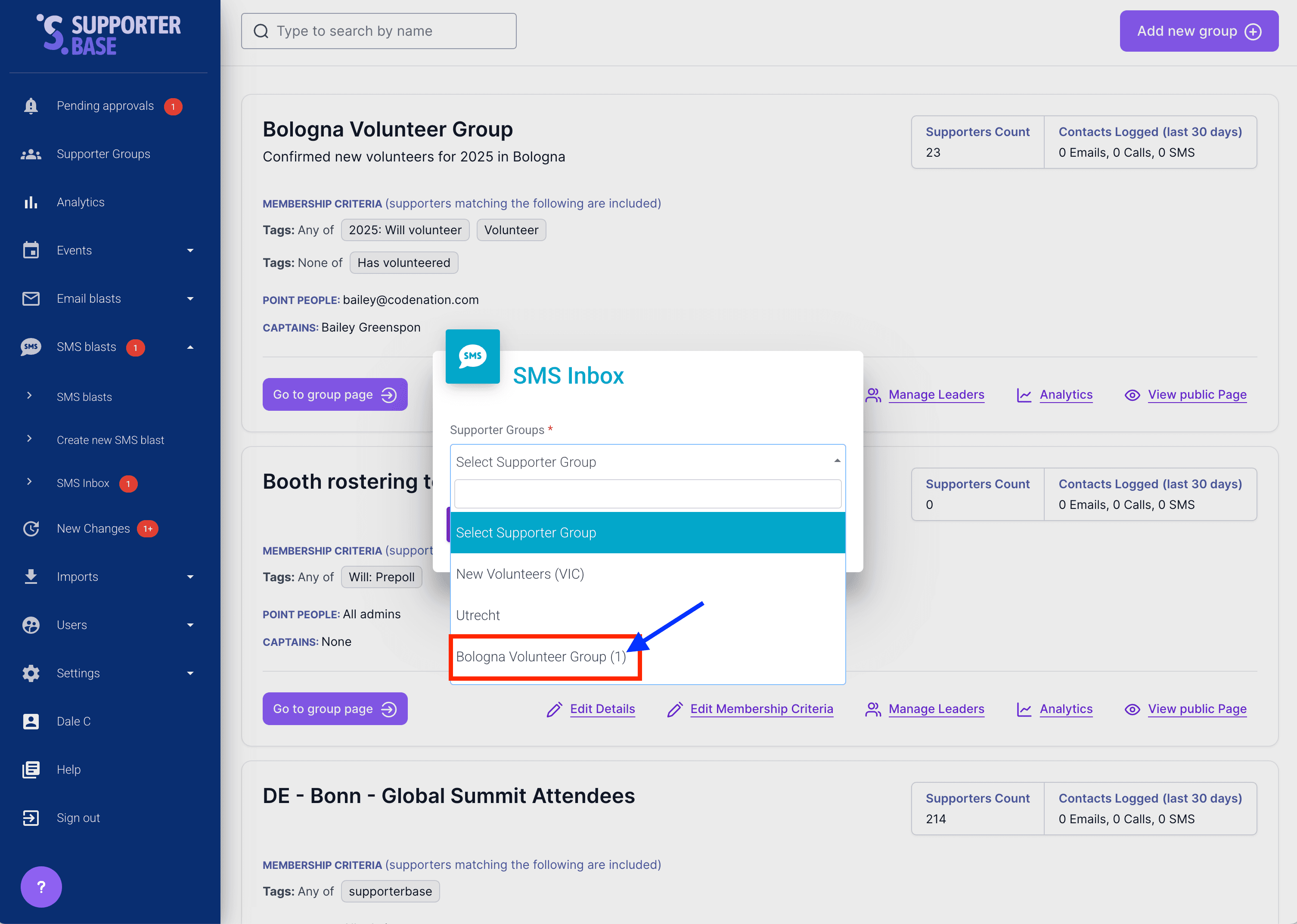
If you lead more than one group, pick the group and click Choose this supporter group. Groups with conversations awaiting a reply show a count in brackets. With one group, you go straight to its conversations and never see the picker.
Filtering and finding a conversation
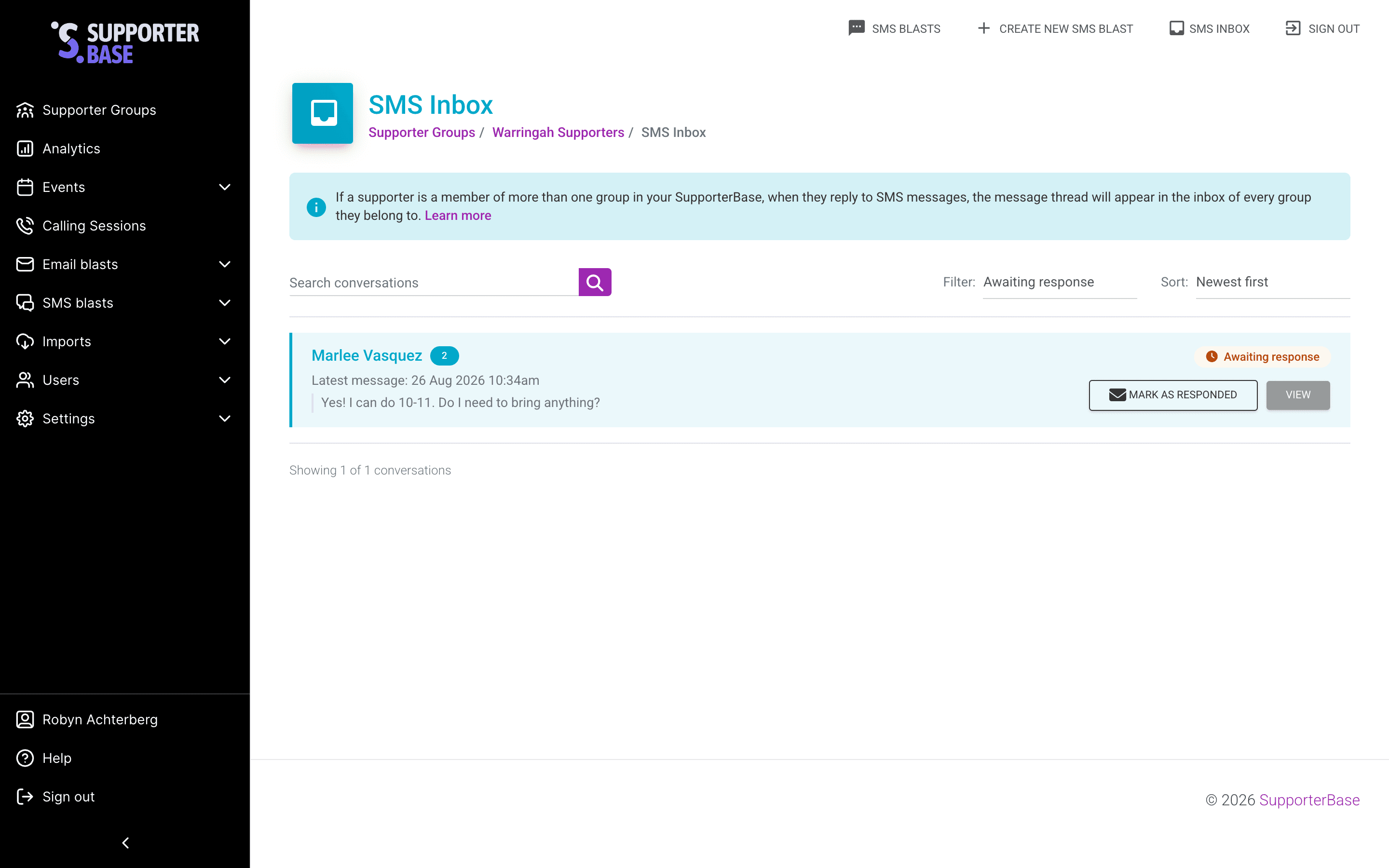
The header shows a count, as Showing 12 of 40 conversations or similar. Narrow the list with:
- Filter — All, Awaiting response or Responded
- Sort — Newest first or Oldest first
- Per page — how many conversations to show at once
- Search conversations — free text search
Replying
Open the conversation
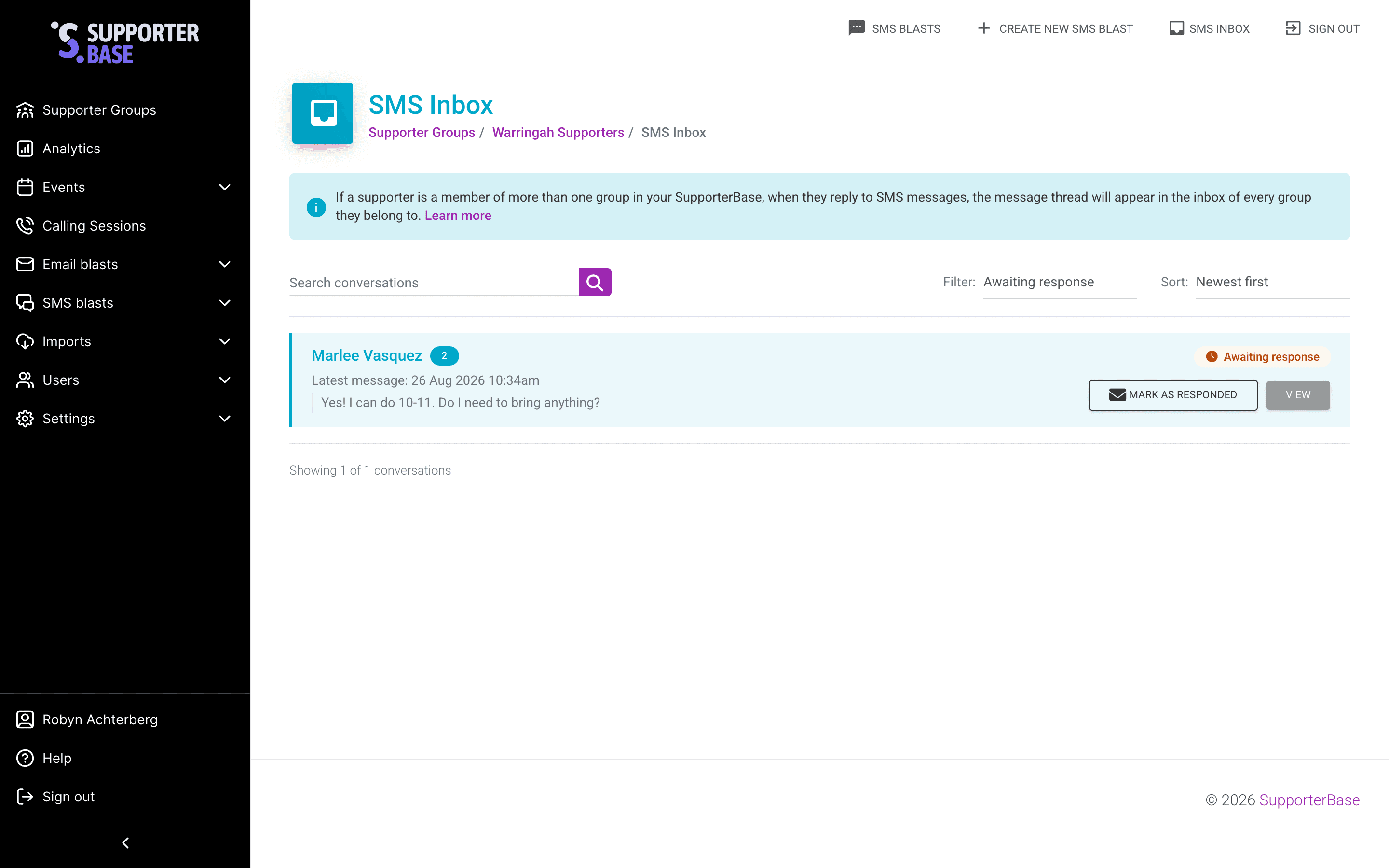
Click View on the conversation you want.
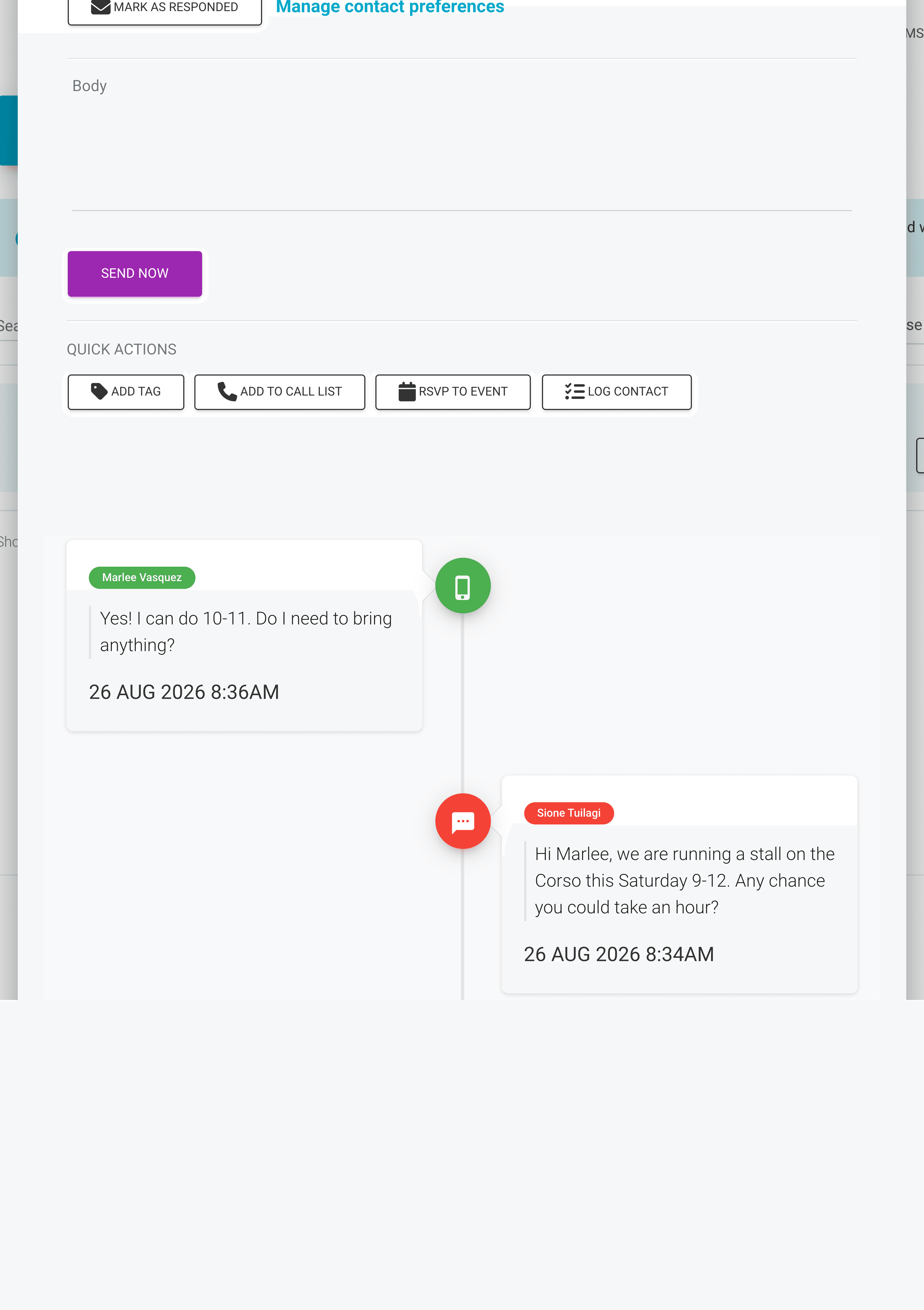
Write and send
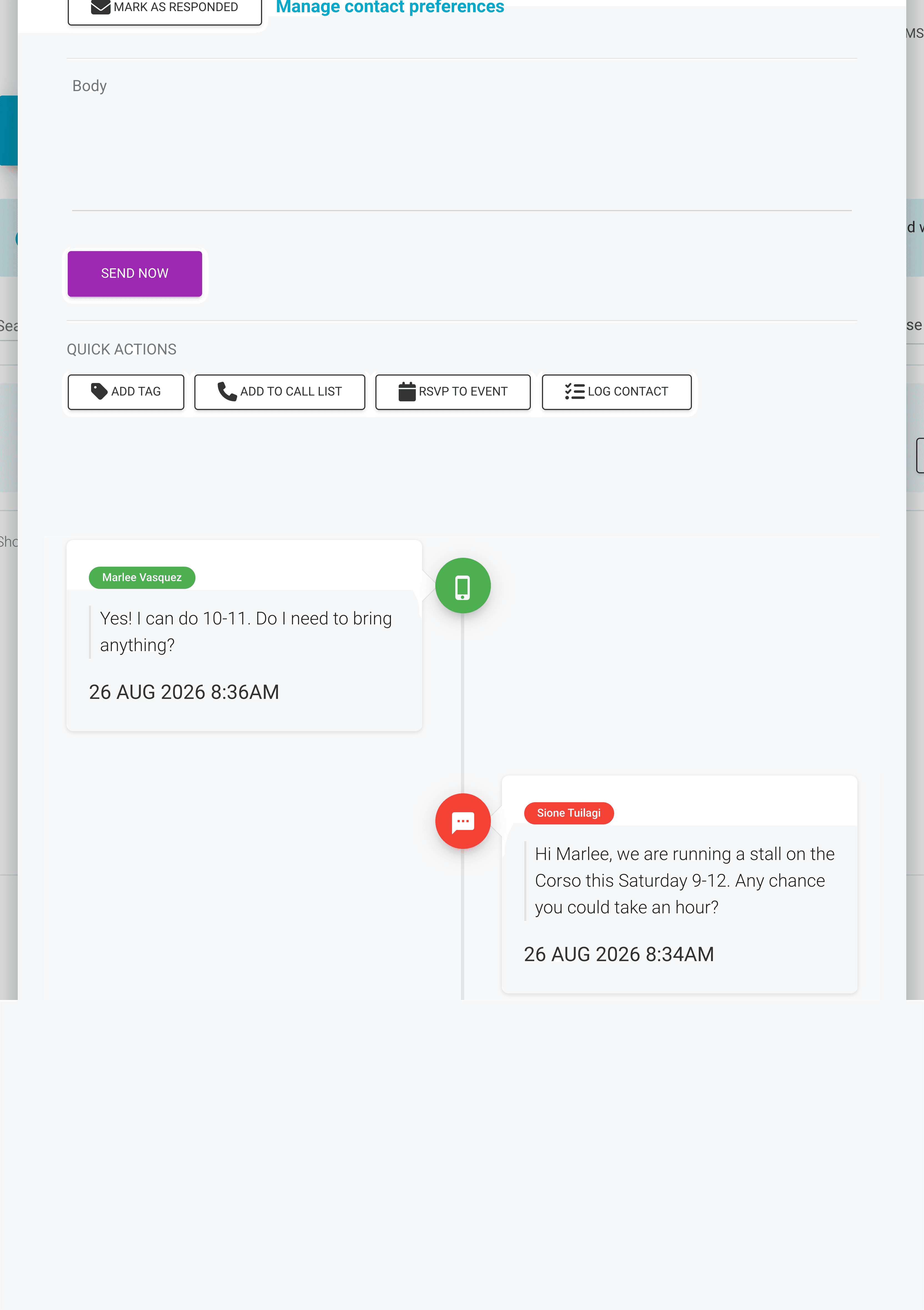
The two channels lay the conversation out differently:
- Email — oldest at the top, replies below, and a text box at the bottom
- SMS — newest at the top, older below, and a body field at the top
Marking a conversation responded
Every conversation is either Awaiting response or Responded. Mark as responded and Mark as awaiting move it between the two, from the list or from inside the conversation. The status is shared across your group, so other leaders can see what's been handled.
Acting on a conversation without leaving it
Each conversation has a Quick actions panel:
- Add tag — tags the supporter, which feeds tag filters and future segments
- Add to call list — adds them to a call list for a proper follow-up conversation
- RSVP to event — books them into an event
- Log contact — records that you spoke to them, optionally adding them to a call list at the same time
RSVPing a supporter to an event
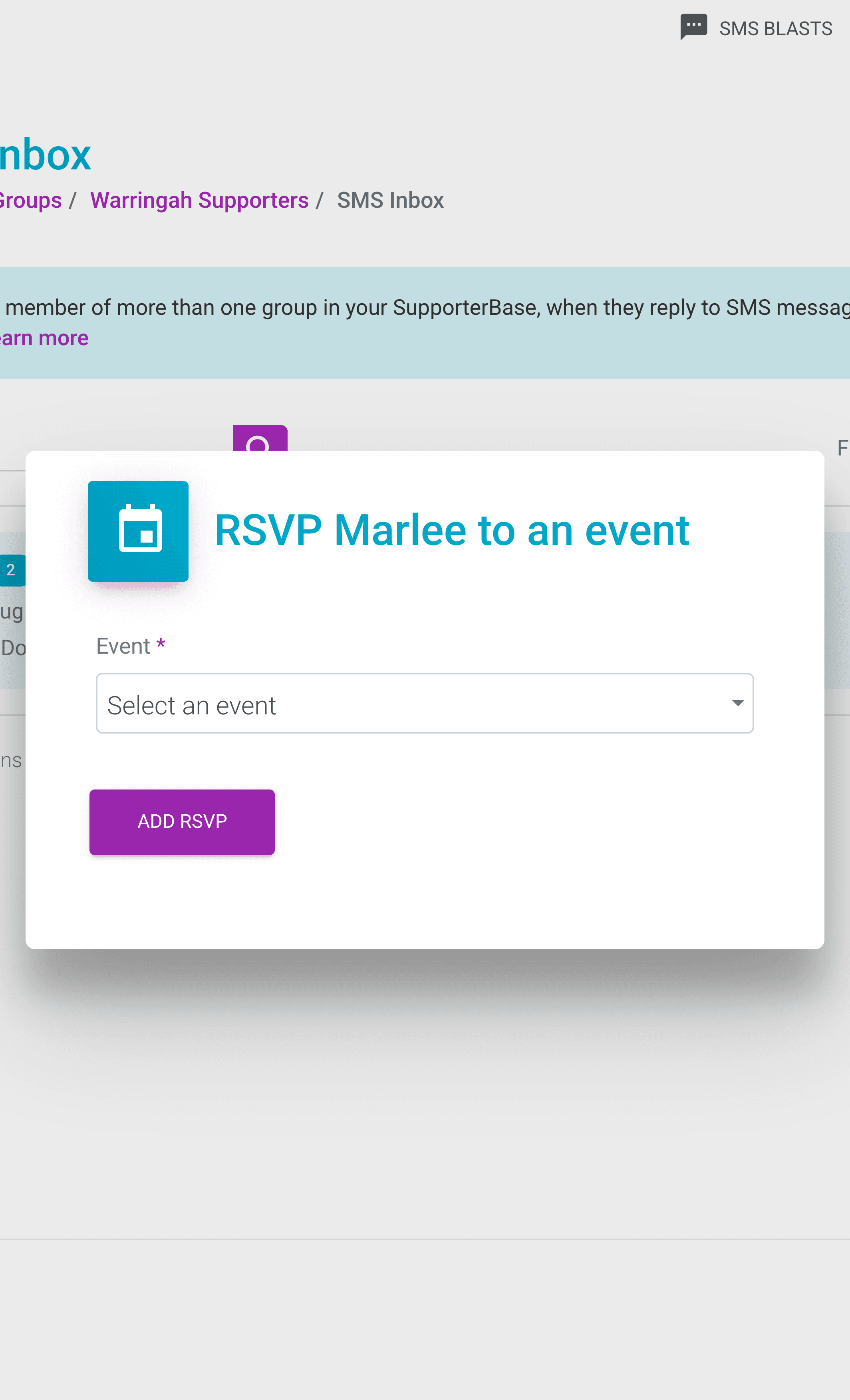
- Click RSVP to event. On an email conversation it's in the bottom corner, and on an SMS conversation it's in the top right.
- Choose the event. The list covers every group you lead, so an admin on several groups sees events from all of them.
- Click Add RSVP. The supporter appears on that event's RSVP list.
Seeing every event in the dropdown
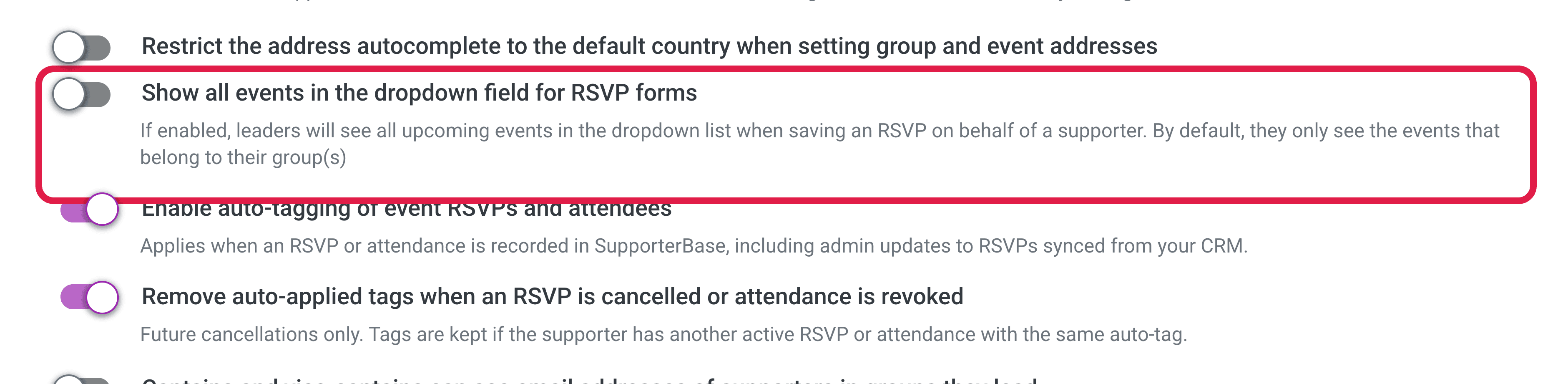
An admin can turn on Show all events in the dropdown field for RSVP forms under Settings > Configurations to list events from outside your own group.
Handling an unsubscribe request
If a supporter asks to stop hearing from you, open Manage contact preferences inside the conversation and choose which channels to stop: email, SMS or phone calls.
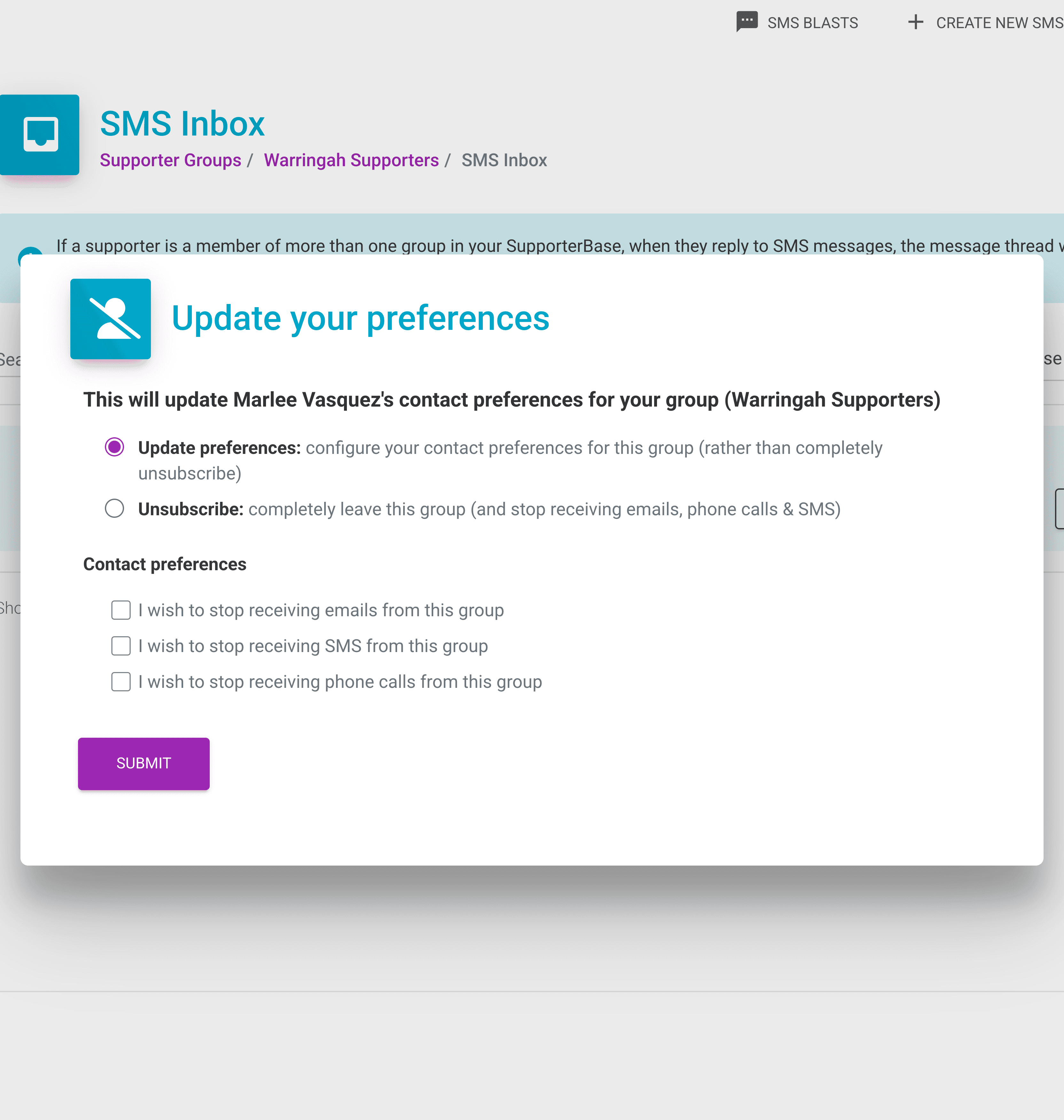
This unsubscribes them from your group, not your nation
Unsubscribing a supporter here does not unsubscribe them in NationBuilder, so if they've asked to hear nothing from your organisation at all, do it in your nation as well.
Why an SMS conversation can appear in several groups
SMS
Your whole organisation sends from one shared phone number. An incoming text carries no indication of which group it's answering, so SMS replies go to every group the supporter belongs to. Separating them would take a dedicated phone number per group, which is a cost decision for your organisation.
Each outbound email uses its own reply-to address, so a reply is tied to one supporter, one group, and the specific message that started the exchange.