

Contact an individual supporter
Guide to calling, emailing, and messaging individual supporters
Calls
Admins, captains and vice-captains can call supporters one at a time.
Choose who to call
- Click Supporter groups in the left-hand navigation.
- Open the group containing the supporter you want to call.
- Find the supporter's card and click Call [first name]. The same button sits on their profile.
- Click Start call.
Connect the call
You receive a phone call on your registered mobile. Answer it, and you are patched through to the supporter.
To change the number SupporterBase rings, click your name at the bottom of the left-hand navigation, then open Edit your profile.
Billing
You are not charged personally. Calls are billed to your organisation's SupporterBase subscription.
Log the contact
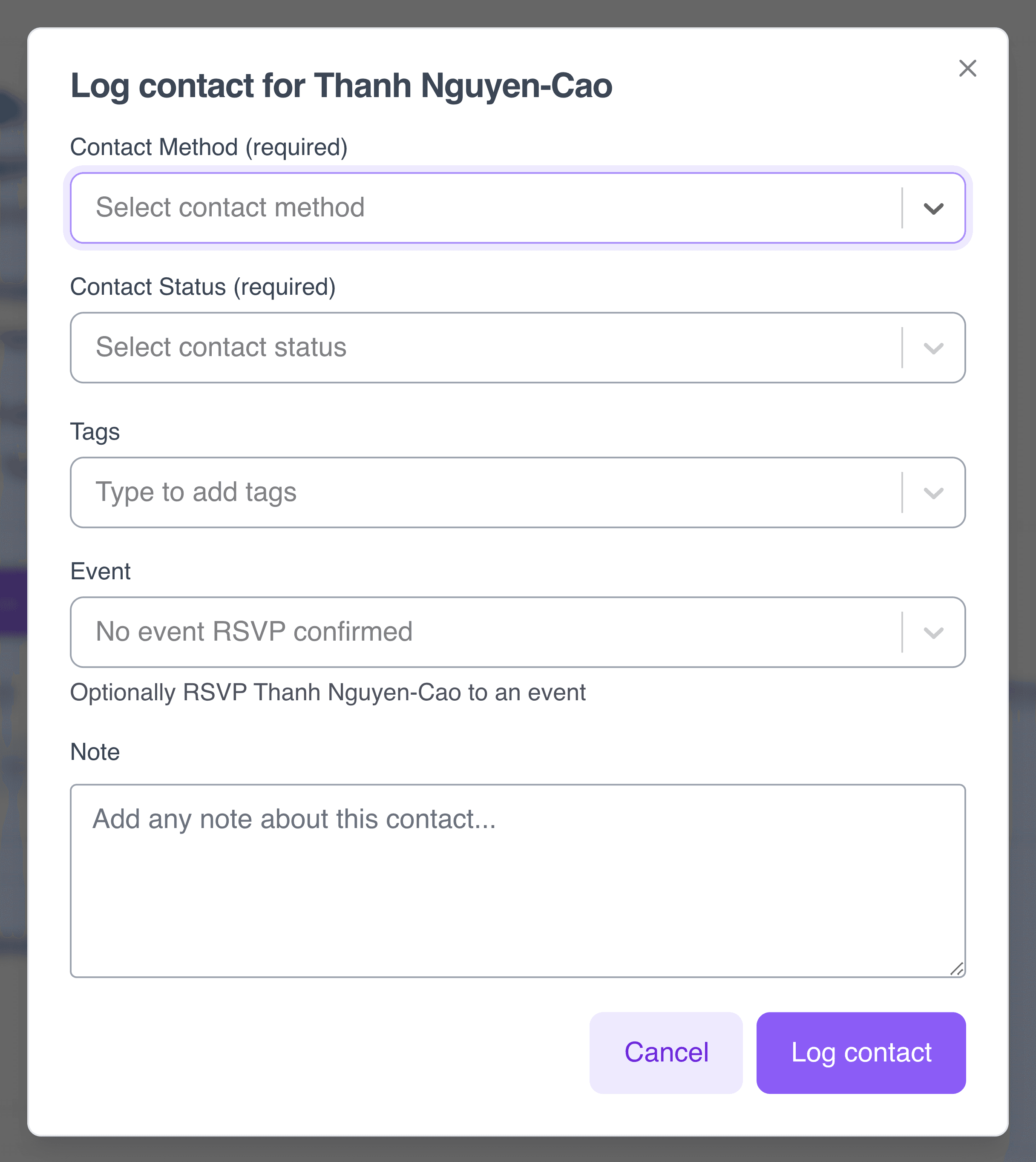
The log contact form opens as soon as the call starts. Record whether the supporter answered under Contact status, RSVP them to an event under Event, and add anything from the conversation as a note.
To work through many calls in order, use a call list.
SMS
For 1-to-1 communication, you can send individual SMS to supporters. Available to admins, captains, and vice-captains.
Send an SMS
- Go to your supporter group's main page.
- Find the supporter you want to message and click SMS [first name].
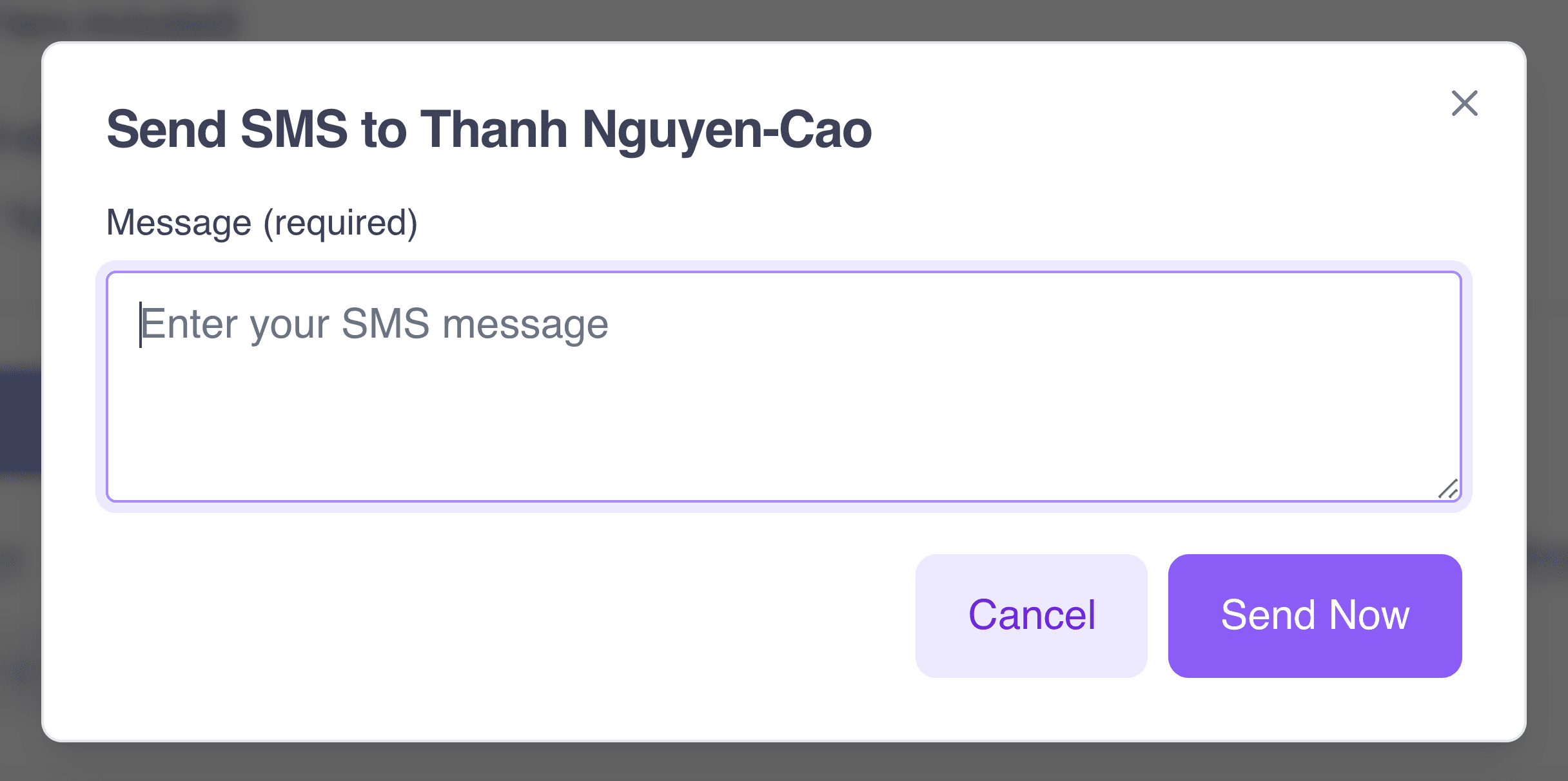
- Type your message into Message in the pop-up form.
- Hit Send now.
Check for replies
Check your inbox
Remember to check your SMS inbox for replies so you can continue the conversation. For more detail on how the inbox works, see our SMS and Email inbox guide.
Want to reach the whole group? See our Blast SMS guide.
Admins, captains and vice-captains can send personalised one-to-one emails.
Send an email
- Open your supporter group's main page.
- Find the supporter using the search bar, the filter dropdowns, or by sorting on first name, last name or most recent contact.
- Open their profile and click Email [first name].
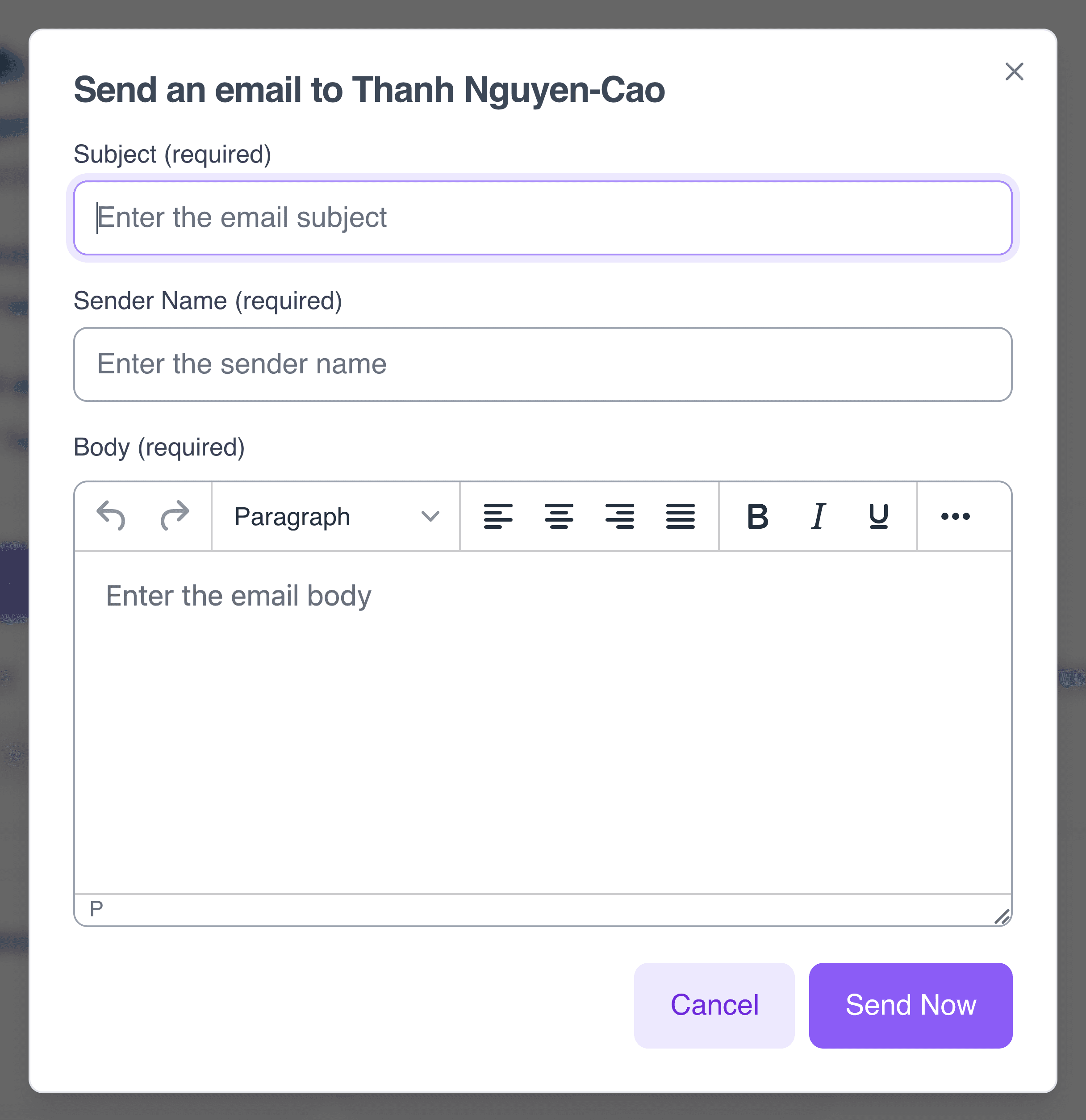
- Complete the pop-up form: Subject, Sender name and Body.
- Click Send now.
Email button greyed out?
The supporter has no valid email address, has opted out of email, or has unsubscribed. See our Contact preferences guide.
Check your email inbox
Check your inbox for replies. See the Inbox documentation.