Build your first email and SMS blast
Step-by-step guide to creating and sending email and SMS blasts
SupporterBase makes it easy to send bulk communications to your supporters via Email Blasts or SMS Blasts. Both follow the same three steps. Choose your recipients, draft the message, then send or schedule it.
| Role | Permissions |
|---|---|
| Admins and Group Captains | Draft, edit, approve, and send without extra approvals |
| Vice-Captains | Draft and submit for approval. Admins and captains will be notified to review, edit, and approve |
Captains can always approve email blasts. On SMS blasts, the approve step depends on Captains can approve, edit and send/schedule SMS blasts (including those created by vice-captains) under Settings > Configurations > General. It is on by default.
Email blasts
Create a new email blast
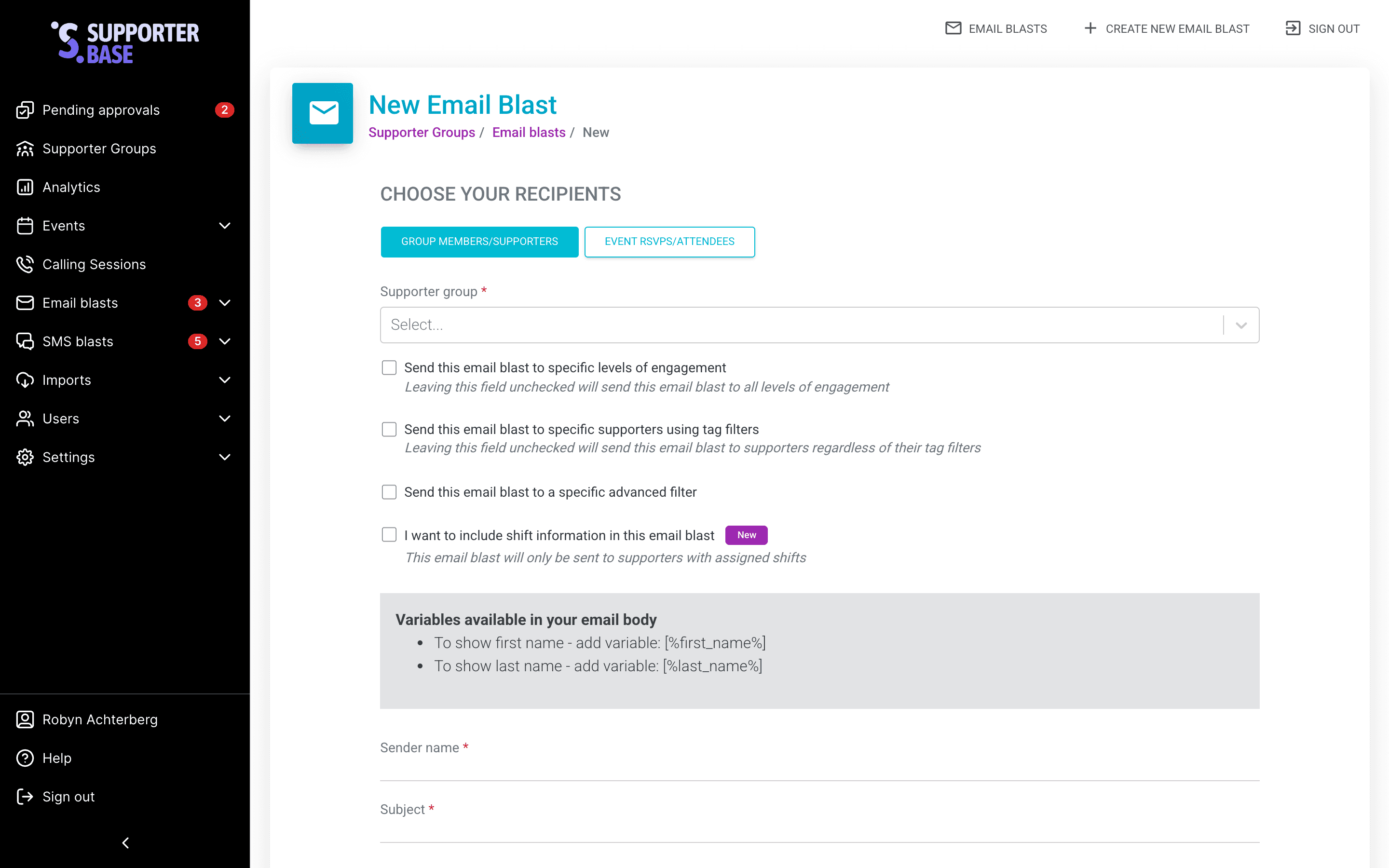
In the left-hand menu, go to Email blasts > Create new email blast. Then choose your recipient category:
- Group members/supporters
- Select your Supporter group.
- (Optional) Target by levels of engagement (see Making sense of filtering tools).
- (Optional) Target by tag filters (see Making sense of filtering tools).
- (Optional) Target by advanced filters (see Making sense of filtering tools).
- Event RSVPs/attendees
- Select the Supporter group.
- Choose the relevant event.
- For past events, you can set RSVP type to All RSVPs, Attendees or Non-attendees.
Draft your email
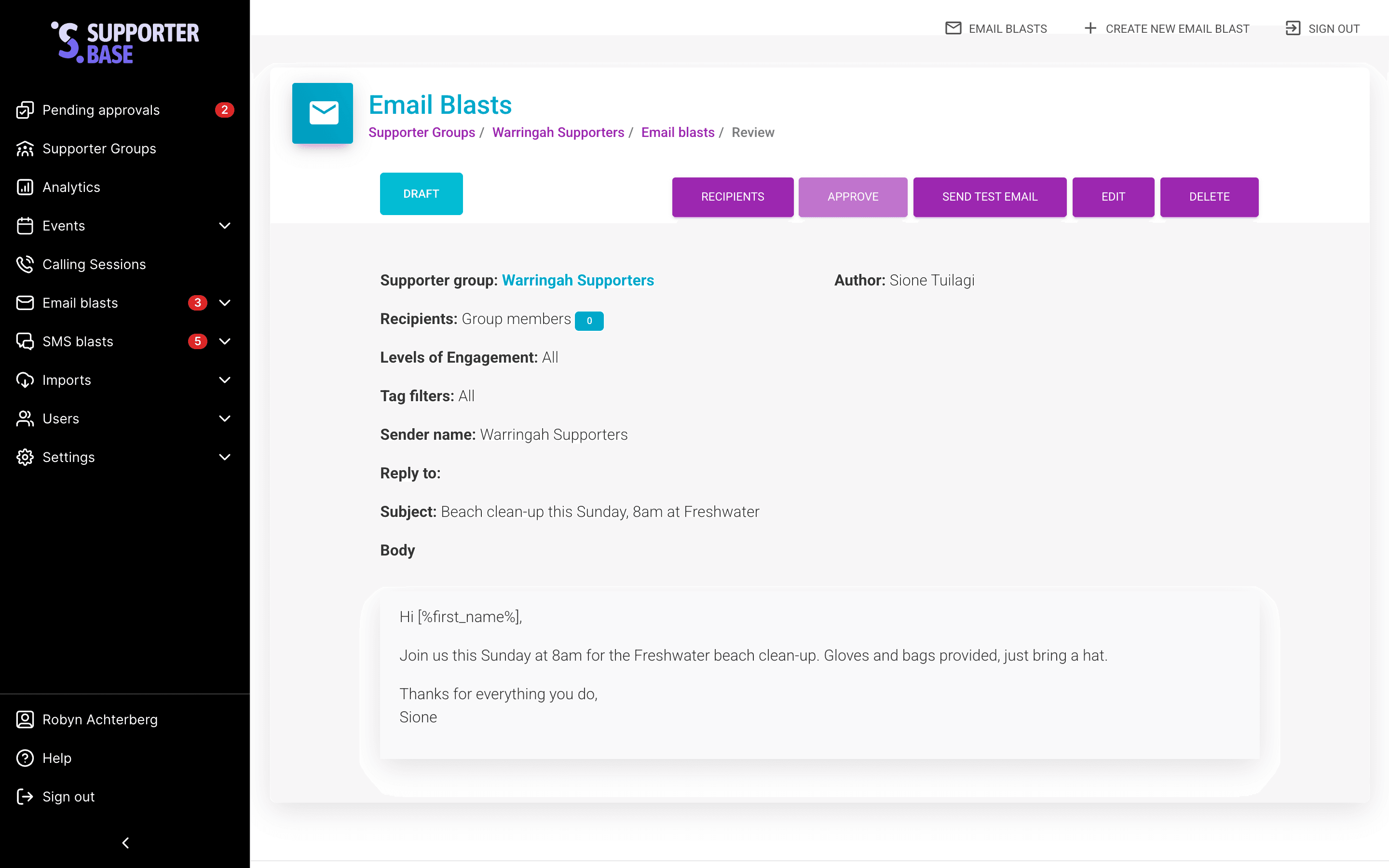
- Fill in the sender name, email title/subject, and email content.
- Click Create email blast. Nothing sends yet, the blast is created as a draft for review.
For more information on email options, see the Advanced Email guide.
Personalise with variables
Variables drop each supporter's own details into the message. The form lists the ones available above the content field.
| Variable | What it inserts |
|---|---|
[%first_name%] | The supporter's first name |
[%last_name%] | The supporter's last name |
[%event_details%] | The event name, location, date, time and host contact details. Event RSVP blasts only |
[%assigned_shifts%] | Each supporter's assigned shifts. Tick I want to include shift information in this email blast first, and the blast then only reaches supporters who have one |
Send or schedule
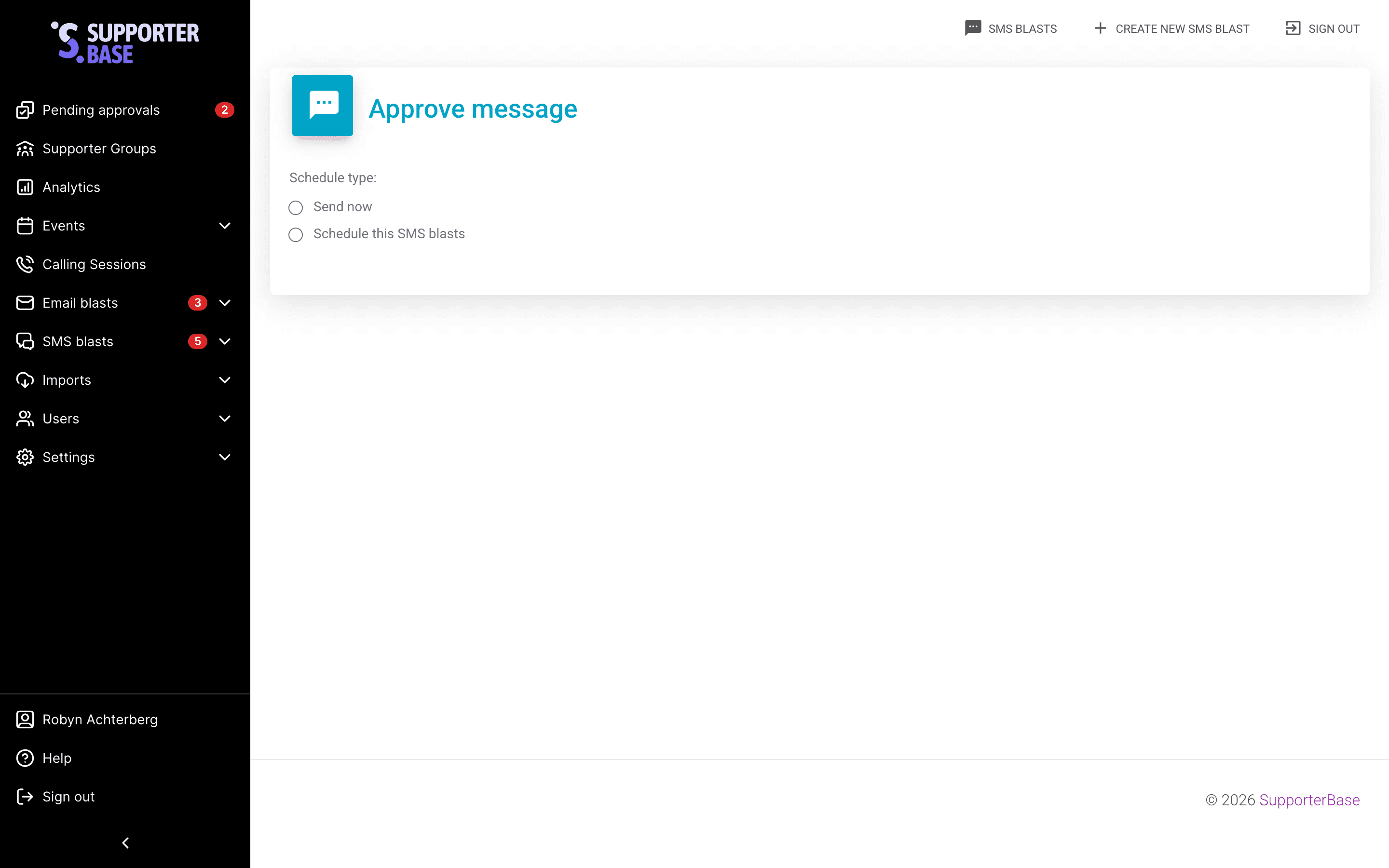
- Admins/Captains: pick a Schedule type of Send now or the schedule option, then click Approve and send or Approve and schedule. You can later cancel, edit, or delete.
- Vice-Captains: click Submit for approval. Admins/captains will be notified to review and send.
An email blast can be scheduled for any hour, up to two months ahead.
SMS blasts
Create a new SMS blast
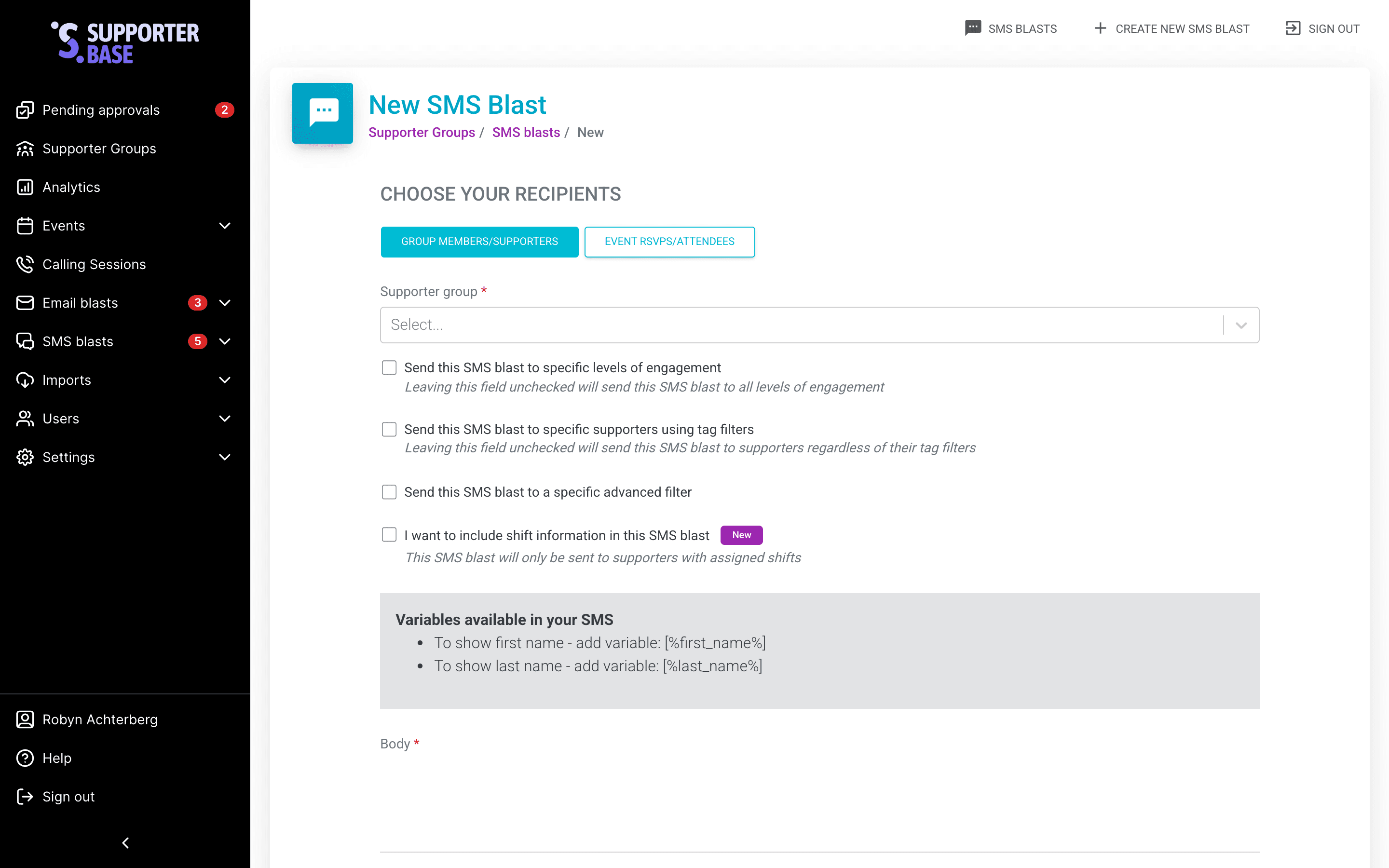
In the left-hand menu, go to SMS blasts > Create new SMS blast. Then choose your recipient category:
- Group members/supporters
- Select your Supporter group.
- (Optional) Target by engagement level, tag filters, or advanced filters.
- Event RSVPs/attendees
- Select the Supporter group.
- Choose the relevant event.
Draft your SMS
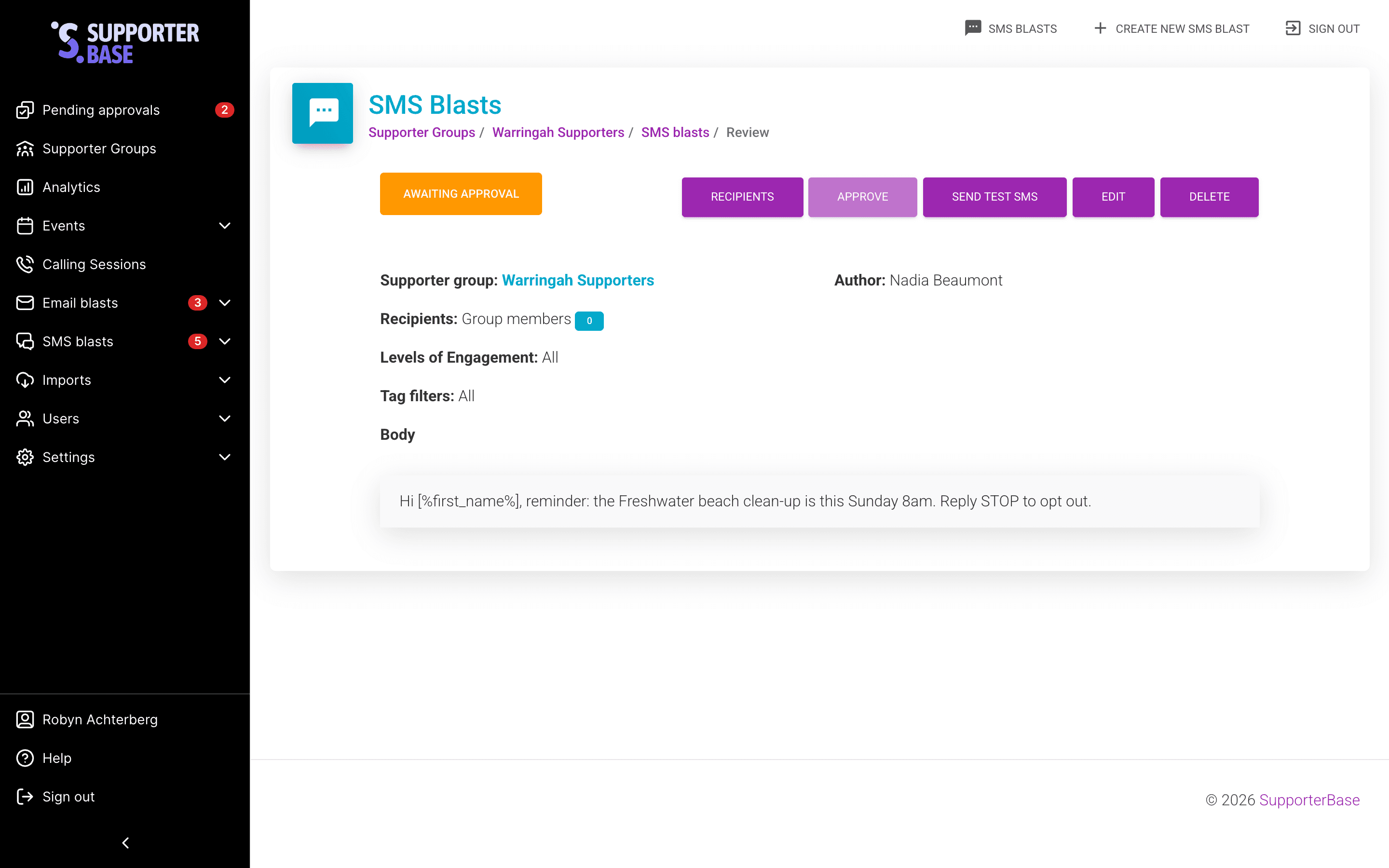
Enter your message in the Body field. Then click Create SMS blast.
[%first_name%] and [%last_name%] work here too. The field takes 1585 characters. A long message is charged as several segments. See Monitoring usage costs.
Review and send
- Review your content and recipient list.
- (Optional) Send a test SMS.
- Edit, delete, or confirm send / schedule send.
- Vice-Captains: submit for approval. Admins/captains will be notified.
A test SMS only reaches users who have access to this blast.
Pick a send time
Send now is only available between 7am and 10pm. It is greyed out outside those hours. Scheduled sends are held to the same window, up to two months ahead.
Troubleshooting SMS blasts
Recipient numbers lower than expected?
If your recipient count looks too low, check your configuration settings.
Go to Settings > Configurations > General and review these options:
- Toggle Apply NationBuilder contact preferences and unsubscribes in addition to SupporterBase contact preferences and unsubscribes
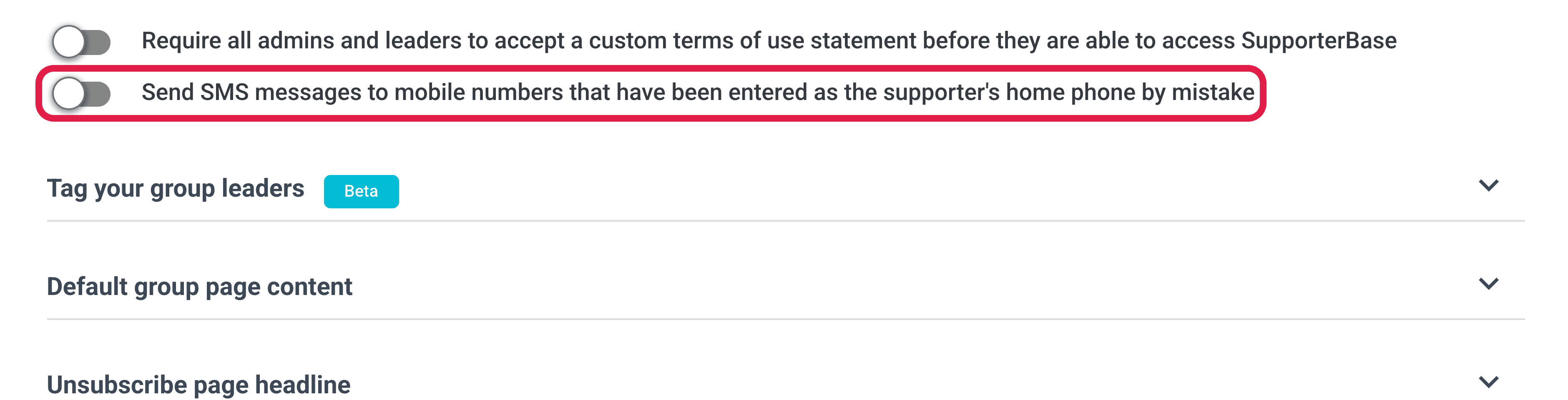
- Toggle Send SMS messages to mobile numbers that have been entered as the supporter's home phone by mistake
- Wait for the SupporterBase/NationBuilder sync to complete. Admins can run it on demand from More actions > Sync supporters from NationBuilder on the group card; the item does not appear for captains or vice-captains.