

Run your first calling session
Create a calling session, work the queue, and start a second cycle
A calling session works a call list as a live queue. It tracks your progress, holds your skips, and reports on each cycle.
What you need first
- A call list with supporters in it. Build one with the Call lists guide.
- A mobile number saved on your user profile. Click your name in the left-hand navigation, open Edit your profile, and add it.
| Who | What they can do |
|---|---|
| Admins, captains and vice-captains | Create and run calling sessions |
| Anyone in your group with a call list | Start a session from that list |
Create a calling session
- Open the call list you want to work: Supporter groups > [Your Group] > Call lists > [Your List].
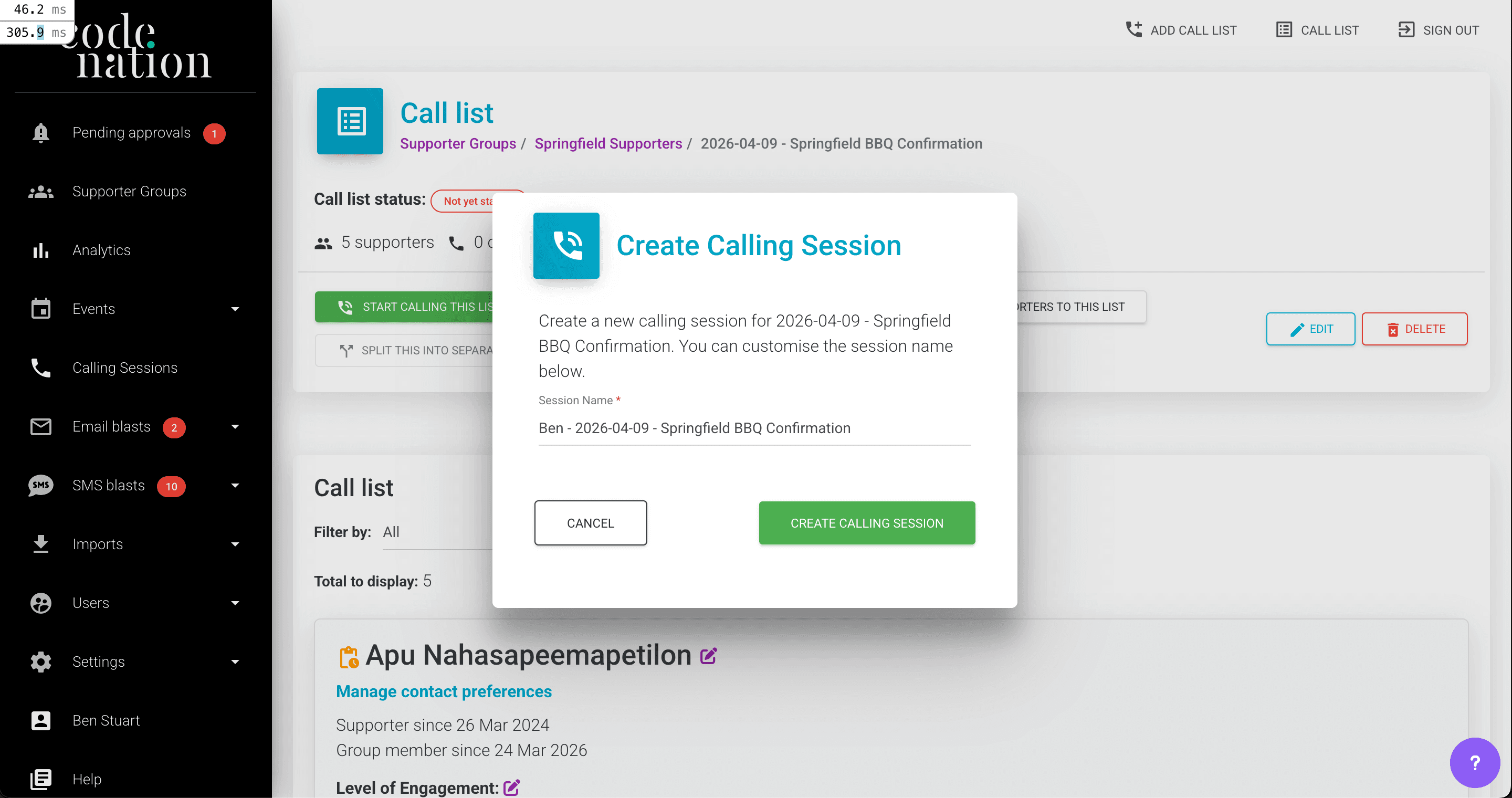
- Click Create calling session.
- Name the session in Session name. It pre-fills as
[Your first name] - [Call list name]. We recommend[Your name] - [Date] - [Purpose], for example Ben - 15 Apr - Event RSVPs. - Click Create calling session again. The dashboard opens.
A consistent naming pattern makes paused sessions much easier to recognise later. Your sessions are listed under Calling sessions in the left-hand sidebar.
Can't see the button?
Create calling session appears once your user profile has a mobile number saved. See phone troubleshooting if you're still stuck.
Get oriented on the dashboard
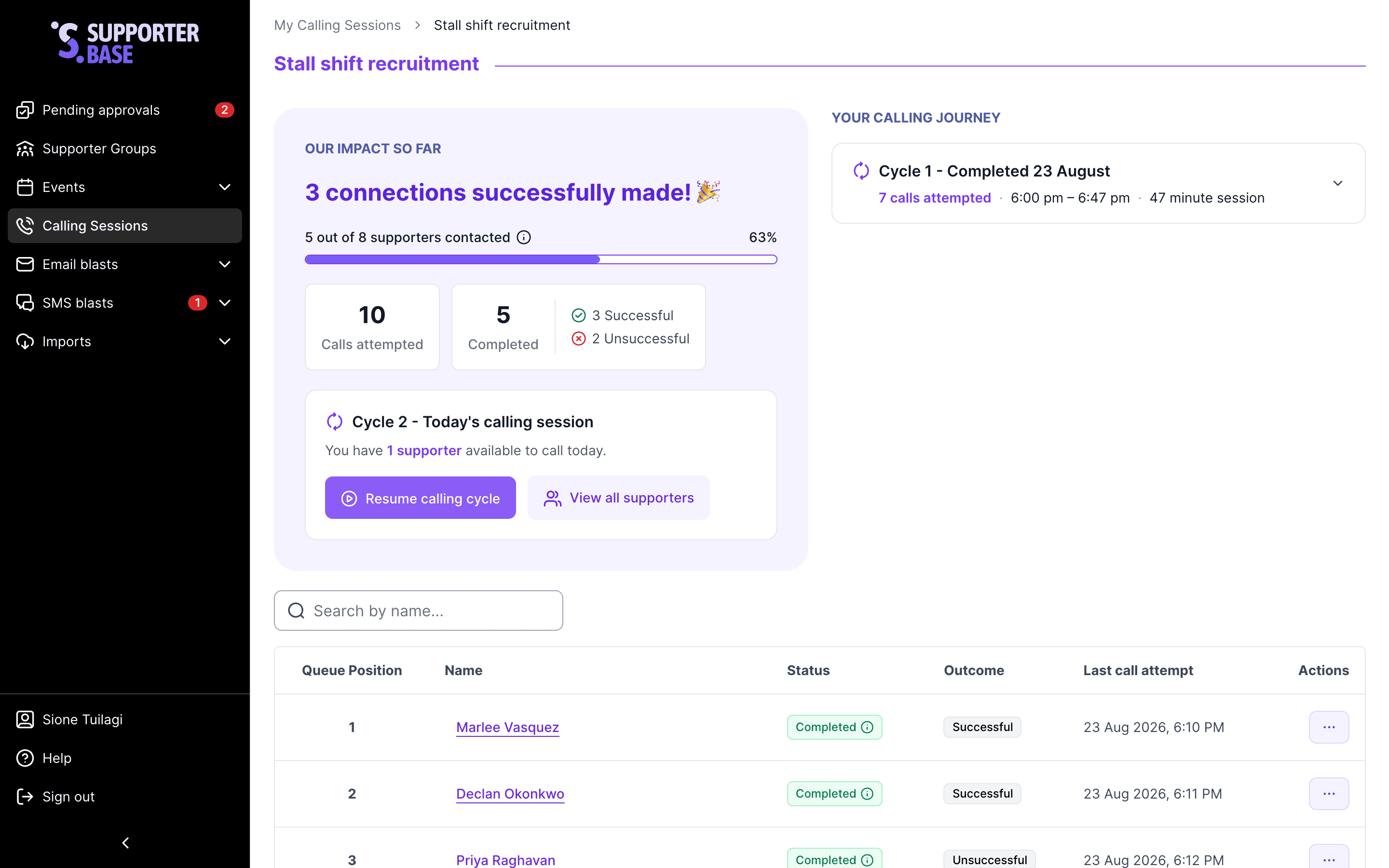
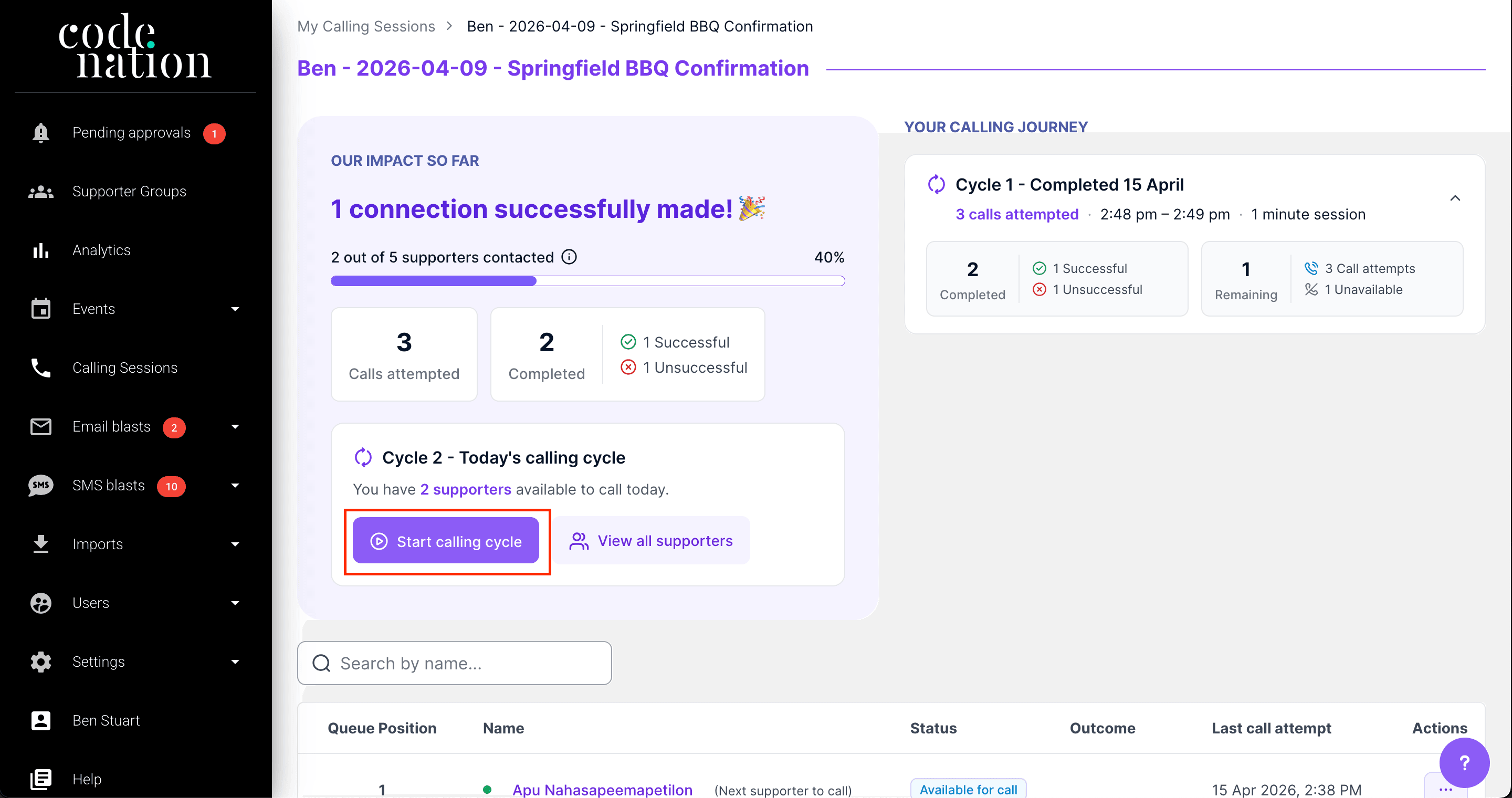
The dashboard has four parts.
| Part | What it shows |
|---|---|
| impact panel | Session-level stats across all cycles: calls attempted, contacts made, and the outcomes breakdown |
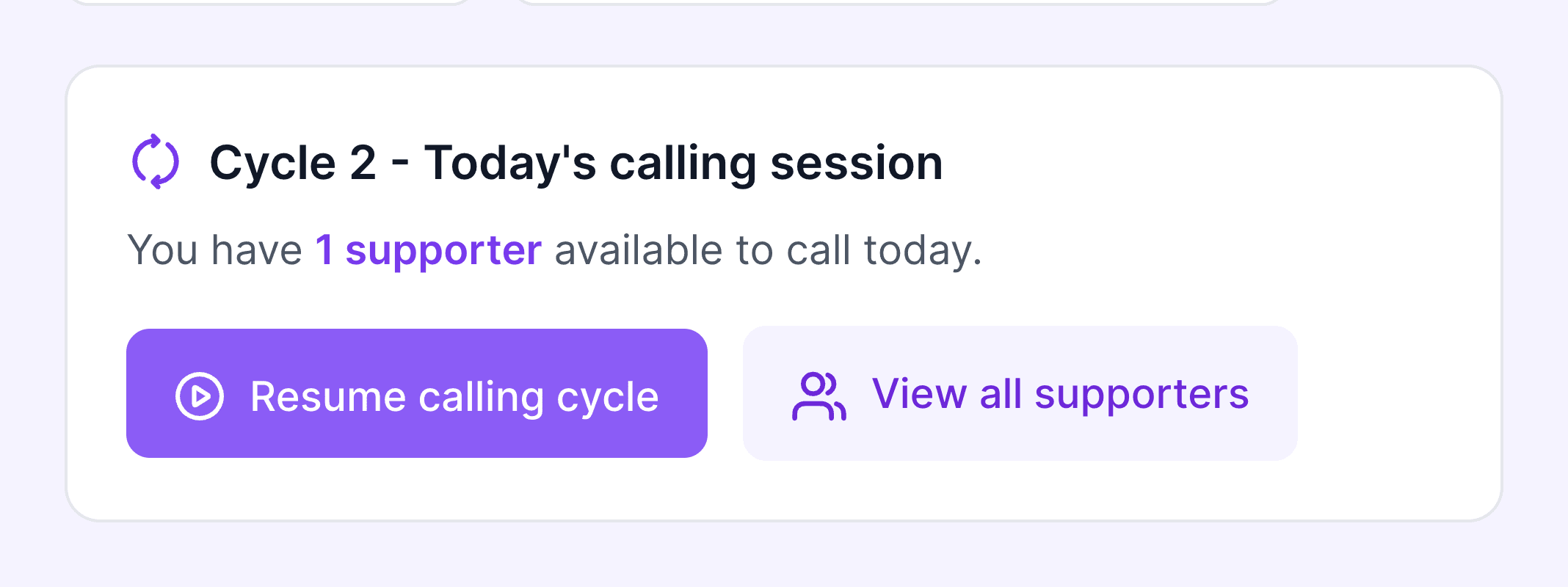
| current cycle card | The live cycle. How many supporters are still available to call, and the Start calling cycle button |
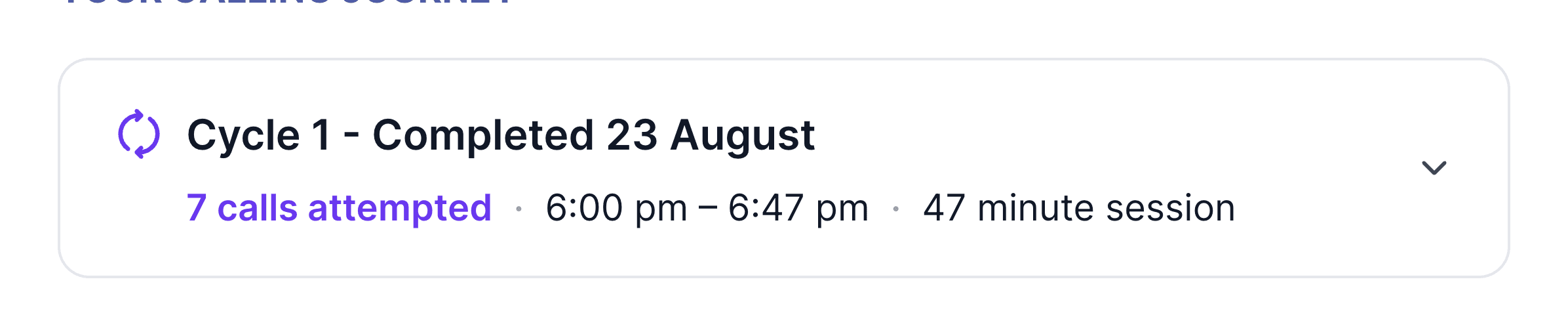
| calling journey | An accordion of each completed cycle, each with its own stats for reviewing how past cycles went |
| Progress bar | Completed supporters across the whole session, including earlier cycles |
Start the cycle
Click Start calling cycle on the current cycle card.
You'll receive a phone call on your registered mobile. You'll hear a short message. Then you'll be connected to the first supporter in the queue.
Billing
You are not charged personally. Calls are billed to your organisation's SupporterBase subscription.
Log a contact
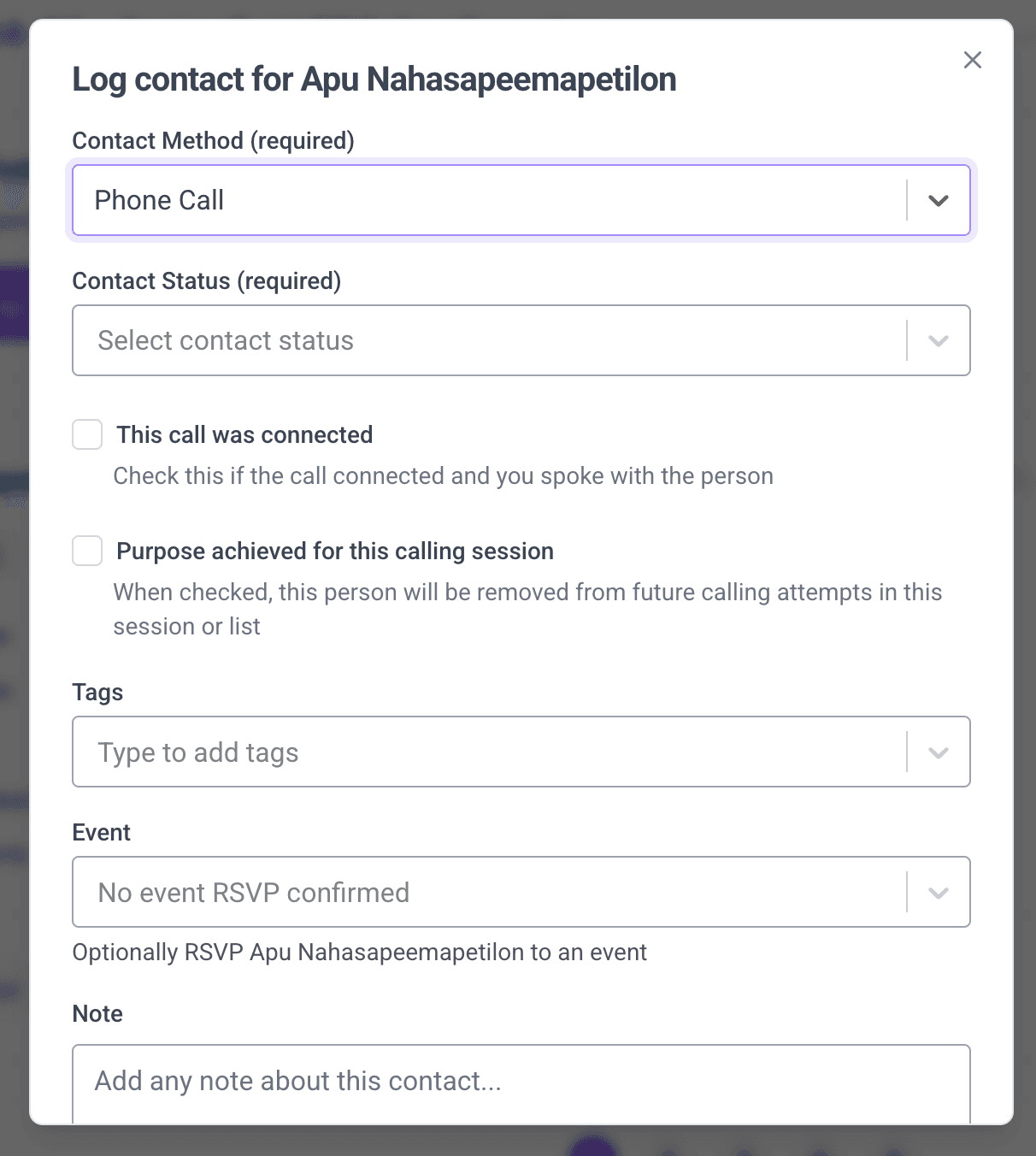
- Fill in the log contact form when the call ends.
- Press any key on your phone to continue to the next supporter.
- Repeat until the cycle is done.
| Field | What you record |
|---|---|
| This call was connected | Whether the supporter was successfully contacted |
| Event | RSVP confirmation, if relevant to your list |
| Contact method | Defaults to Phone call |
| Note | Anything from the conversation |
| Tags | Any tags to update |
Skip a supporter
Skip a supporter you can't reach right now. For example, a busy tone or a bad time of day.
- Open the three-dot menu on the supporter's row, or the Skip button on their detail card.
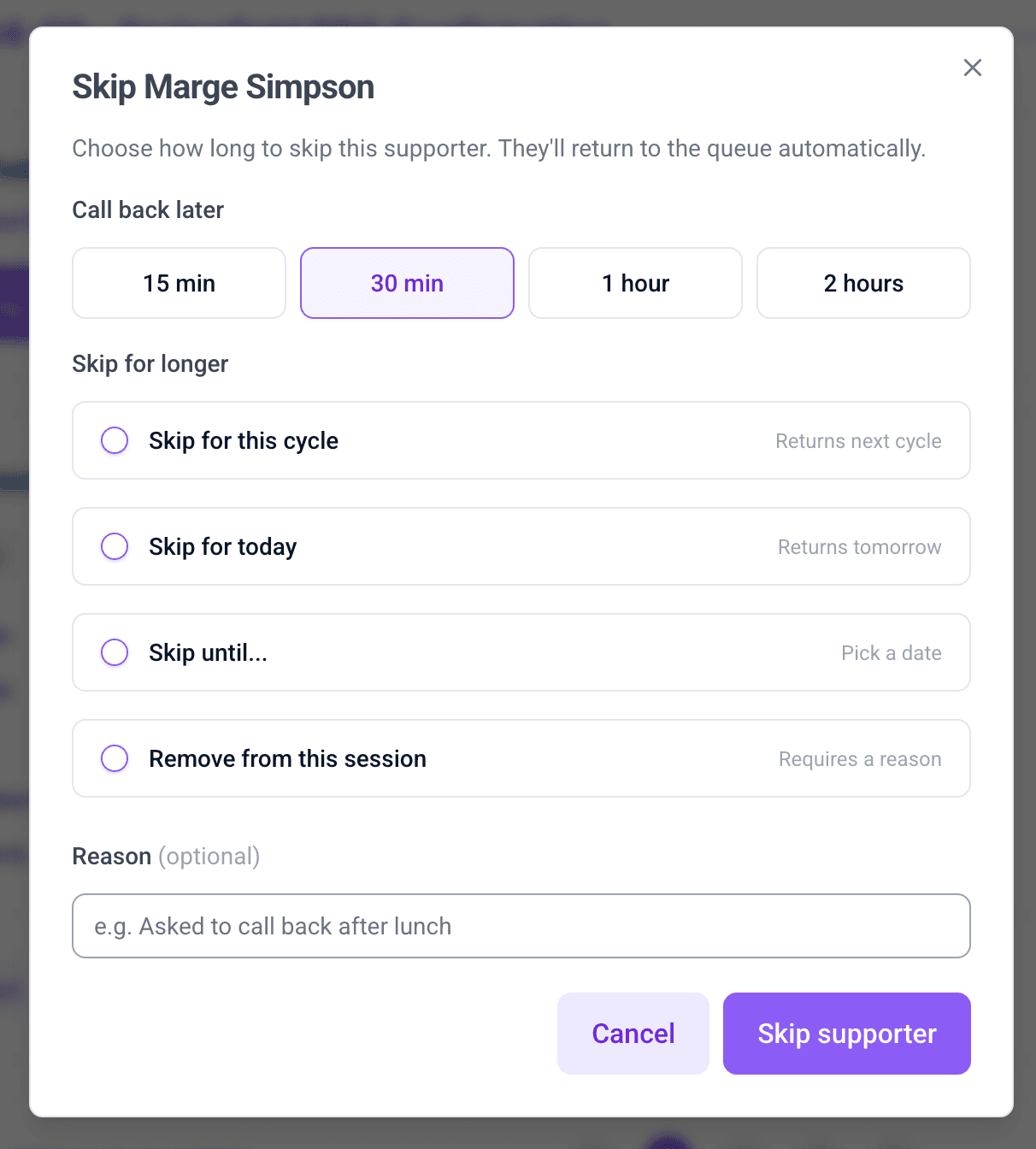
- Pick one of the five skip types below.
- Add a reason if you want. It is optional except for permanent.
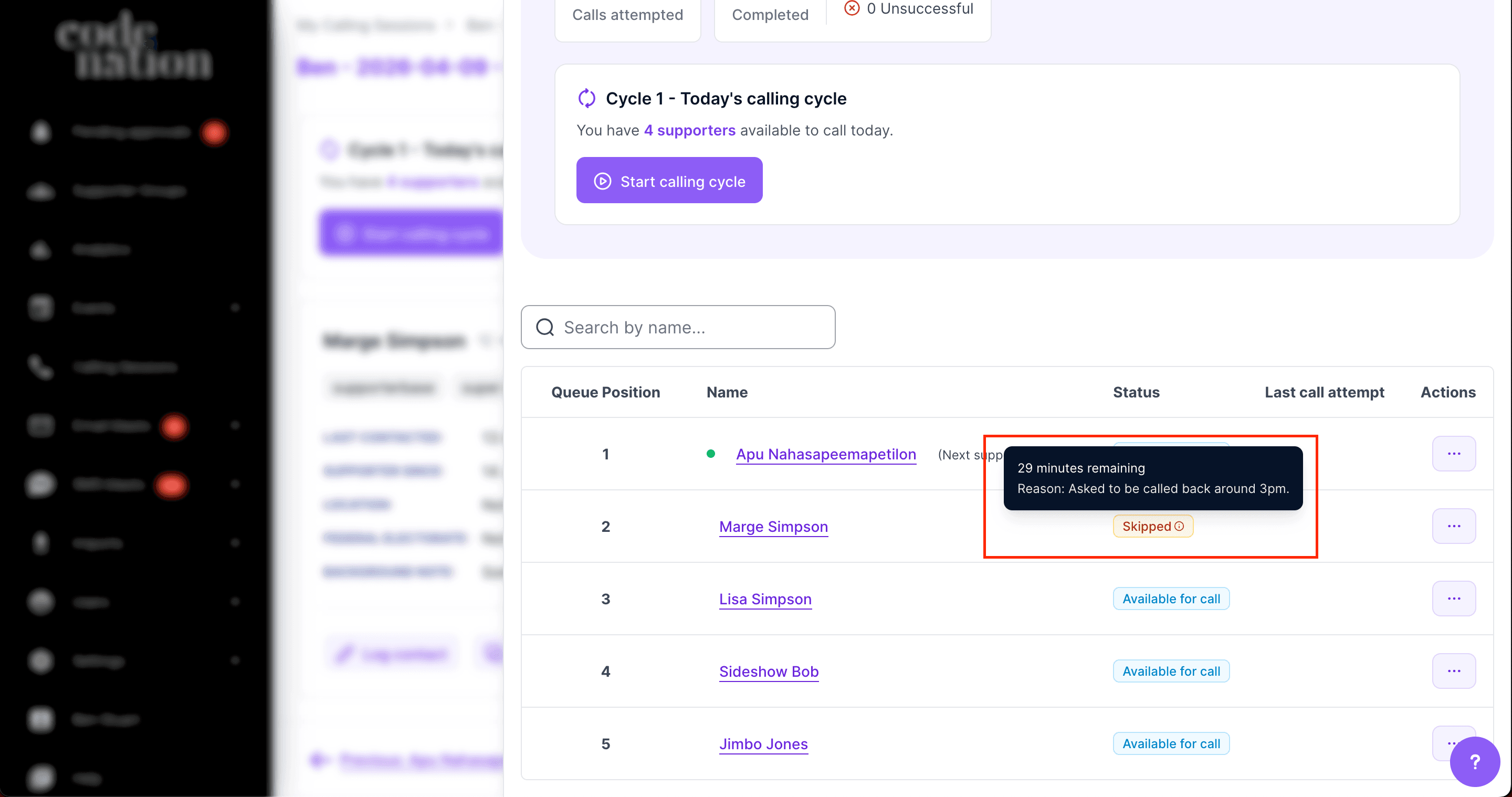
- Confirm. The supporter gets a Skipped badge.
- Hover the badge to see the skip type, when they'll return, and any reason you gave.
- To undo, open the same menu and click Remove skip. The supporter returns to the queue straight away.
| Skip type | When they come back |
|---|---|
| Call back later: 15 min, 30 min, 1 hour or 2 hours | After the time you pick. For mid-call "call me back in 30" situations |
| Skip for today | Tomorrow |
| Skip until... | On a date you pick |
| Skip for this cycle | Next cycle |
| Remove from this session | Never. Permanent, and it requires a reason |
Call someone next
Sometimes a supporter needs calling next, say they just texted back.
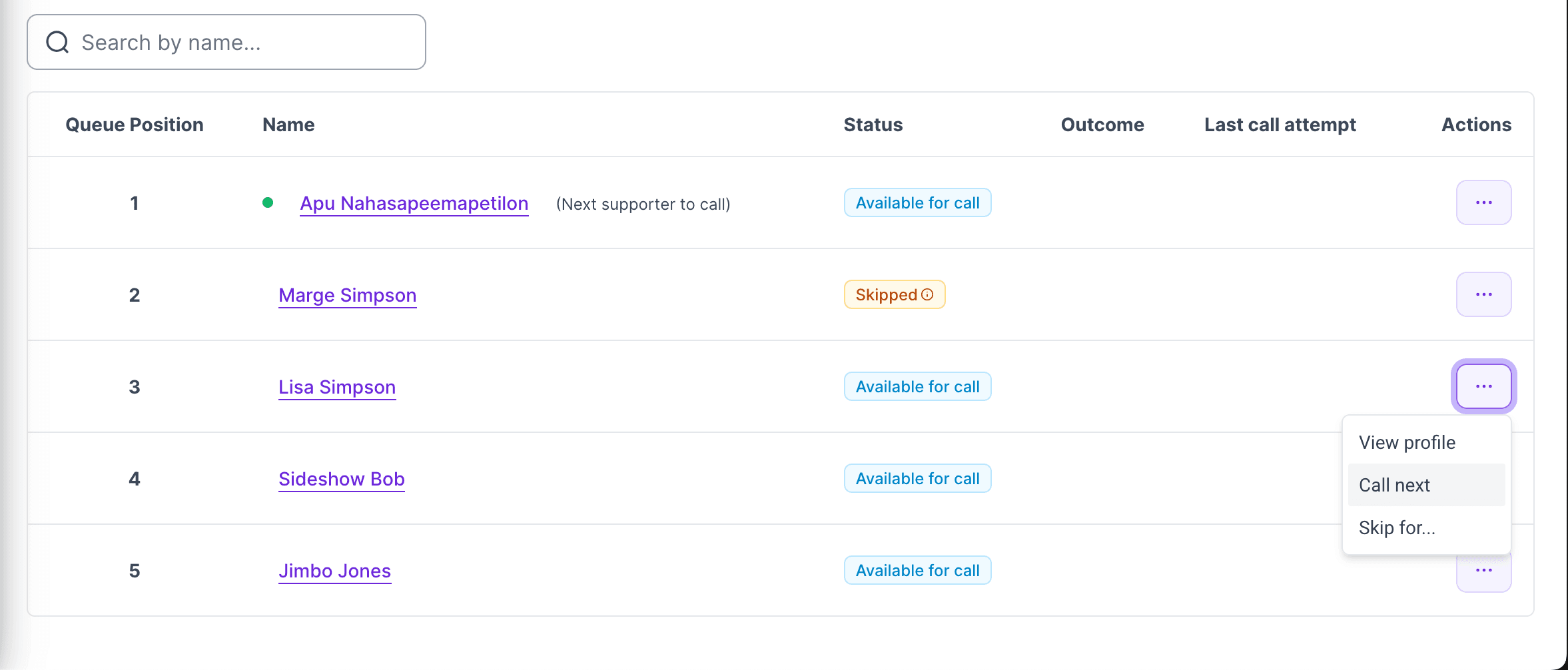
- Open the supporter's three-dot menu, or their detail page.
- Click Call next.
- Read the confirmation. They move to the position immediately after whoever is next to call.
Pause and resume
- Hang up your phone to stop a session at any point.
- Come back and click Resume calling cycle on the current cycle card.
- Carry on from where you left off in the current cycle.
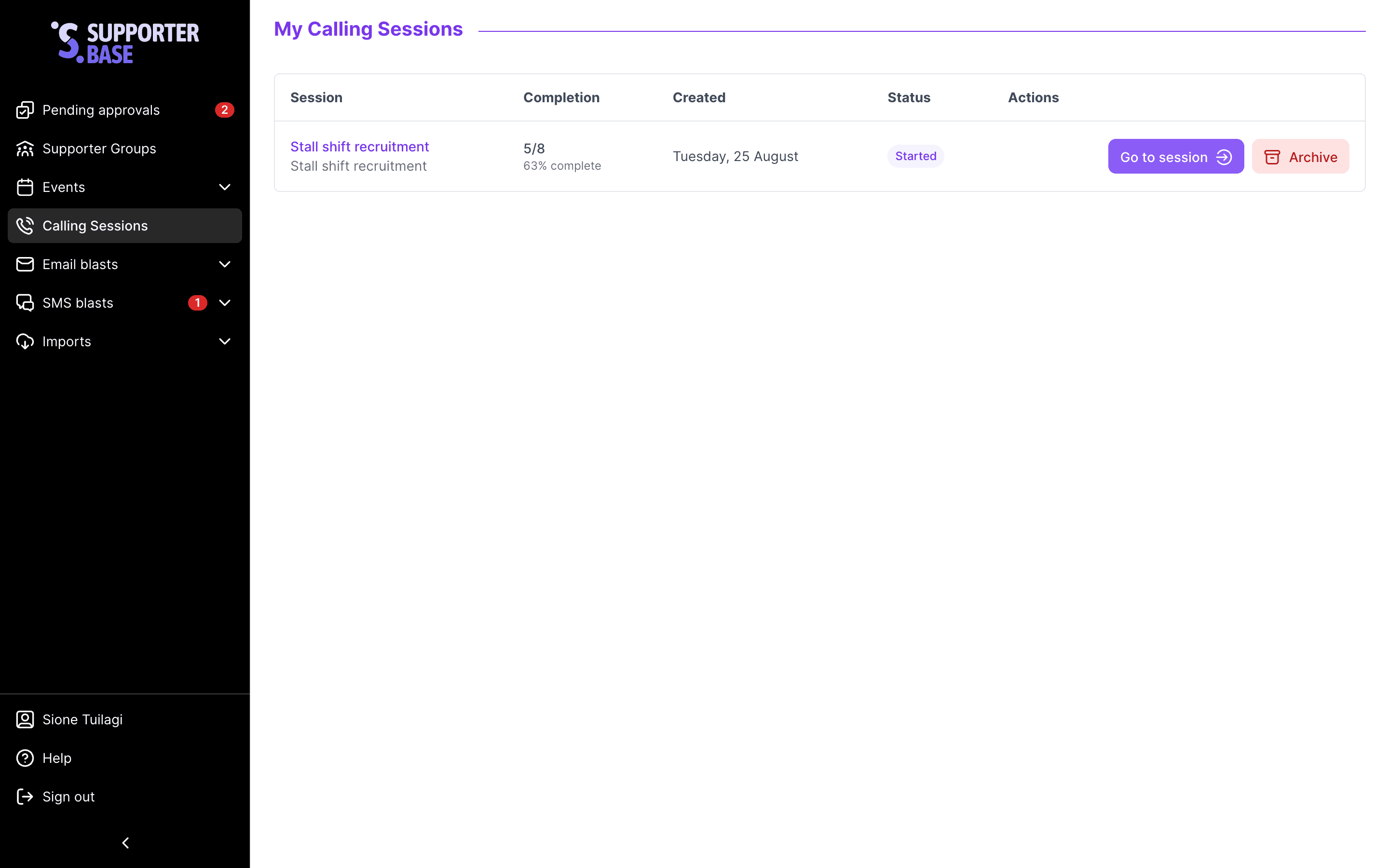
On the Calling sessions index page, paused sessions show one of two statuses.
| Status | Meaning |
|---|---|
| Started | You have called at least one person |
| In progress | A call is happening right now |
Complete the cycle and start the next one
The cycle completes automatically once you have called or skipped through every supporter in the queue. The current cycle card shows the completion state and offers Start calling cycle.
Starting a new cycle:
- resets the
this cycleskips, so those supporters are back in the queue - leaves longer skips (today, custom date, permanent) in place
- drops the completed cycle into the calling journey accordion with its own stats
You can run more than one session at once
Two leaders can work the same call list in parallel. One leader can work two lists at once. The Calling sessions tab lists your own sessions. Admins see everyone's.
Further reading
Calling sessions guide
Full task-oriented reference for every calling session feature.
Supporter statuses and skip types
Every supporter status and skip variant in a session.
Call lists vs calling sessions
How the two work together and when to use each.
Call lists
Create and manage the call lists that feed calling sessions.