

Add new supporters to your group
Learn four different ways to add supporters to groups in SupporterBase
There are four different ways to add supporters to groups in SupporterBase. This guide covers each method, minimum data requirements, and how to troubleshoot common import issues.
Importing cheat sheet
| Method | Who can do it | Best used when | Notes |
|---|---|---|---|
| SupporterBase interface (one by one) | Admins always; captains and vice-captains when an admin has turned on Captains and vice-captains can add new supporters to their groups | Adding an individual supporter manually | Consent checkbox included in form |
| SupporterBase interface (CSV import) | Admins and captains | Adding a bulk list of supporters | Supports field mapping; ensure clean data |
| NationBuilder tags | NationBuilder admins | Adding supporters already in your NationBuilder database | Requires both supporterbase tag + group tag |
| Public group page signup | Anyone (self-service by supporter) | Allowing new supporters to join via your group's public page | Optional form can be enabled; also supports embeddable map |
| NationBuilder forms | Anyone (self-service by supporter) | When supporters take action via NB forms (e.g. event RSVP, petition, signup) | Forms must apply supporterbase tag + group tag |
Minimum data requirements
For supporters to be successfully added (via any method), they must:
- Have the supporterbase tag applied, along with at least one relevant group tag
- Have either a valid phone number or email
- Have either a valid first name or last name
- Be contactable (i.e. they have not unsubscribed)
- Use standard characters only (avoid stylised characters like curly apostrophes)
1. Via the SupporterBase interface
One by one
- Go to your group's summary page.
- Click Add new supporter (top right).
- Enter supporter details in the form and tick the consent box.
- Click Add supporter.
Include group tags
You will need to include the group tags to add the supporter to your group. You can do this in the "other membership criteria" section of the add new supporter form.
Bulk import (CSV)
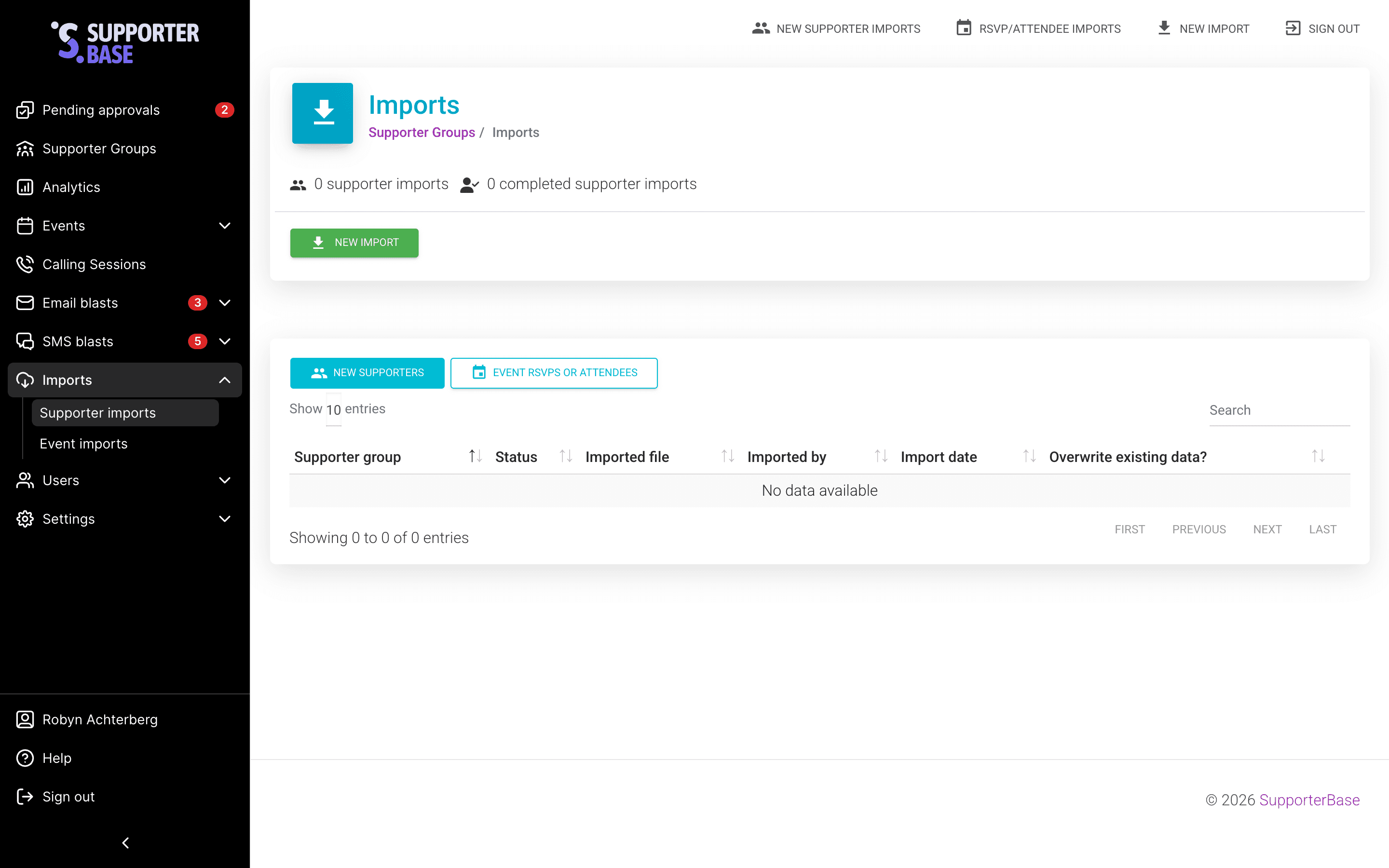
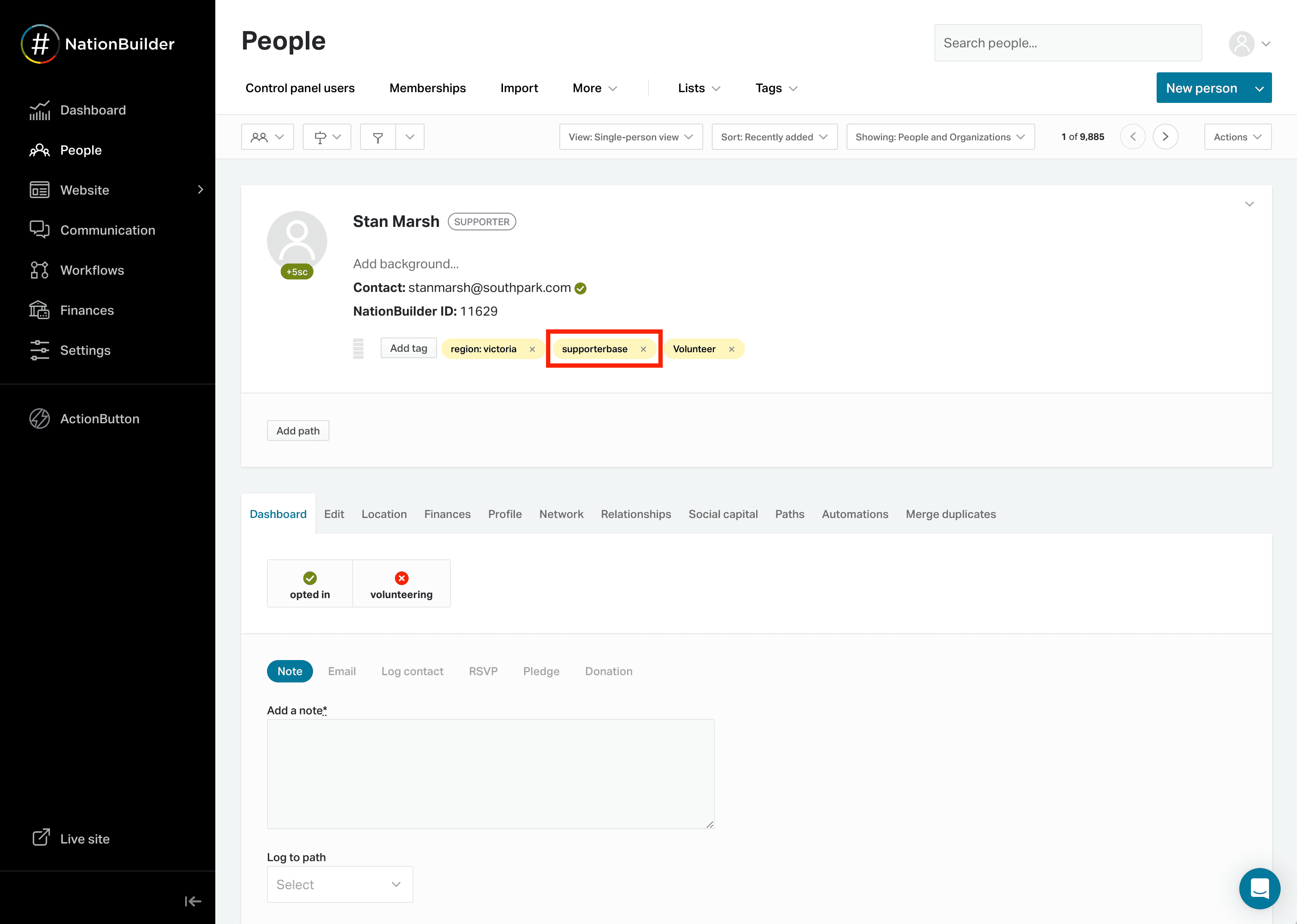
- Go to Imports > Supporter imports.
- Select Import type > New supporters.
- Upload your CSV file.
- Choose the supporter group to add the data to.
- Decide whether to overwrite existing data.
- Map the CSV columns to the correct SupporterBase fields.
- Complete the import.
2. Via NationBuilder tags
Admins with NationBuilder access can add supporters by tagging them:
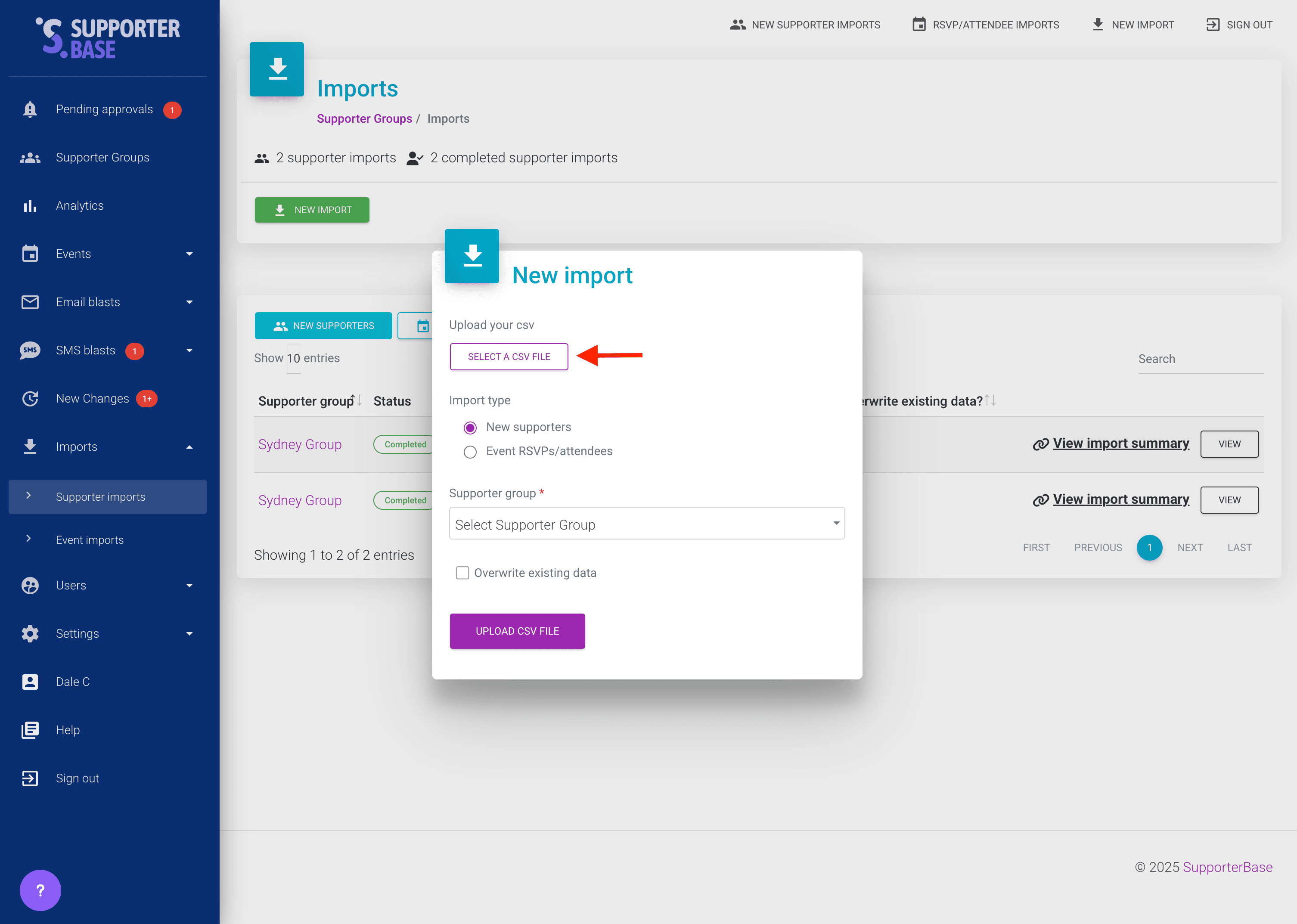
- Apply the supporterbase master tag (lowercase)
- Apply the relevant group tag(s)
These can be added manually or via NationBuilder's auto-tagging filters.
For example, if you wanted to add someone to your "New Supporter" group and the inclusion tag for this group was a "new_supporter" tag, you would need to add both the "supporterbase" and "new_supporter" tag in NationBuilder for them to appear in the SupporterBase group.
For more information on tagging in NationBuilder, see their support article on using tags.
3. Via public group pages
Every supporter group in SupporterBase has a public page that displays:
- The group's description and purpose
- Upcoming events
- (Optional) a join form so new supporters can sign up directly
When a supporter signs up via this form, they are automatically added to the group.
Embeddable map available
We can provide an embeddable Google Map showing all supporter groups. Contact us if you would like this enabled.
4. Via NationBuilder forms
Supporters who take action on a NationBuilder form (e.g. an event RSVP, petition, or signup form) can be added to SupporterBase if the form applies:
- The supporterbase master tag
- At least one relevant group tag
Importing event RSVPs
If you already have RSVP data in CSV format, you can bulk import it.
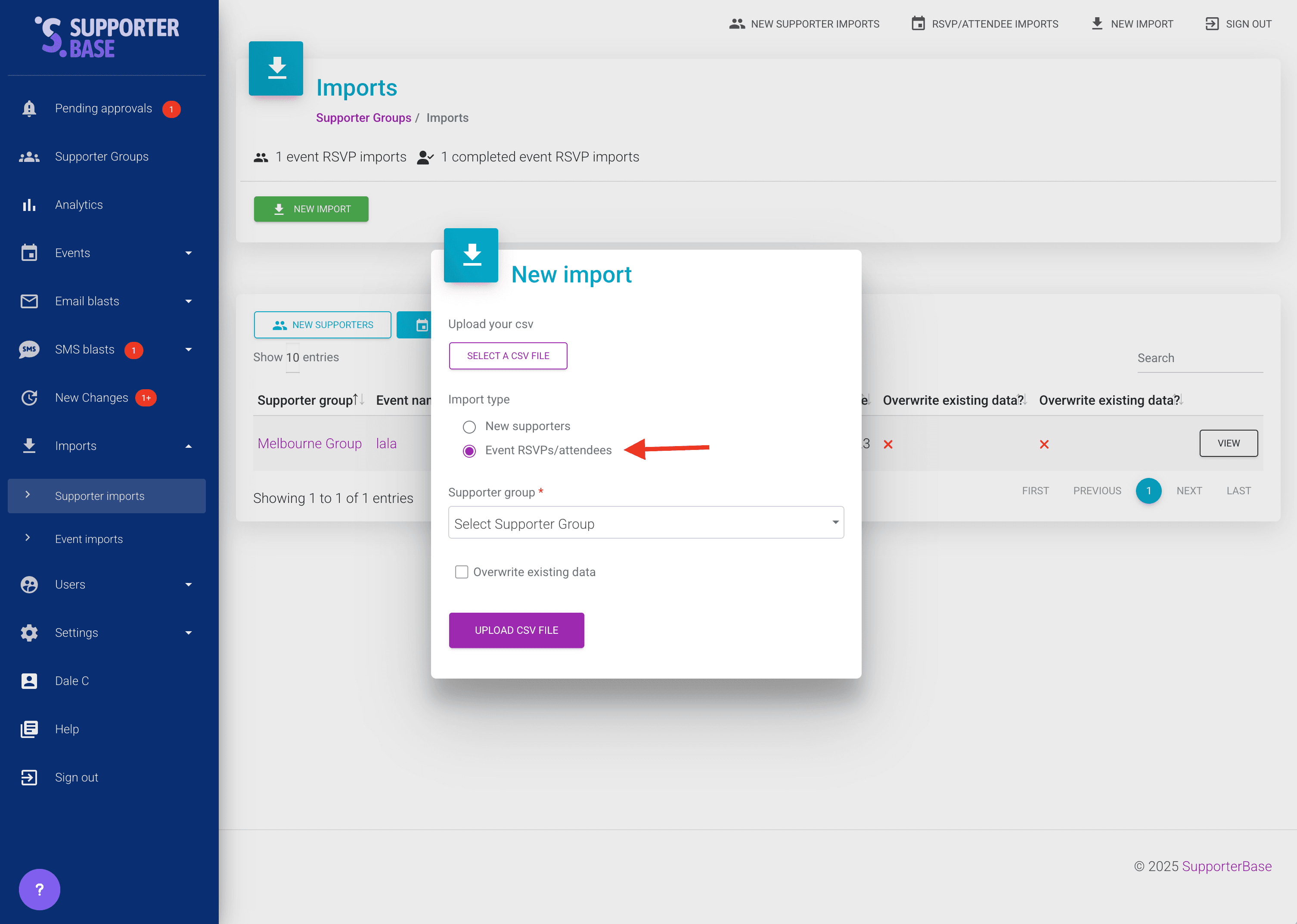
- Go to Imports > Supporter imports.
- Select Import type > Event RSVPs/attendees.
- Upload your CSV file.
- Choose the supporter group.
- Choose the event you want to add RSVP data to.
- Decide whether to overwrite existing data.
- Map CSV fields to SupporterBase fields.
- Complete the import.
Permissions
Only admins and captains can import event RSVPs.
Auto-adding RSVPs to groups
By default, RSVPs are not automatically added to supporter groups. If your organisation wants RSVPs to be added to groups:
In NationBuilder, open the group's calendar page, go to Calendar settings > Event settings, and set the tag to apply to RSVPs. Those field names are NationBuilder's, not SupporterBase's.
SupporterBase has its own version of this on the event form: Auto-tag RSVPs (optional). Tags applied there feed your group criteria the same way, so for a single event it's usually the simpler place to do it.
Which one to use
Set it on the NationBuilder calendar when every event on that calendar should tag its RSVPs. Set it per event in SupporterBase when it's a one-off.
Troubleshooting imports
Common causes of import failure
- Unsupported characters: NationBuilder's import API rejects certain characters but only returns a vague "bad request" error.
- Stylised apostrophes are the most common culprit. Replace them with straight apostrophes (').
How to sanitise your data
Run a search in your spreadsheet for non-standard characters using this regex:
[^\w\d\s\-.:@+'/\$]+- In Google Sheets: Edit > Find and replace, check Search using regular expressions.
- Review flagged cells and replace unsupported characters.
If issues persist, contact our team at info@supporterbase.com for help sanitising your data.