

Import events in bulk
Upload a CSV to create many events and their shifts at once
Upload a CSV to create many events at once, along with their shifts. Useful when you're setting up something large, like a day of action across several locations.
This creates events as well as shifts
Use this when you have many events to set up. To build a roster on an event that already exists, see Rostering instead.
Importing
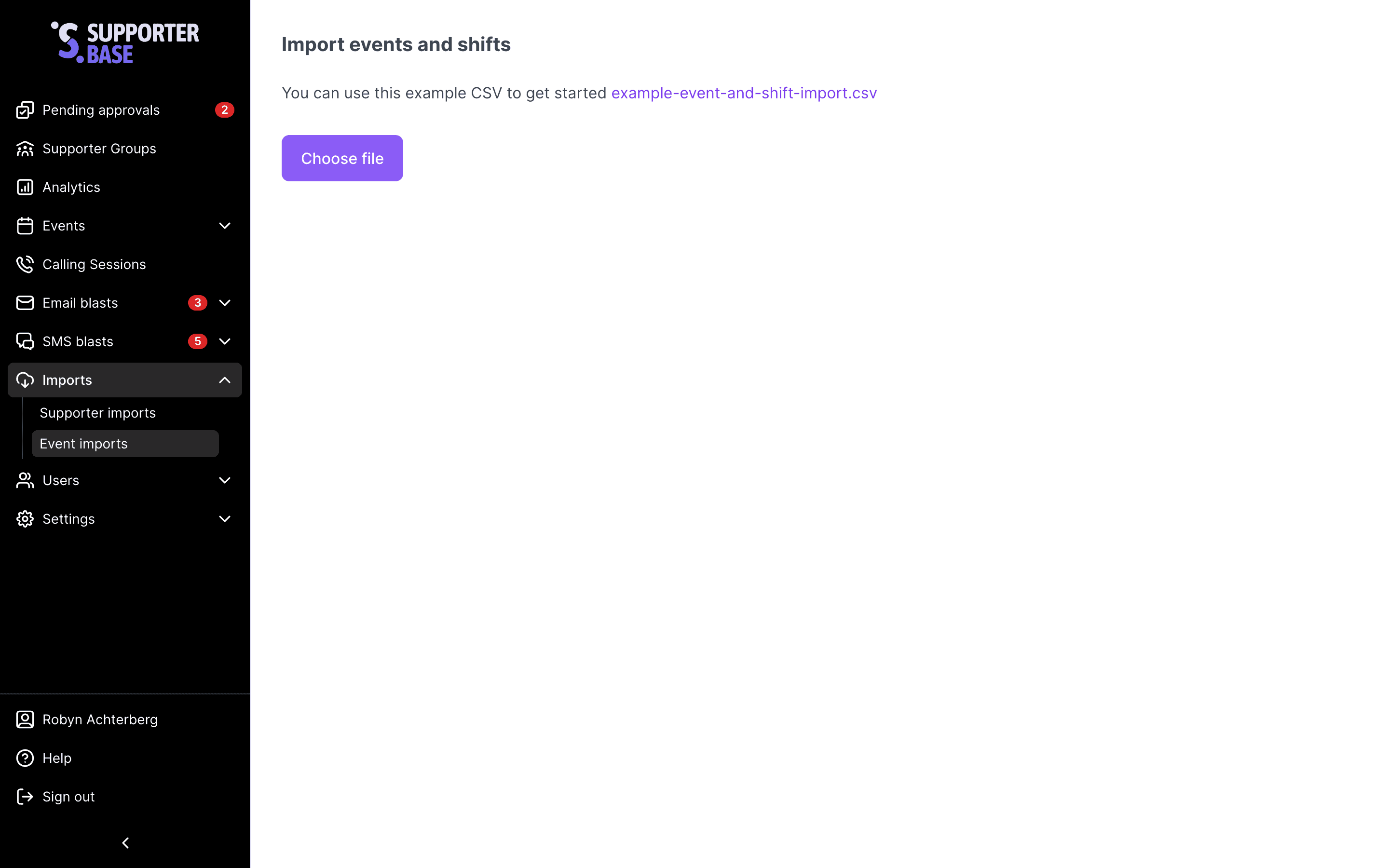
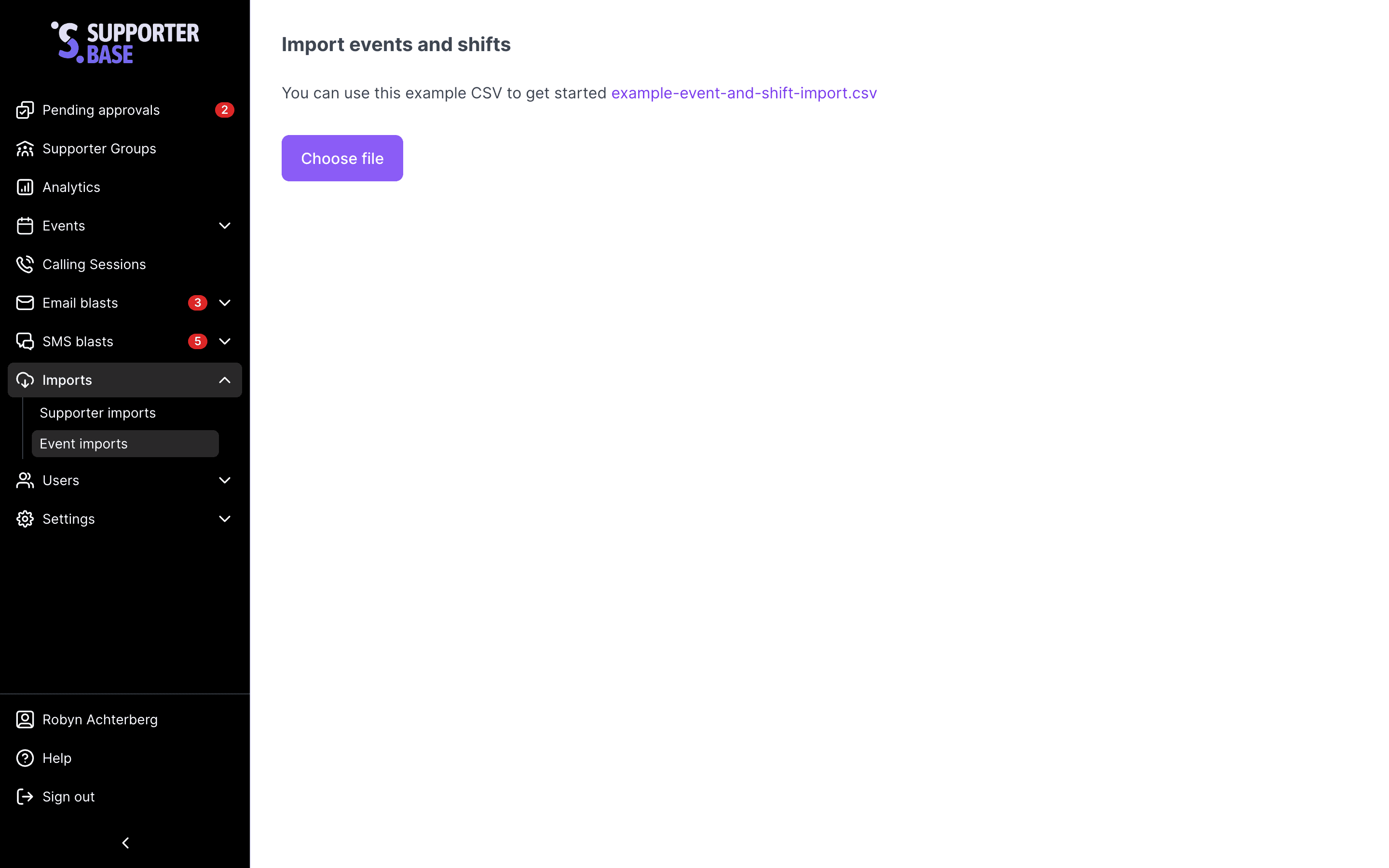
Upload your data
Click Choose file. You can either paste spreadsheet data or upload a CSV file.
Download example-event-and-shift-import.csv from the link on the page and fill it in. It carries every column already named, including the shift columns, so your events arrive with their rosters built.
Preview your data
Once loaded, you'll see a preview of the first few rows and select which row holds your headers.
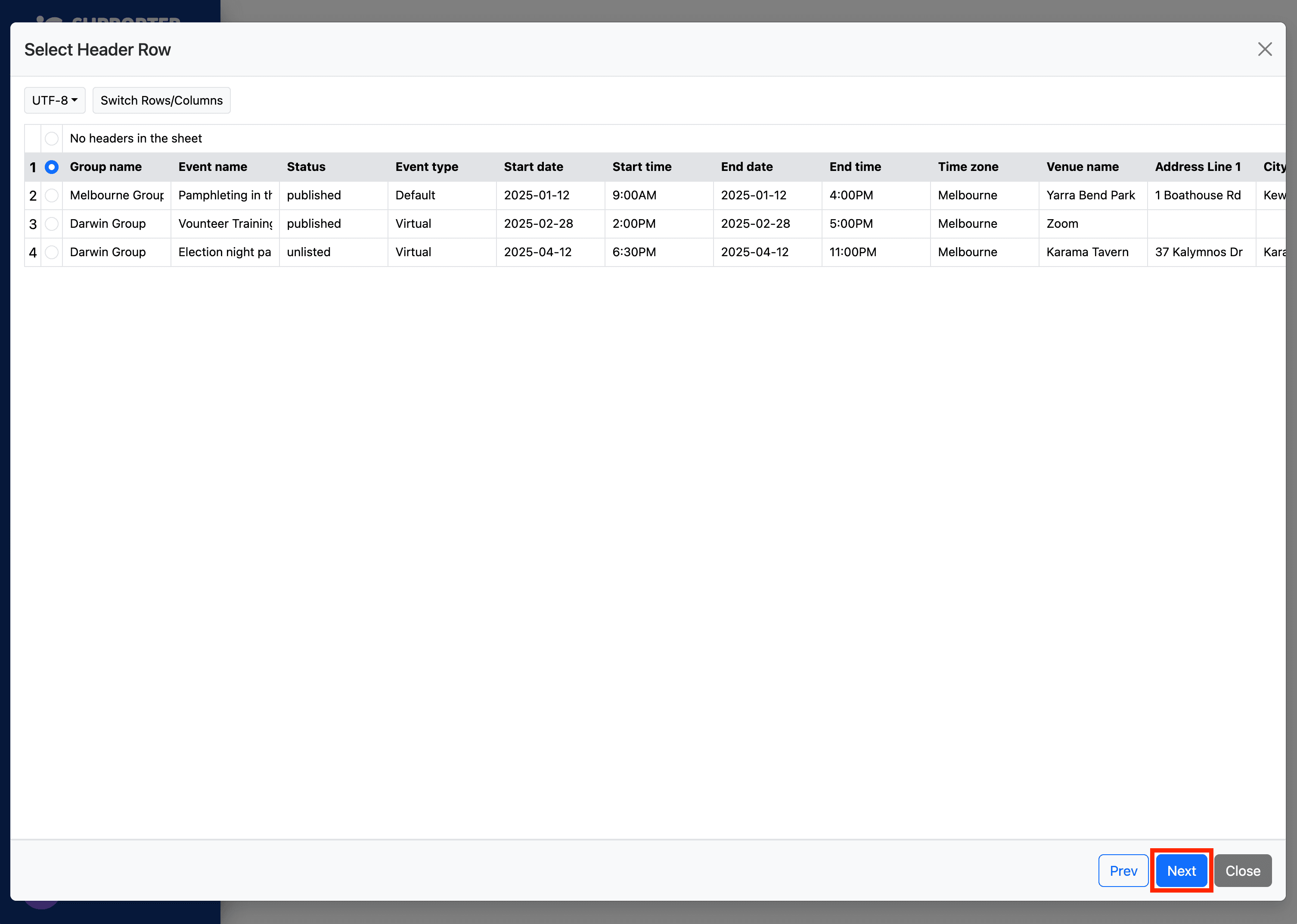
Group name is required
The Group name field must be present. The import won't run without it.
Map fields
Map the columns in your spreadsheet to the matching SupporterBase fields, such as event name, date, start time, end time, shift role name and shift number of volunteers.
Review validation
Any problems, such as a missing group name or an invalid date, are highlighted so you can fix them before submitting.
Submit
Once the errors are resolved, click Submit to run the import.
Shifts in the CSV
Shifts sit on the same row as their event, in numbered sets of columns that repeat for shift 2, shift 3 and so on. The import tool offers a set for every shift, up to the limit configured for your organisation.
| Column | What it holds |
|---|---|
| Shift 1 role name | The role, such as Registration desk |
| Shift 1 date | The day the shift runs, as YYYY-MM-DD |
| Shift 1 start time | The start time, as 9:00AM |
| Shift 1 end time | The end time, as 12:30PM |
| Shift 1 number of volunteers | How many spots the shift has, as a whole number |
- Every shift column is optional, and an event with no shift columns filled in imports on its own.
- A shift needs its role name, date, start time and end time. One missing value skips that shift, and the rest of the row still imports.
Imported shifts land on the event's roster with their spots empty. Click the purple Roster & shifts button below the event details to see them. For the shift columns in detail, see Import events and rosters in bulk, which walks the same template from the roster side.
Check one event before importing hundreds
Import a couple of rows first and open the resulting event's roster. It's much quicker to fix your column mapping on two events than to unpick two hundred.