

Add shifts to an event
Create roles and time slots, and set how many volunteers each needs
A shift is one role, at one time, needing a set number of volunteers, and a roster is the collection of shifts belonging to an event. Create the event first if you have not.
Add shifts
Open the roster board
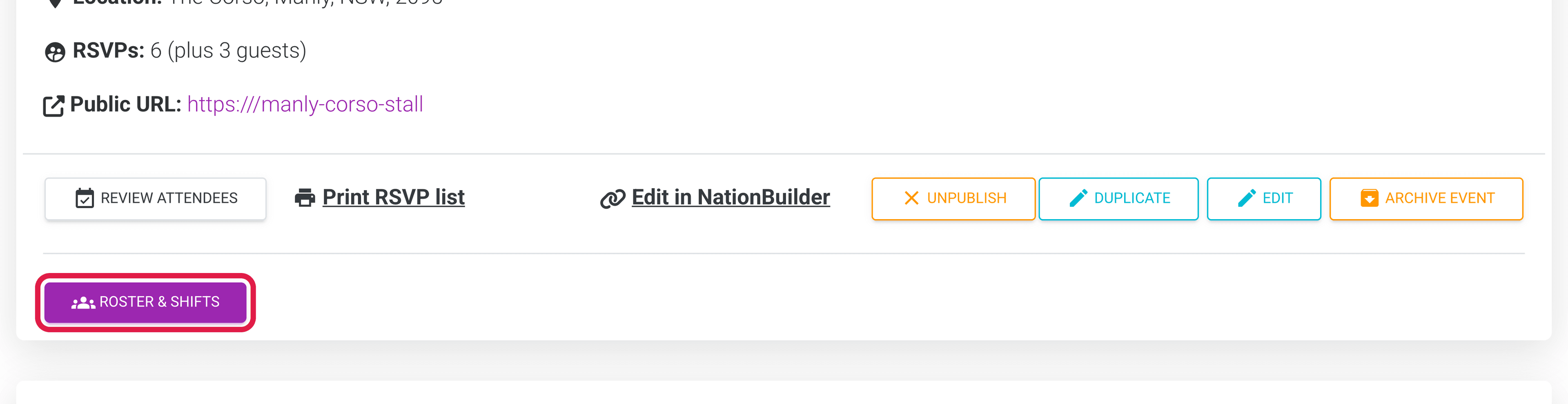
Open the event you are rostering, then click the purple Roster & shifts button below the event details. Its board opens empty until you add the first shift.
Start a shift
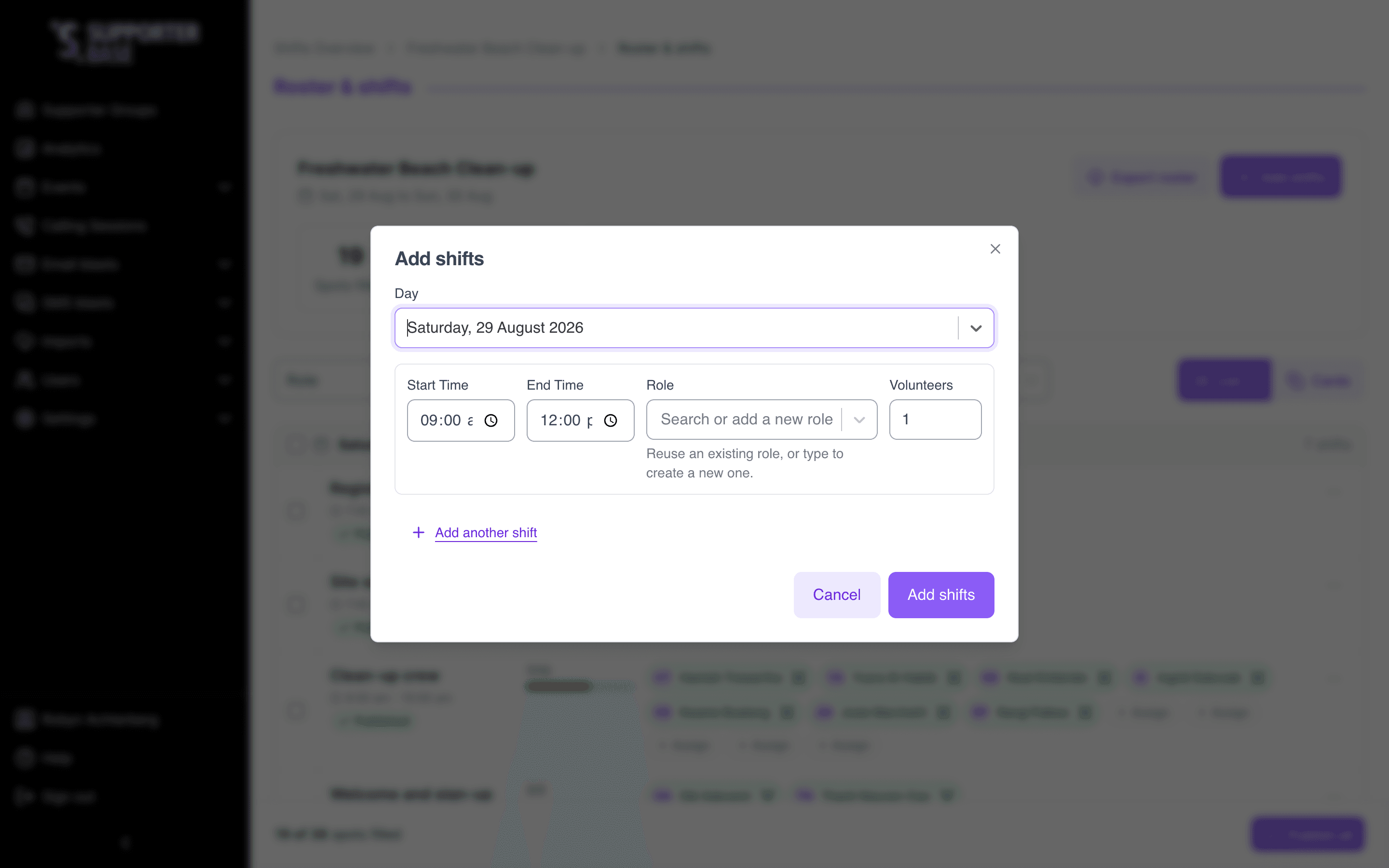
Click Add shifts in the board header, or Add shift to a day beneath that day's shifts.
Set the role and the times
Select a role in the Role field, or enter a new role name. Select the Day, and enter a Start time and an End time.
Set how many people you need
Enter the number in Volunteers, and select Let volunteers sign themselves up if volunteers may claim the spots themselves.
Save the shifts
Click Add another shift to add more in the same dialog, and click Add shifts when you are done.
Self-signup
Whether volunteers can claim a spot themselves is set on each shift, and it changes what the event's public sign-up form shows. That form sits on your NationBuilder event page, embedded with the snippets in Configurations.
- A self-signup shift is listed under Choose shifts once published, with its times, its role and how many spots are left.
- A shift without self-signup carries a Staff only badge on the board and is left off the form. You assign every spot.
Reuse role names
Check the Role list before you create a new name. "Registration desk" and "Rego desk" split your coverage across two roles and make the board harder to read.
New shifts are draft
New shifts are Draft, invisible to volunteers and sending no emails until you publish the roster.
Change a shift
Edit a shift
- Click the three-dot button (...) at the right of the shift.
- Click Edit shift.
- Change the role, times or volunteer count.
- Click Save changes.
You cannot set Volunteers below the number already assigned to the shift. Unassign someone first.
Editing a published shift
Editing a published shift sends no email. The shift moves to Changes to publish, volunteers keep seeing the last published version until you publish the change, and Revert all changes discards the edit.
Other shift actions
The same three-dot menu also offers:
| Action | Result |
|---|---|
| Duplicate | Copies the shift with its role, times and volunteer count |
| Move to day | Moves the shift to another day at the same times |
| Revert all changes | Discards unpublished edits and restores the published version |
| Delete shift | Removes the shift and unassigns its volunteers |
Delete a shift
What deleting does depends on whether the shift has been published:
- Deleting a Draft shift removes it immediately.
- Deleting a Published shift moves it to Pending removal, and volunteers still see it until you publish the removal.