

Notifications and approvals
Understand approval workflows and notification systems in SupporterBase
SupporterBase uses a mix of notifications and approval workflows to keep group activities managed.
1. Point people explained
Every group starts set to notify all admins, and every admin with email notifications turned on is copied on its approval requests.
| Role | Copied on a group's approval requests | Weekly new group members digest |
|---|---|---|
| Admins | Yes, until the group is set to specific point people | Only if they also lead a group |
| Group captains | Yes, for the groups they lead, until they opt out in their profile settings | Yes, for the groups they lead, once an admin enables it |
| Vice-captains | No | Yes, for the groups they lead, once an admin enables it |
Point people are admins nominated for one group, and naming them narrows that group's approval emails to those admins alone.
- Only admins can be set as point people.
- Point people are copied on requests to approve email blasts, SMS blasts, new events and member removals.
- If a group is set to specific point people and none of them have email notifications turned on, nobody is copied on that group's approval emails. The request still appears in Pending approvals.
- Only admins can add captains and vice-captains. The invitation is sent straight away, with no approval step.
- When Captains can approve, edit and send/schedule SMS blasts (including those created by vice-captains) is off in Settings > Configurations, SMS blast approval requests go to the point people only and captains are not emailed.
Setting point people for a group
We covered point people as part of the group creation and the advanced groups guides, and you can edit them on an existing group at any time.
- Navigate to your group via Supporter groups > [Your Group].
- Click Edit Details.
- Tick Add point people.
- Choose Assign all admins or Assign specific admins. If you choose Assign specific admins, pick them in the Point People field beside the dropdown.
2. Configuring approval notification emails
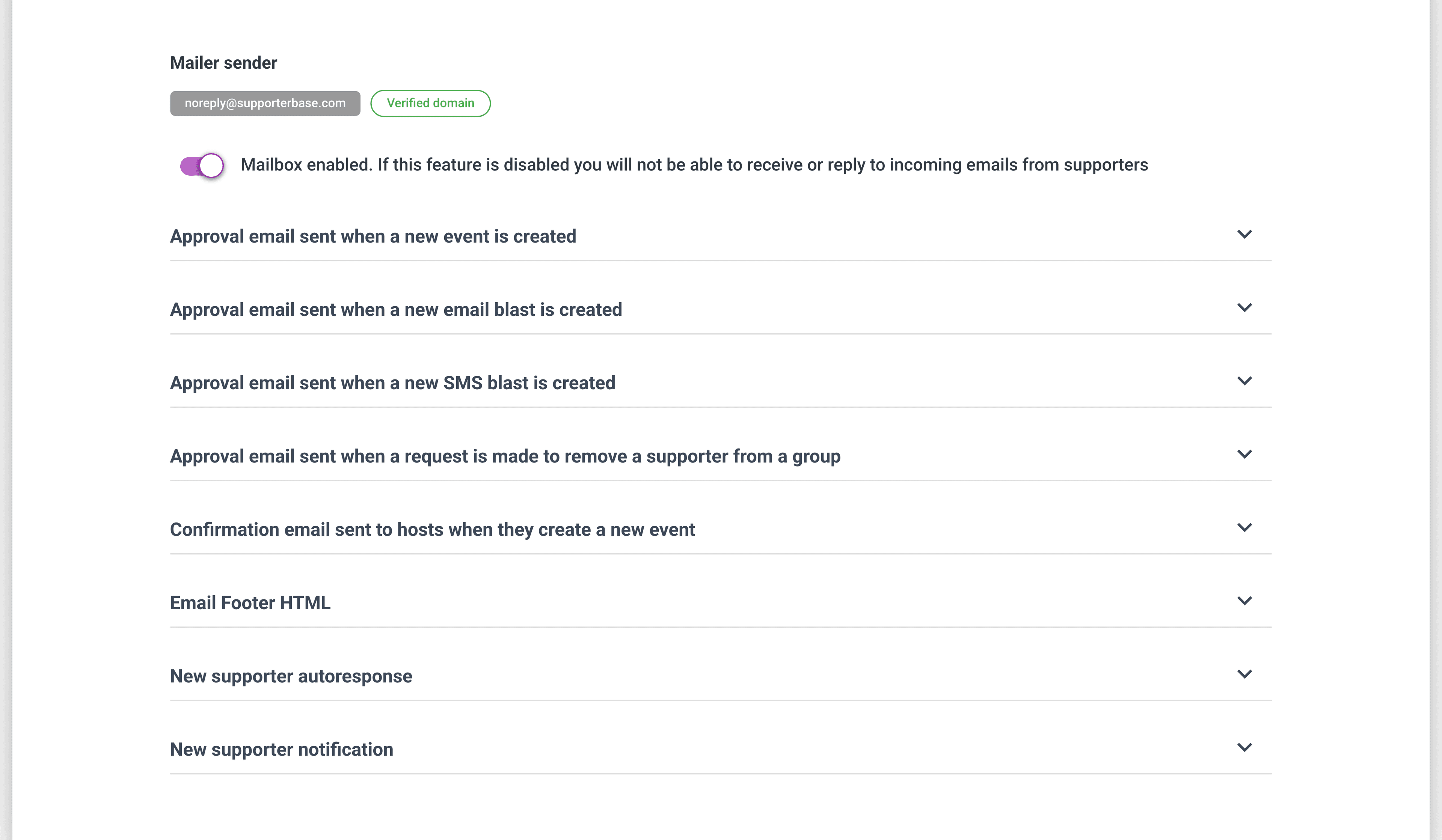
Go to Settings > Configurations > Mailers to edit the subject line and content of three approval emails.
- Approval email sent when a new email blast is created
- Approval email sent when a new SMS blast is created
- Approval email sent when a request is made to remove a supporter from a group
- The new event approval email is not editable. Its heading is listed on the Mailers tab but expands to nothing.
3. Other ways to approve actions
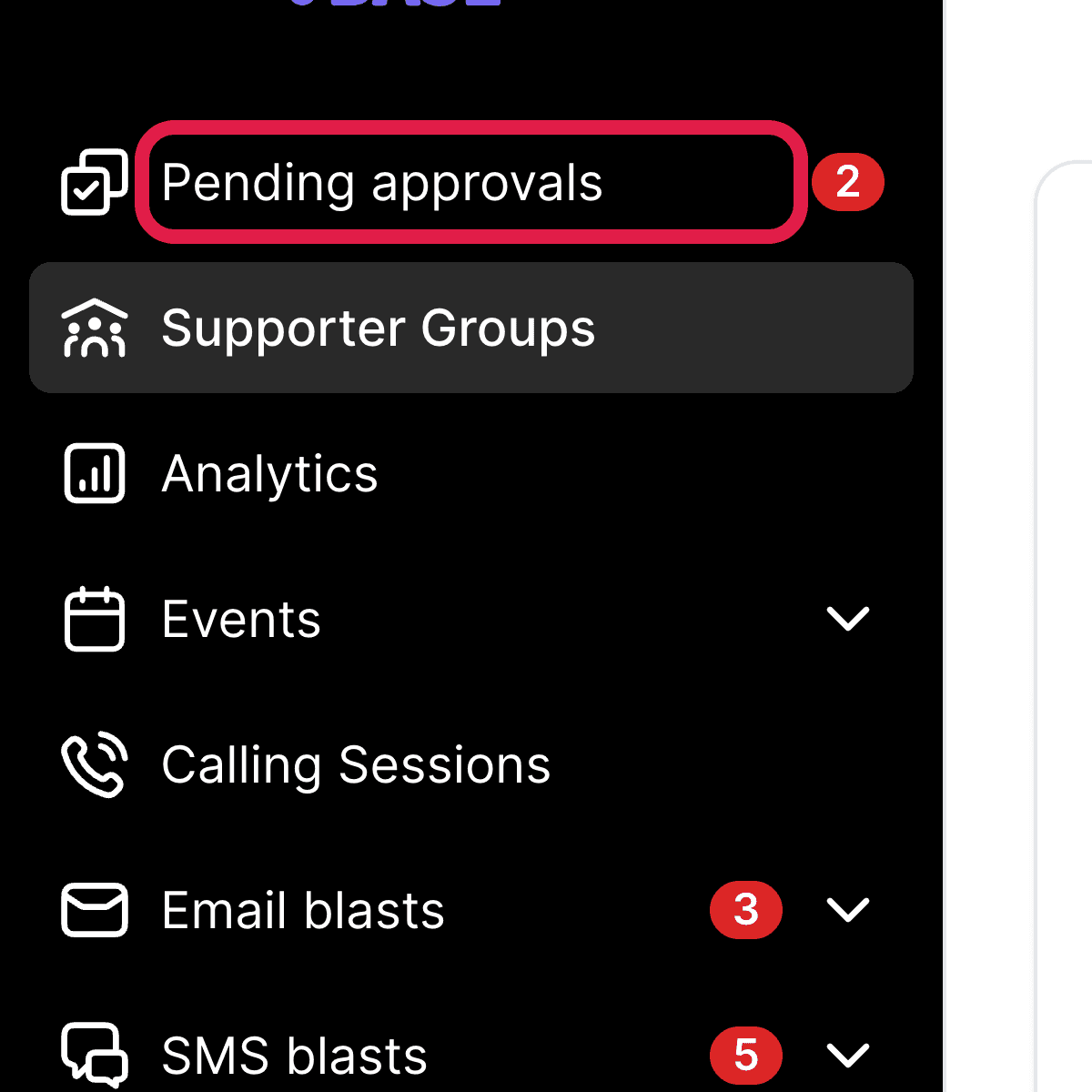
Pending approvals sits in the left-hand navigation with a red count badge, appears only while at least one item is waiting, and is open to admins and captains but not to vice-captains.
Admins can also reach it under Settings > Pending approvals, and the Select a category dropdown picks the type of approval to work through, with a number beside each type showing how many items need approval.
| Category | What is waiting there |
|---|---|
| Member removals | Requests to remove a supporter from a group |
| SMS blasts | SMS blasts awaiting approval. The category only appears if you are allowed to approve SMS blasts |
| Email blasts | Email blasts awaiting approval |
| New events | Upcoming events that have not been approved |
| Unlisted events | Events carrying the unlisted status |
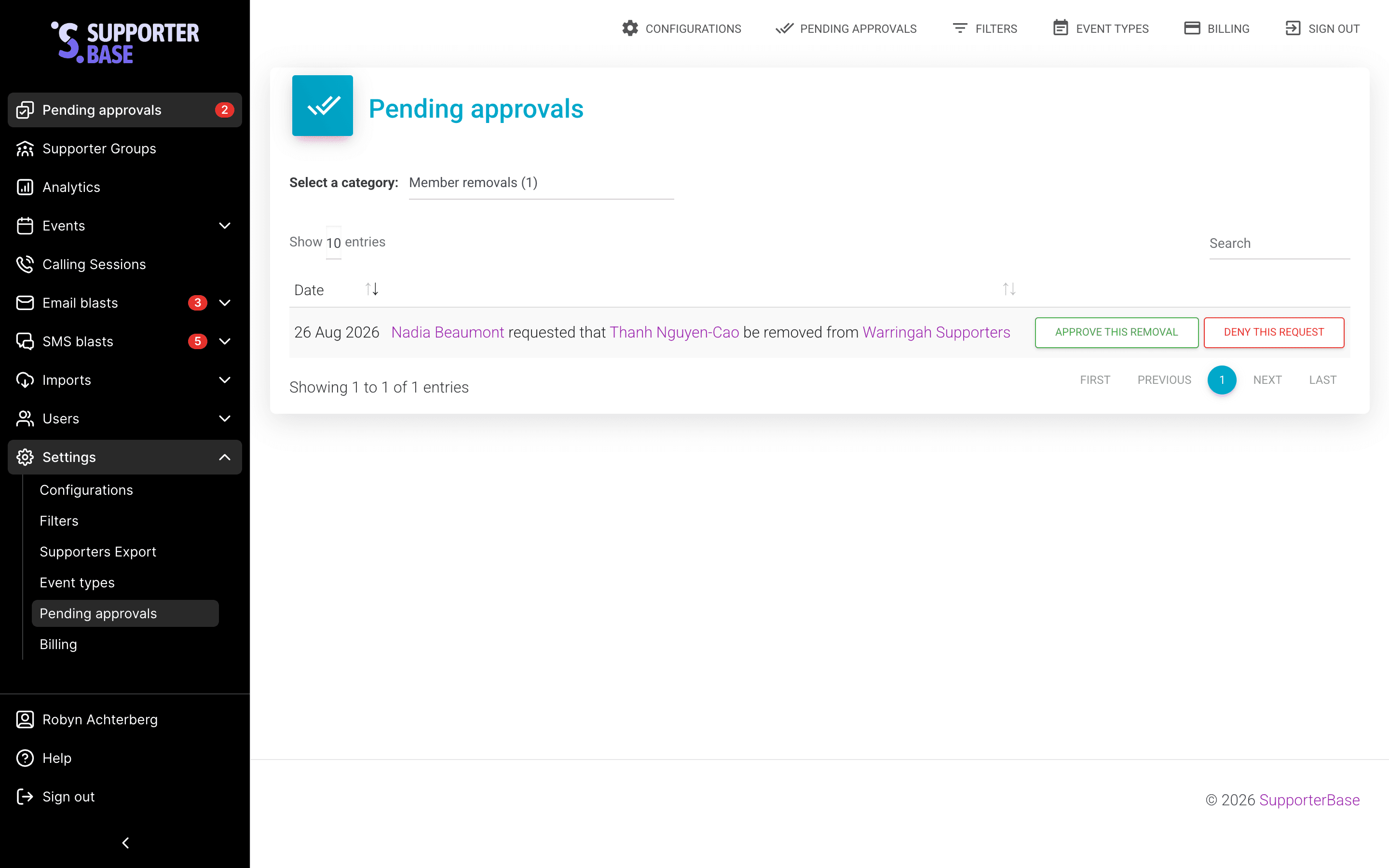
- Each row says who asked for what. A member removal reads like "Nadia Beaumont requested that Thanh Nguyen-Cao be removed from Warringah Supporters".
- Act on it with Approve this removal or Deny this request. The wording changes with the category, and the pair is always an approve and a deny.

Best practices
Tips for smooth approval workflows
- Always set at least one admin as a point person. If you choose Assign specific admins and none of them have notifications turned on, no admin is copied on that group's approval emails.
- Use "Assign all admins" for large or high-activity groups. Ensures coverage if the usual point person is unavailable.
- Use "Assign specific admins" for smaller or focused groups. Keeps notification emails manageable by limiting them to the right admins.
- Encourage captains to adjust their notification preferences. Captains can opt out of notifications if they don't want every approval email, but they should know they can still approve inside SupporterBase.
- Regularly check Pending approvals. Don't rely only on email notifications. The Pending approvals page is the single source of truth.
- Customise the blast and member removal approval emails (Mailers). Tailor the subject line and content to make approval requests easy to spot in inboxes.